

Microsoft Advertising Hirdetéskezelő
Microsoft hirdetések kezelése és frissítése.
A hirdetés módosítása, a hirdetések figyelése és a hirdetési beállítások módosítása mind a hirdetéskezelőn belül történik.
A hirdetési kampánykezelő
A hirdetési kampányok kezelése, a hirdetéscsoportok, a céloldalak URL-címei, a célhelyek, a hirdetési ütemezés és az összes összegyűjtött adat a hirdetési kampánykezelőben tárolódik.
Az adott hirdetési kampány megtekintéséhez kattintson a kampány pirossal kiemelt nevére.

Reklámcsoportok
Minden olyan hirdetés, amely egy közös kategóriába tartozik, egy hirdetéscsoportban található. A kampányok több hirdetéscsoporttal rendelkeznek a hirdetések rendszerezése érdekében.

Néhány hasznos link
Hirdetések és bővítmények
Minden hirdetés és hirdetésbővítmény egy csoportban található a Hirdetések és bővítmények mappában, és egy hirdetési kampány többféle hirdetést futtathat, valamint különböző típusú bővítmények léteznek.
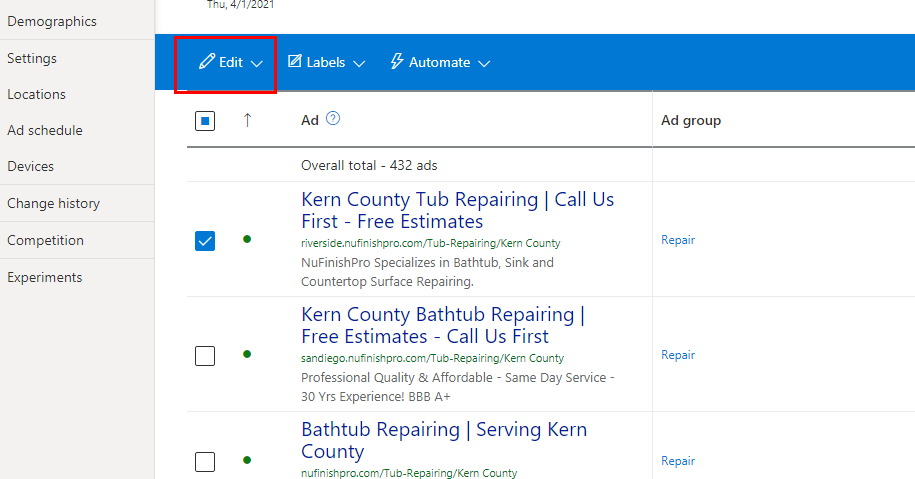
A Szerkesztés menü
Hirdetés szerkesztéséhez kattintson a jelölőnégyzetre, majd lépjen a „Szerkesztés” menübe, és válassza ki a kívánt műveletet. Szerkesztheti vagy szüneteltetheti a hirdetést. Ha módosítani szeretné a hirdetést, módosíthatja magát a hirdetést vagy az URL-beállításokat. Problémája van egy hirdetéssel? Nos, a blokkolt vagy felfüggesztett hirdetési kérelmeket a „Kivétel kérése” linkre kattintva hozhatja létre.

Néhány hasznos link
Több hirdetés módosítása.
Egy vagy több hirdetés módosításához használja a keresés és csere funkciót. Kattintson a módosítani kívánt hirdetésre a hirdetés melletti jelölőnégyzetre kattintva, majd a szerkesztés menüből válassza a „Hirdetés módosítása” lehetőséget. Először ki kell választania a létrehozni kívánt hirdetés típusát. Ez egy legördülő menü a „Módosítások elvégzése” mellett, ahol ki kell választania a hirdetés kívánt részét. A cím vagy a végső cél URL módosításához válassza ki az online hirdetés kívánt részét.
Szöveg módosítása
A szövegkereső mező segítségével keresse meg a módosítani kívánt szöveget. A szövegnek a lehető legpontosabbnak kell lennie, különben a keresési funkció nem találja meg a módosítani kívánt elemet. A „Csere erre” az a szövegmező, amelyet a régi szöveg cseréjére szánt tartalomhoz kell hozzáadnia.
Kattintson a Mentés gombra a módosítások hirdetésekre való alkalmazásához.
Egyetlen hirdetés módosítása
Ha egy adott hirdetést szeretne módosítani, vigye az egérmutatót a kívánt hirdetés fölé, ekkor megjelenik egy ceruza ikon. Ezután kattintson a ceruza ikonra a hirdetésszerkesztő megnyitásához, ahol módosíthatja a hirdetési kampány egy adott hirdetését. Görgessen az aljára, és kattintson a „Mentés” gombra a módosítások mentéséhez.
Kulcsszavak
A hirdetési kampányhoz rendelt kulcsszavak a kulcsszavak oldalon módosíthatók. Ezenkívül itt figyelheti a kulcsszavak teljesítményét is.

Néhány hasznos link
Céloldalak
Az egyes hirdetésekhez rendelt célhelyek a Céloldalak részben találhatók. A végső cél URL itt nem módosul. A hirdetés URL-címének módosításához térjen vissza a „Hirdetések és bővítmények” részhez.

Néhány hasznos link
HELYEK
A hirdetési kampányban használt helyszínek itt vannak felsorolva. Helyszín hozzáadásához kattintson a kék gombra. Helyszín eltávolításához lépjen a bal oldalsávon található beállításokhoz, majd a Kampány helyszínei menüpontban végezze el a módosításokat.
Szolgáltatási terület
A szolgáltatási terület legfeljebb 30-35 kilométeres sugarú körzetben lehet a városközponttól. Egy kisebb városban a szolgáltatási kör kisebb lesz, mivel kevesebb embert kell kiszolgálni. A hozzáadott helyszín maximális vezetési ideje nem haladhatja meg a 2 órát vagy a 120 mérföldet az irodáig és vissza.

Néhány hasznos link
Hirdetésütemezés

Minden hirdetés ütemezés szerint fut, az ütemezést a Hirdetésütemezés beállításai szabályozzák.
Változástörténet

A hirdetési kampánykezelő naplózza az egyes felhasználók által végrehajtott összes módosítást. A kampány módosításainak visszavonásához lépjen az előzményekhez, és távolítsa el a hirdetési kampány módosításait.