

Adding an email account to Microsoft 365
To add an email address to Microsoft 365 an account is required.
Microsoft 365 must be installed, then setting up an email account on Outlook 365 can begin. The application or app has to be on your desktop, laptop, or mobile device. You will need to log in to Microsoft 365 to begin the setup process.
All you have to do is follow the instructions in the setup wizard, click on the link below for instructions on how to set up an email account on Outlook for office 365.

Microsoft 365 Email
Set up an email account using Microsoft Exchange
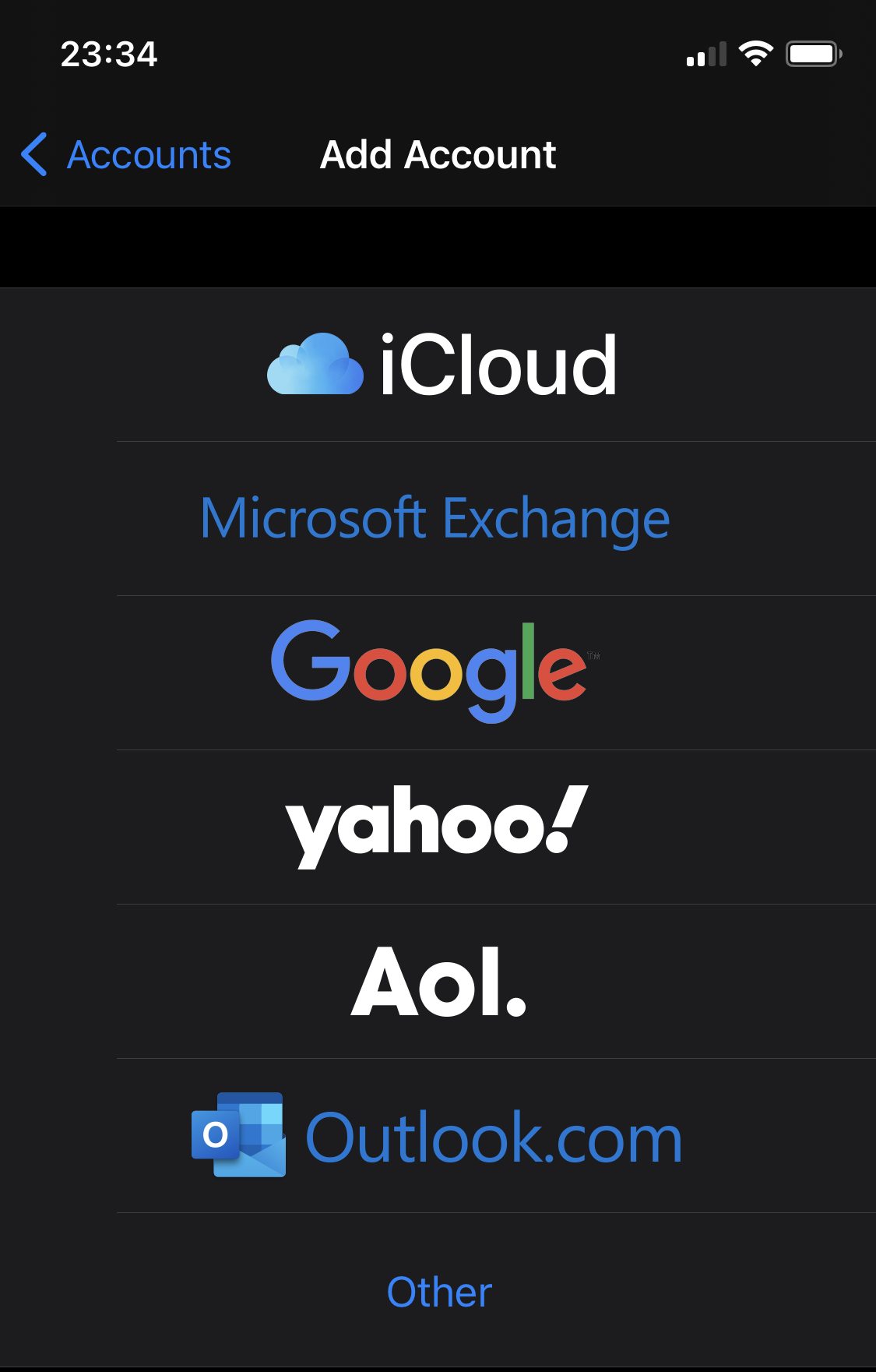
Use this set of instructions to log in to a GoDaddy Microsoft 365 email account. If Outlook or your email program is not allowing you to add the account. Use Microsoft Exchange to set up an account instead of the Outlook option. This is the second option from the top of the page, below the “iCloud” option at the top of the options page.
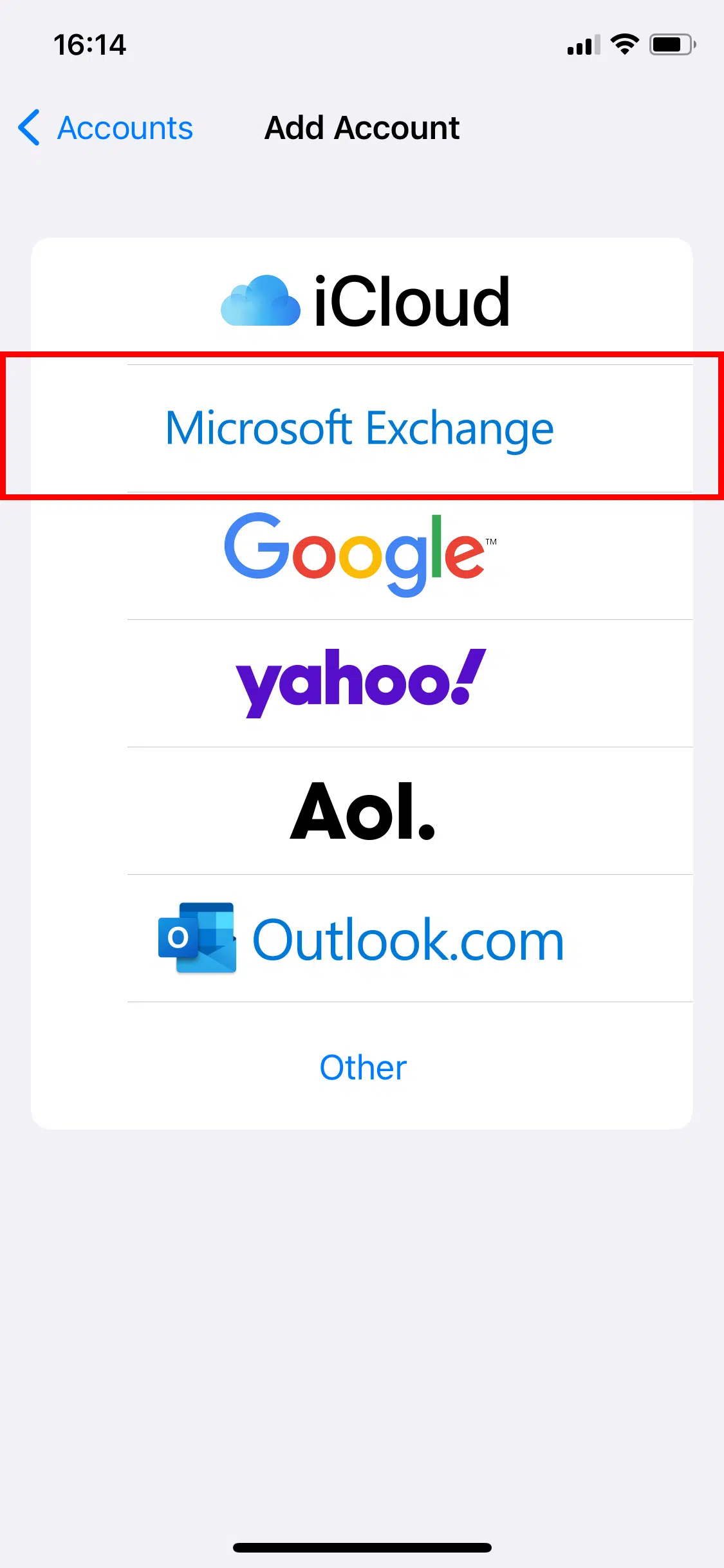
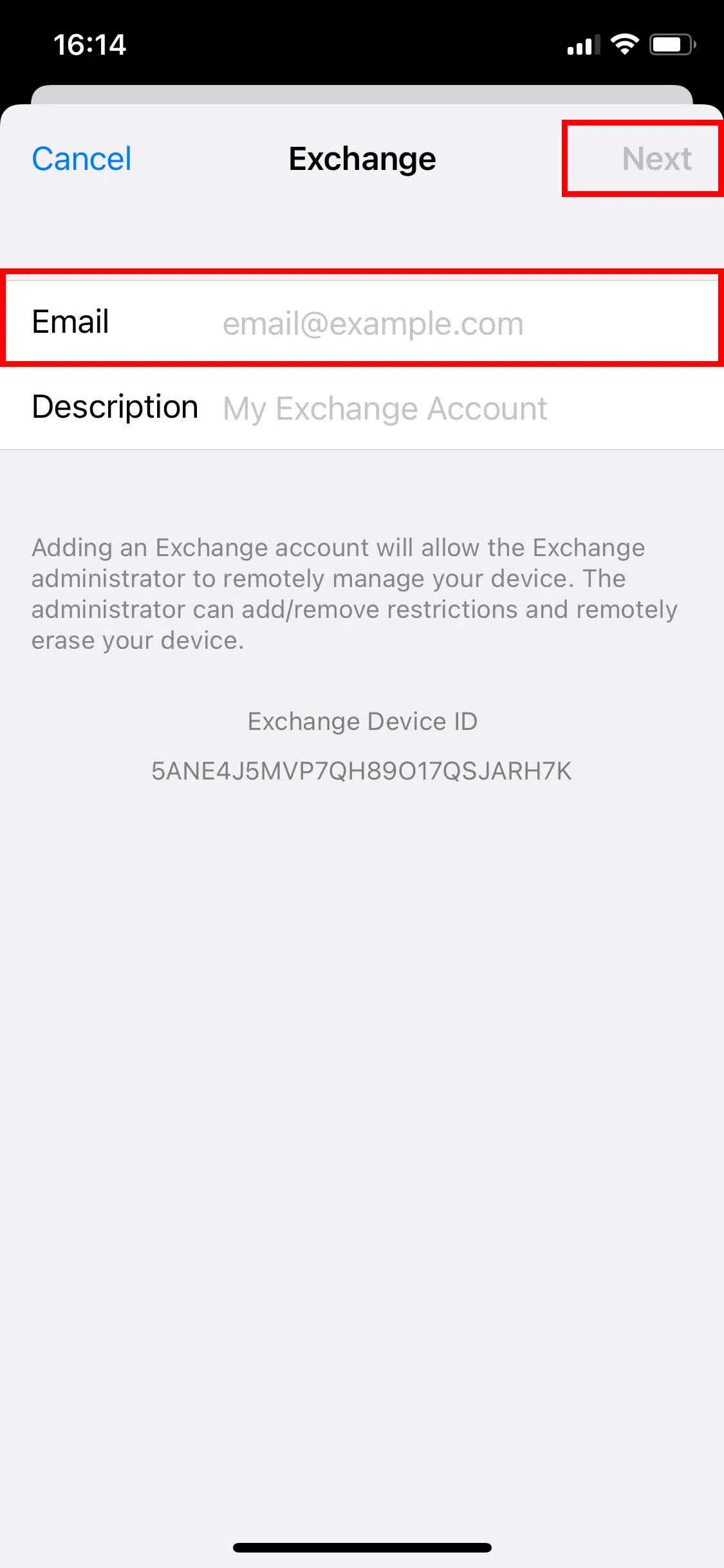
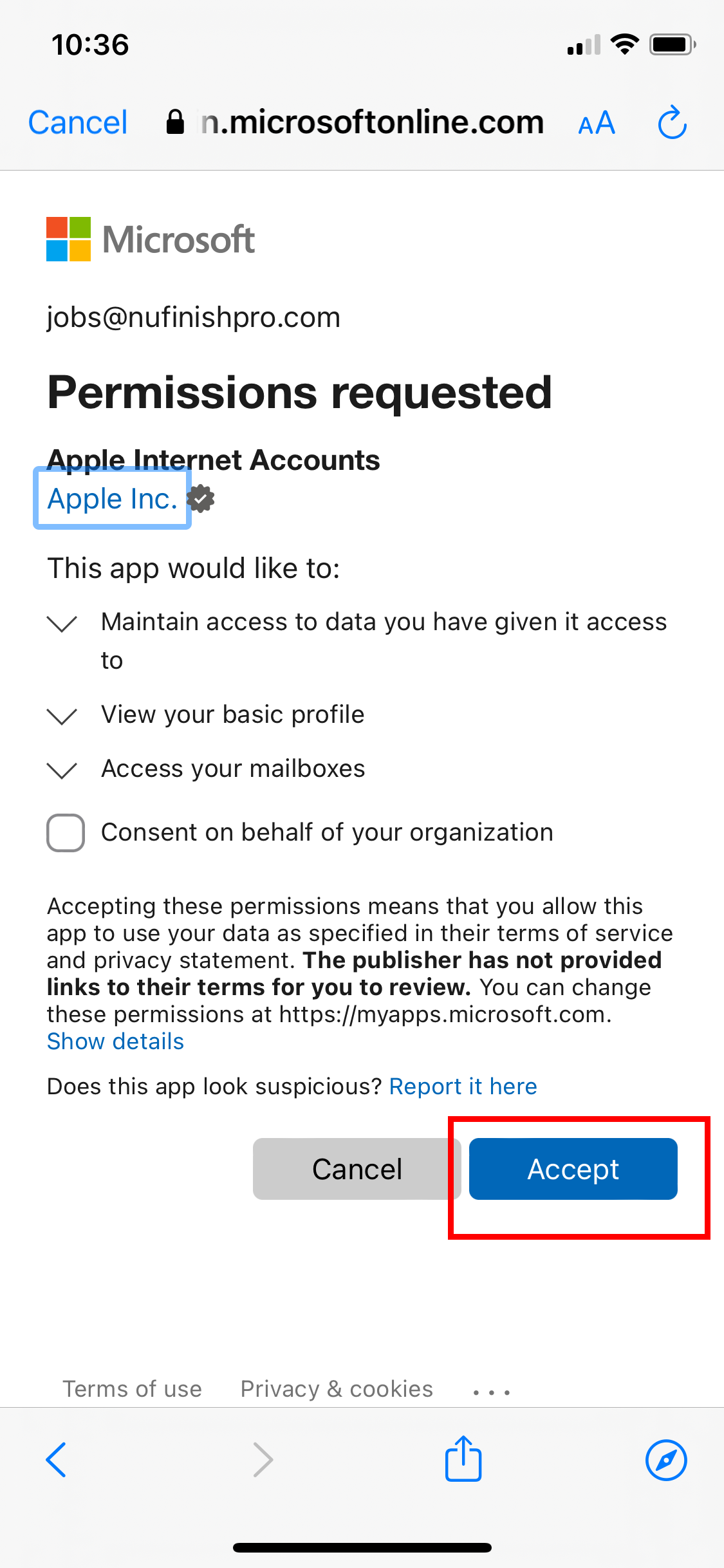
The setup process is similar to Outlook, When prompted, click on “Sign In” to enter your account email address and password. After you click on “Microsoft Exchange” follow the instructions to log into the account, agree to the terms of service by clicking on the Accept button.
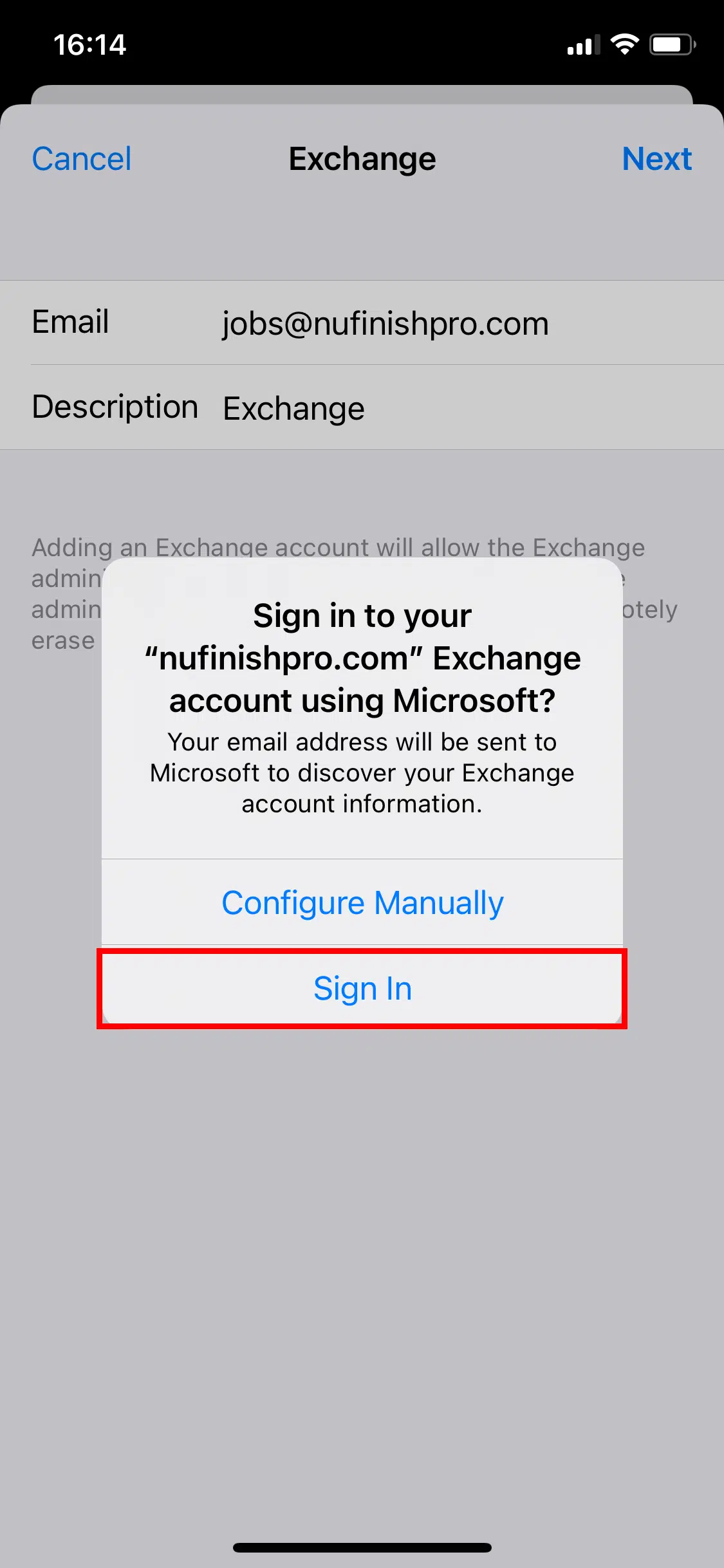
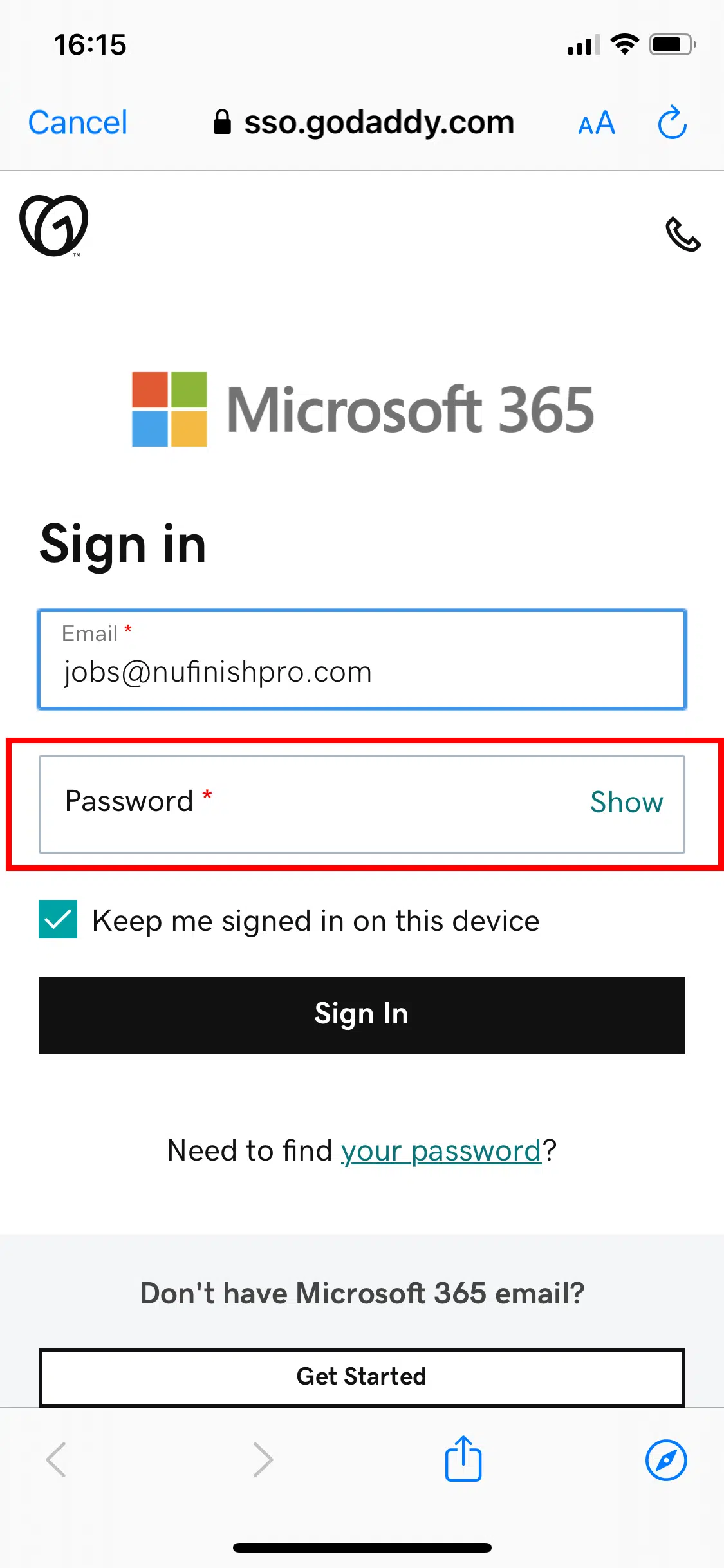
Once you have logged in to Microsoft 365, you will see a number of options for syncing your emails, calendar, contacts, and other things. When the service agreement appears, click on accept to go to the next step. The setup process is now complete, you can save any changes by clicking on “Save”.
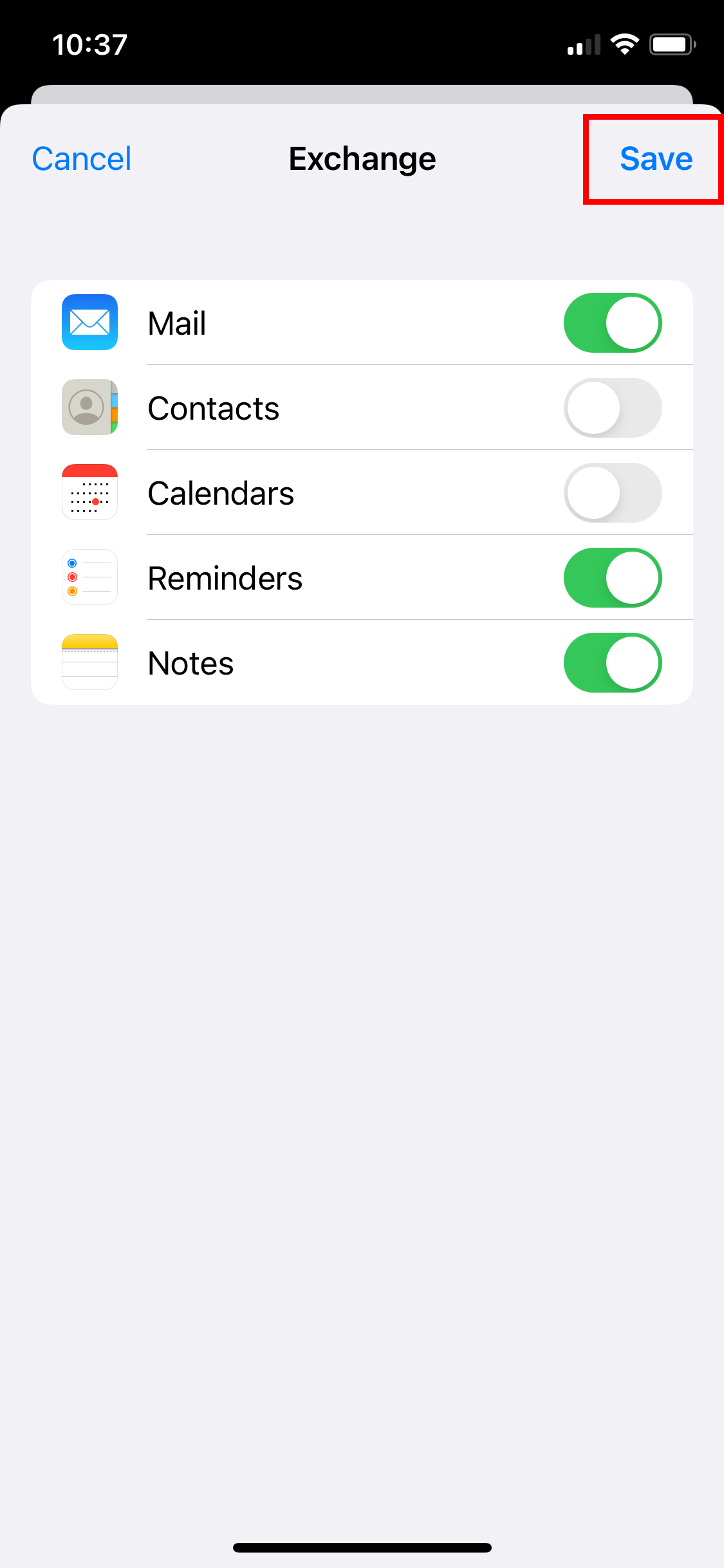
The email account will now appear in the email accounts list, and Apple Mail will now load all of the emails in the account. On an Android phone, there will be a button called “Done” Click on this button to finish the setup.
Unable to log in and you see a red box.
After you fail to log in too many times, an alert will appear to prompt you to wait 10 minutes before trying to log in again. This means there are too many failed log-in attempts. Microsoft will monitor the number of attempts to log in. Too many login attempts will trigger a lockout.
Follow the instructions in the red box above the login fields. Wait until the timer has finished its count down. Then try to log in again. The logo and text will change depending on the device you use, but the alert information and steps are the same.
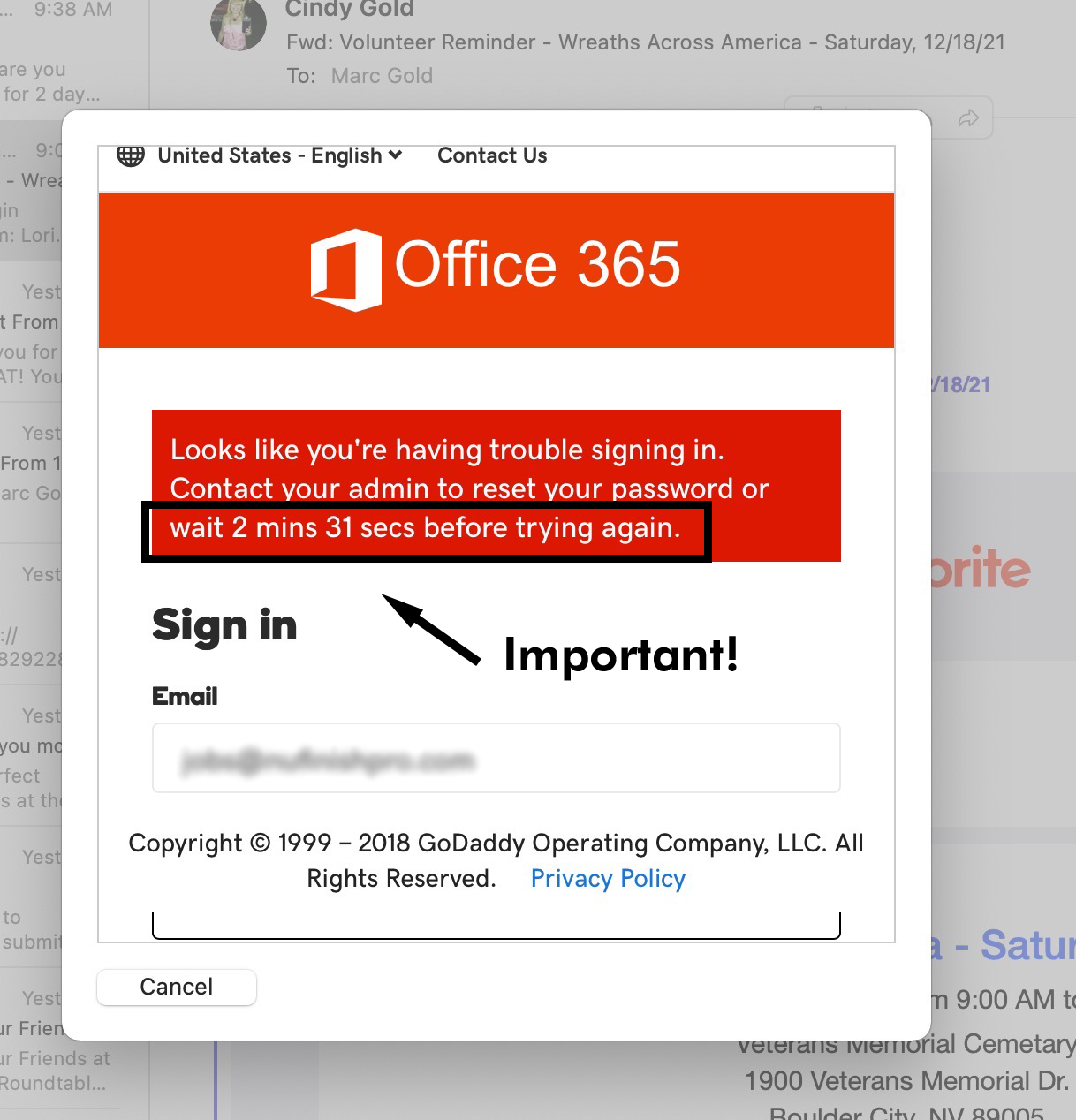
Before trying to log in again, watch the counter. When the counter is finished counting down, the red box should disappear.
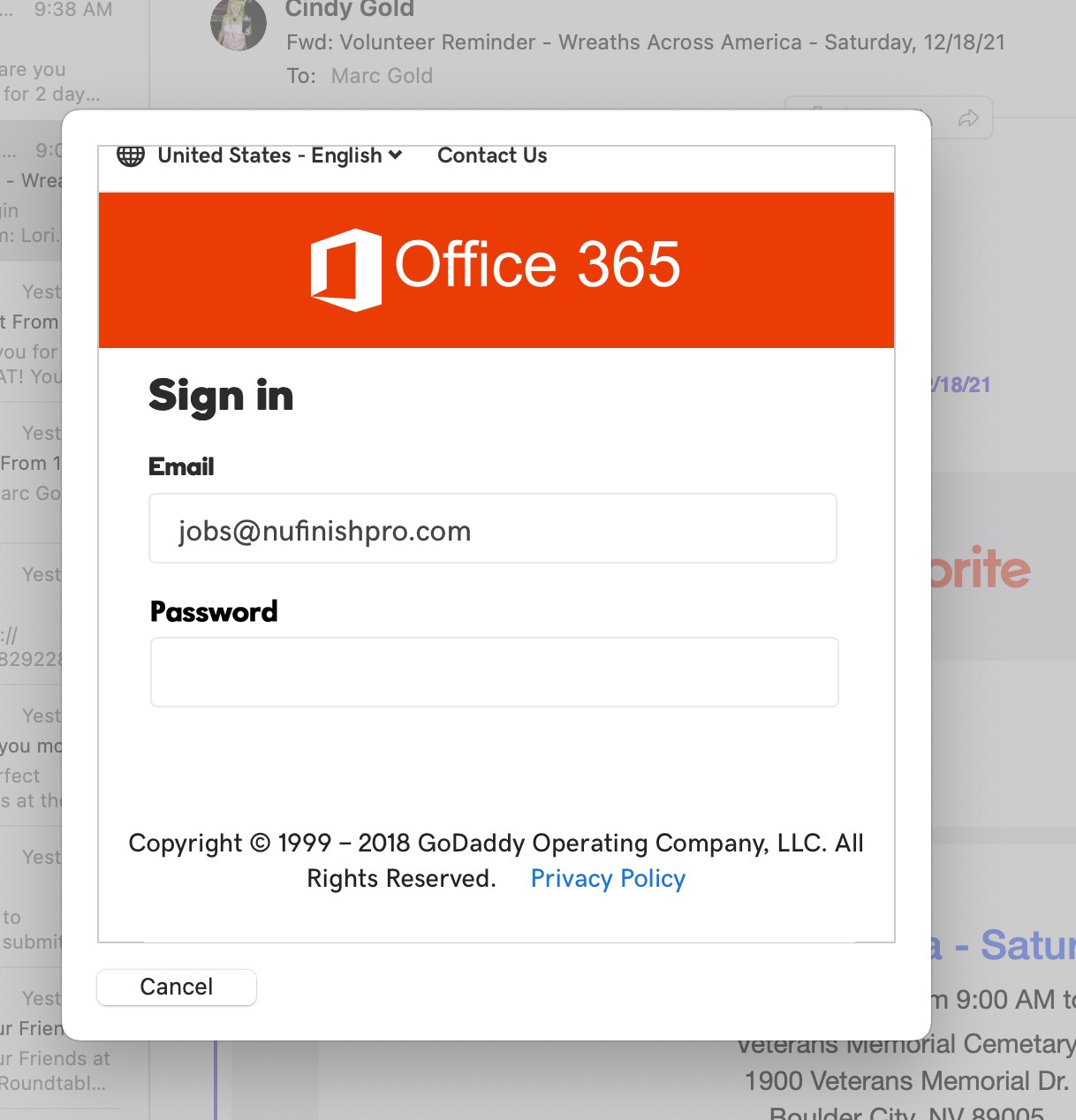
Log in again by entering the password.

Microsoft Outlook.com
Setting a Microsoft outlook.com email account on your iPhone, iPad, or other devices.
For a user with a outlook.com, live.com, or other non-Microsoft 365 email account, use the below instructions. You need to use Outlook instead of Microsoft Exchange to setup a email account on your phone or desktop computer.
Outlook iPhone Add Account
Outlook Windows Mail Add Account
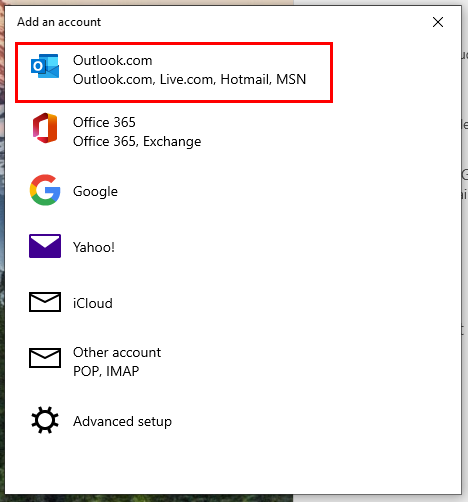
To add an Outlook email account to your email client, or email app, click on Outlook.
Outlook iPhone Mail App Sign-in
Outlook Windows Mail Sign-in
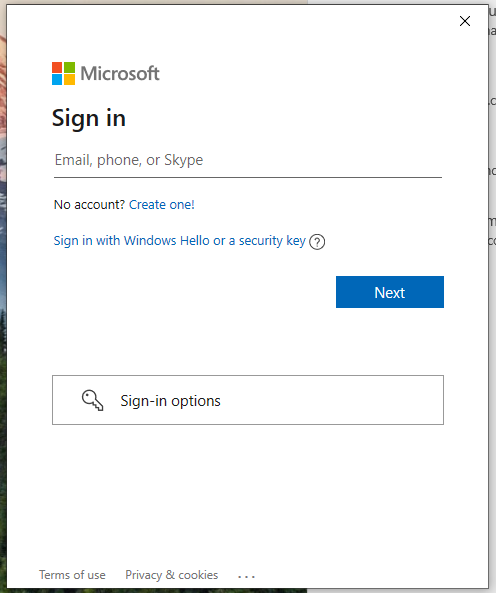
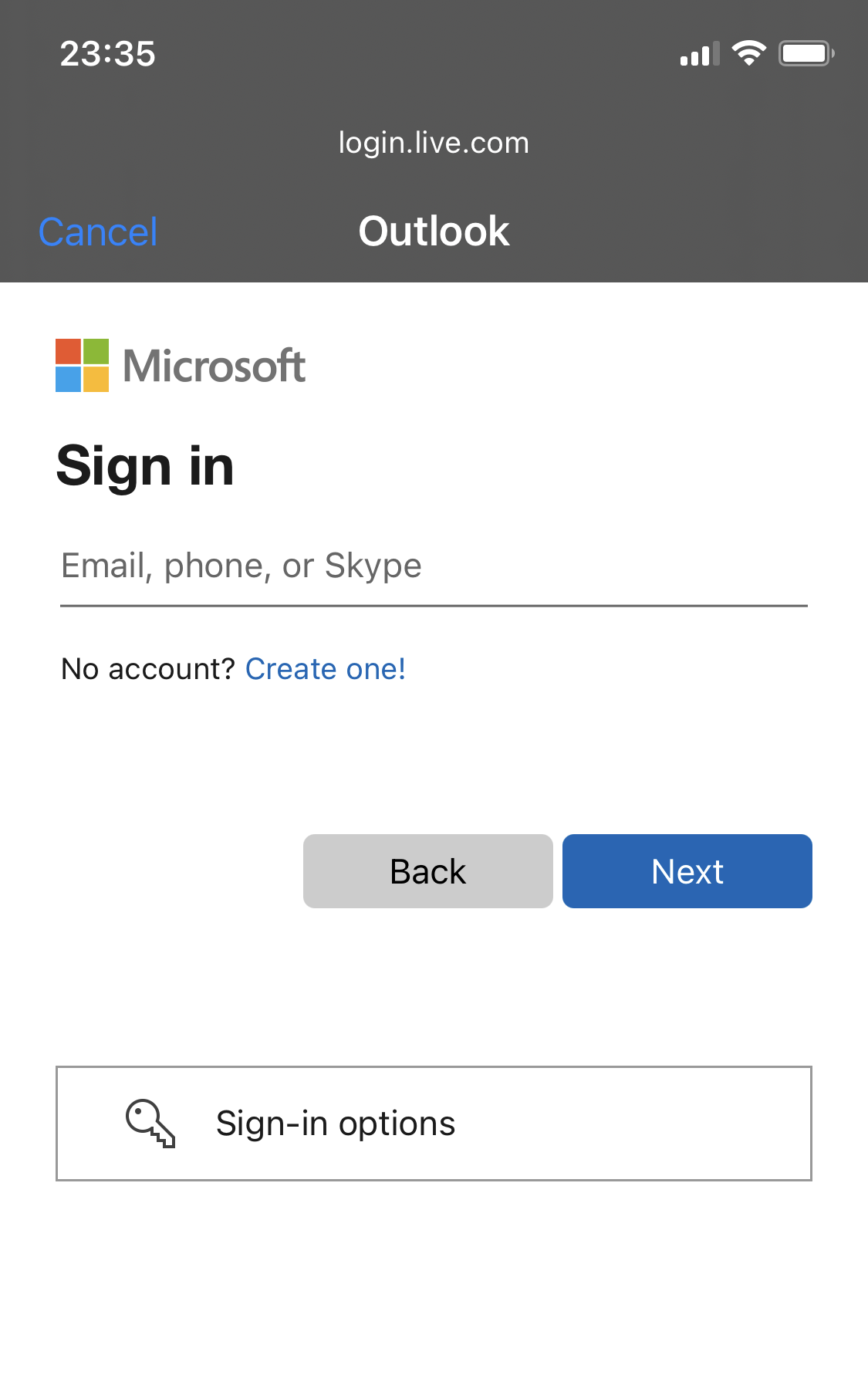
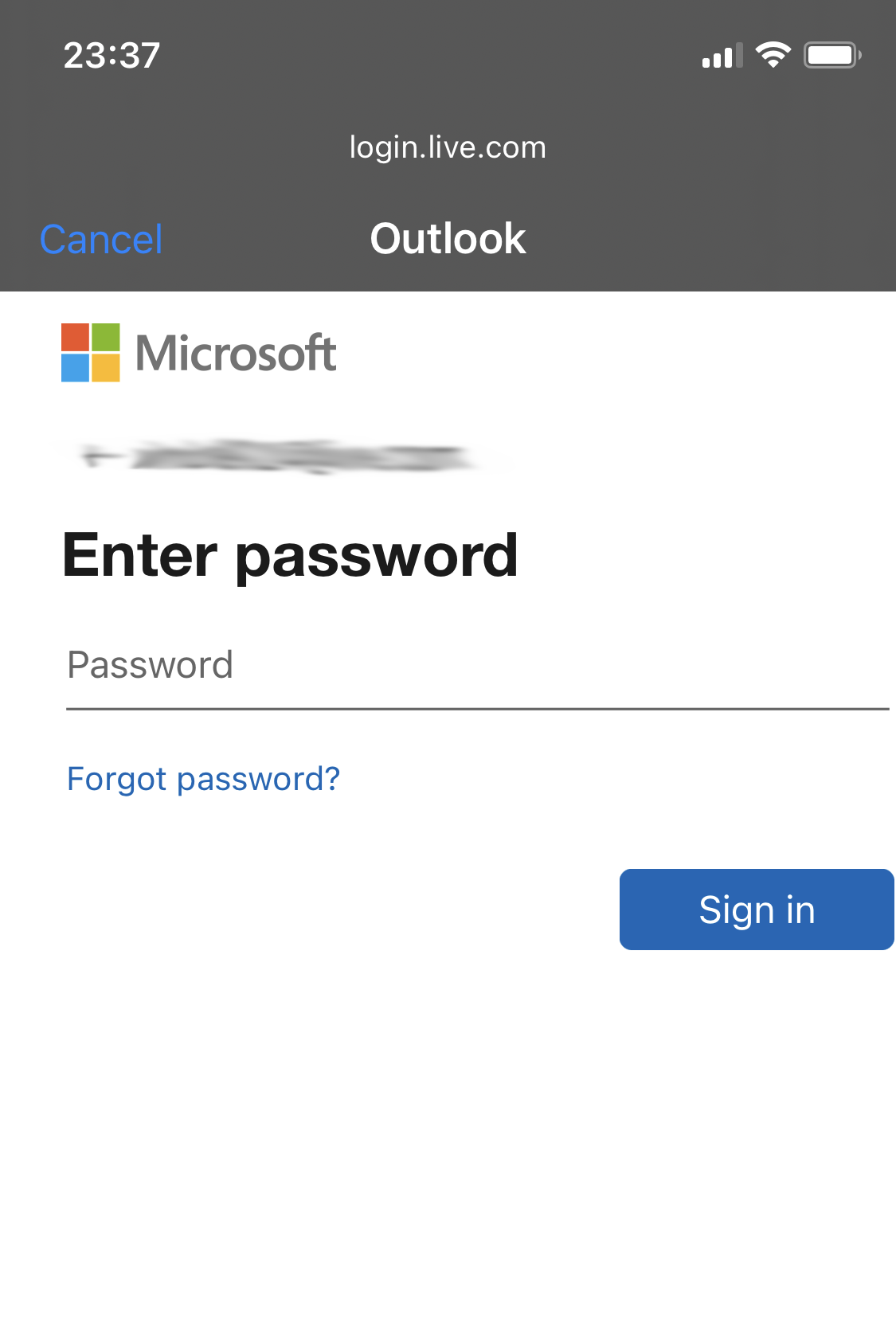
Enter your Outlook email address, then click on “Next” to go enter your password.
Outlook iPhone Password
Outlook Windows Mail Password
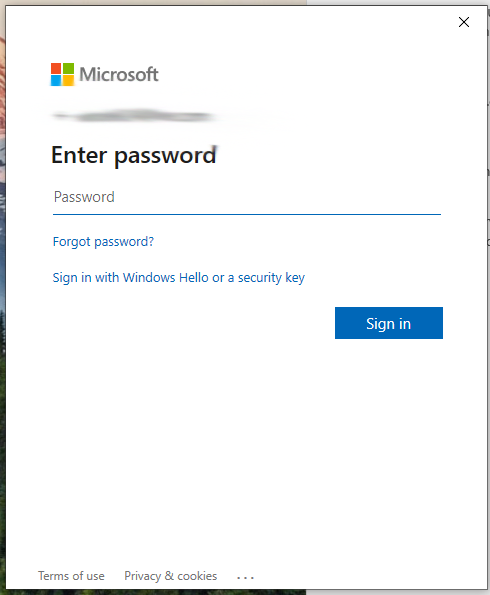
The final step is to enter your Password and complete the setup process. That is it.