
GBP Local Ad Campaign
Create a Smart Local AD Campaign using Google Business Profiles.
We can setup a local Ad for a specific location in Google Maps through Google Business Profiles. This is a specific work around, Google Ads as removed Local Ad Campaigns, and Smart Ads as methods to setup a local Ad on Google Maps. Once the setup process is done, an Ad Campaign record will be created in side of Google Ads, after the ad is created the user can go into the Google Ads account for the Google Account to edit and monitor the ad campaign inside the Google Ads Manager.
Before an ad campaign can be created, a Google Account, and a Google Business Profile have to be setup before a Local Ad Campaign. Once the Google Account and Google Business Profile are setup proceed to the first step in the instructions below. Use the ad setup wizard to create the Local Ad Campaign, if you don’t have an existing Google Ad Account, you will need to provide a credit card or other form of payment to pay for the ad campaign, this is the final step in the setup process.
The Local Ad Campaign will pull all of the information from the Google Business Profile and use it for the ad campaign. All Google Smart Campaigns now need to be created through Google Business Profiles. Google Ads has discontinued Smart Campaigns inside of the Google Ads Manager, replacing local ad campaigns, smart campaigns with Performance Max Ad Campaigns. Yes, the Ad Manager can display and edit the Smart Campaign, but the features needed to create Google Smart Campaigns have been removed. The below instructions is the method that needs to be used to create a Local Ad Campaign.
Starting the setup process.
Before you begin, make sure that you are logged into the Google Account that the Google Business profile has been assigned too. Then type the exact name of the business in the Google Search Field, once the. results load, you will see a bunch of icons and a profile widget like the one below.
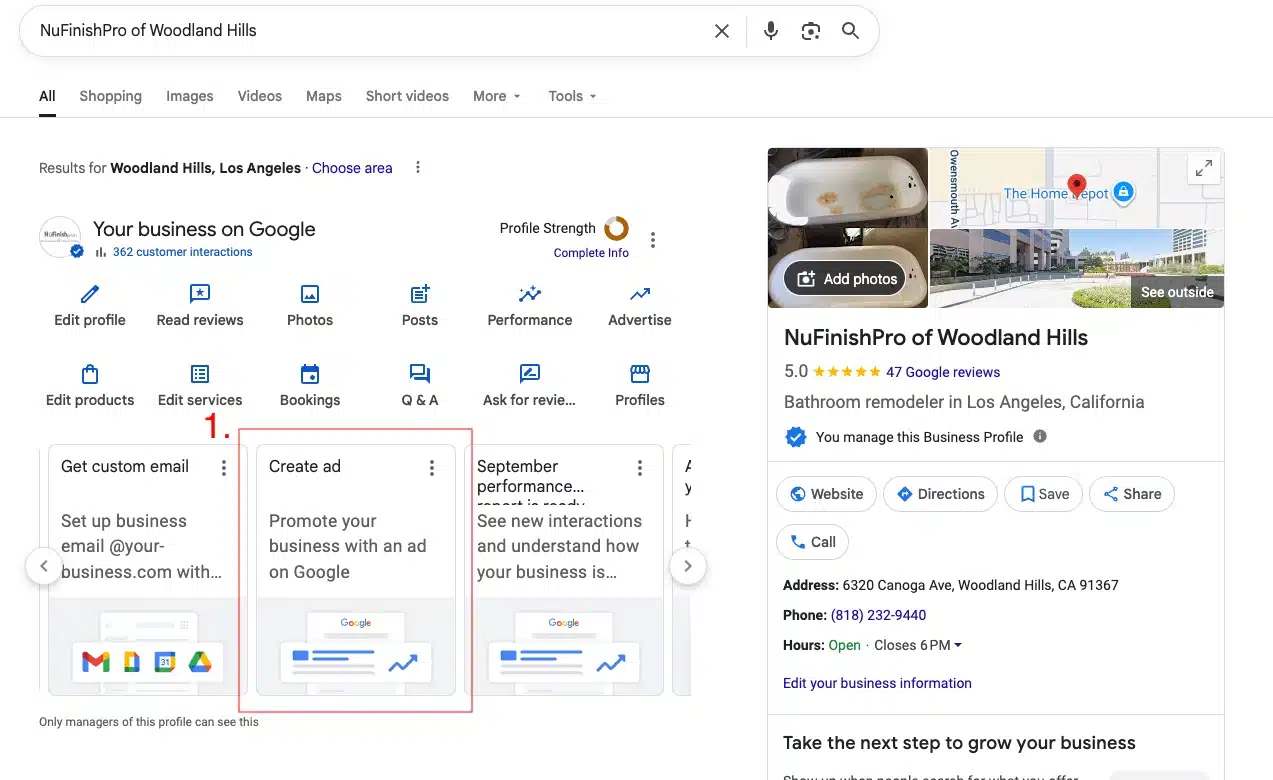
1. To create a local ad campaign go to the Google Business Profile and click on Create AD.
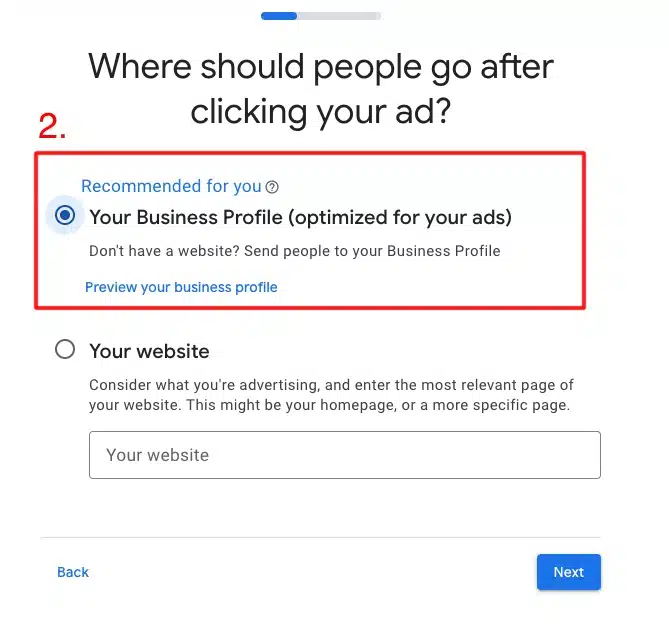
2. To start the setup of the ad, click on the first option “Your Business Profile” to choose the desired business to advertise.
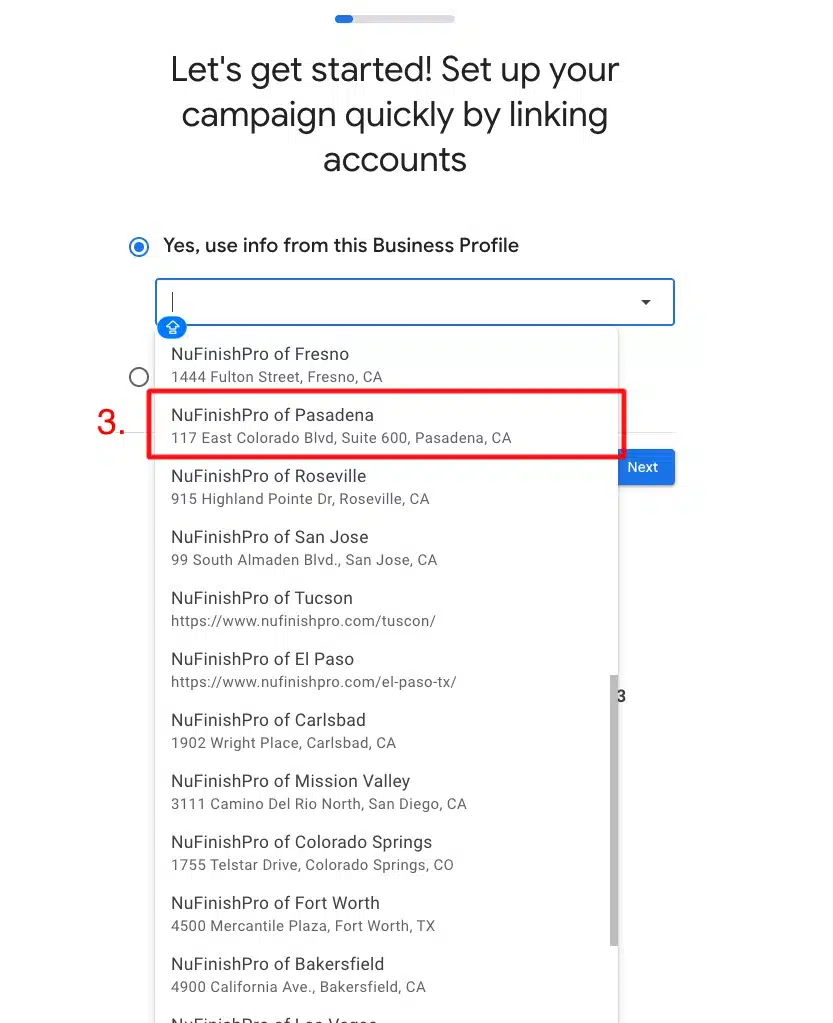
3. When you click on the button a drop down menu will appear, click on the appropriate location you want to advertise.
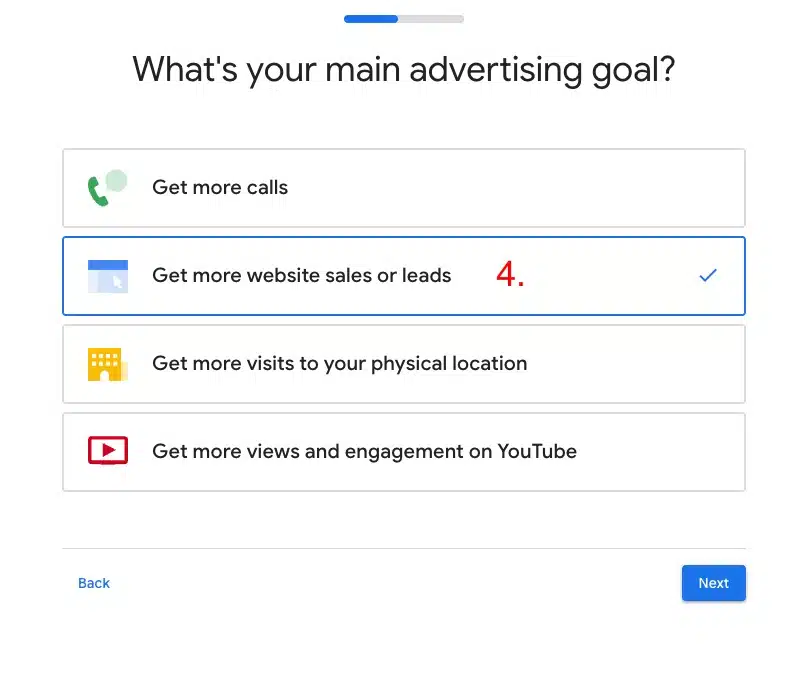
- On the next screen, click on the desired goal. You must choose one advertising goal.
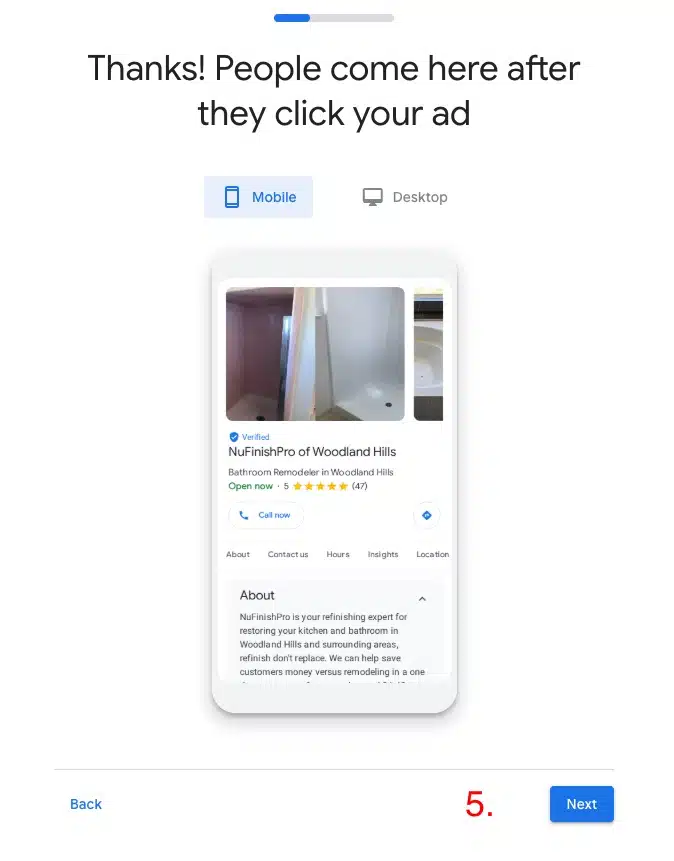
5. Once you have chosen, the desired location, you will see a preview of the ad campaign, when you are ready, click on “Next”.
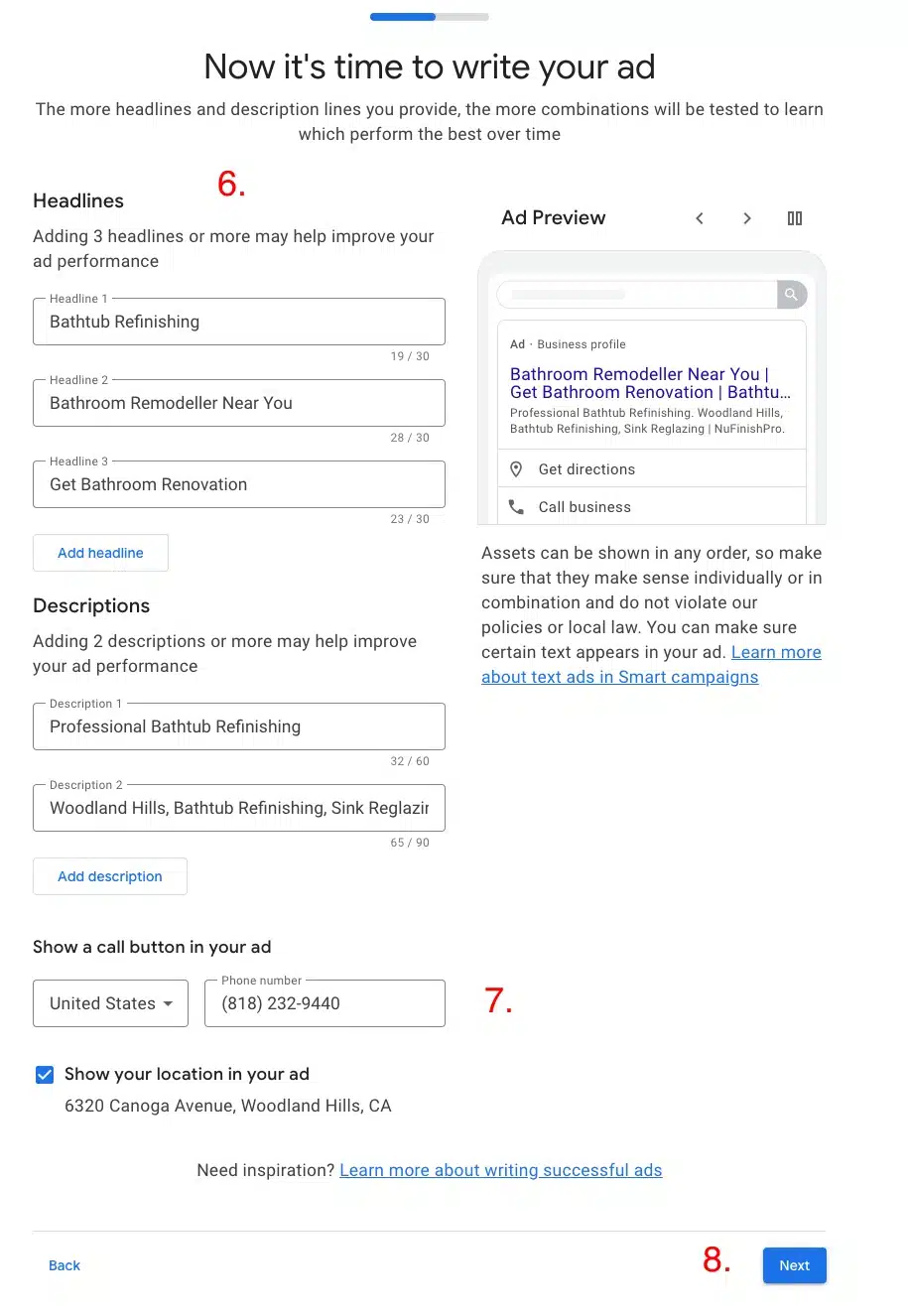
6. The setup wizard will populate the ad content with suggestions from your Google Business Profile.
7. Before you can proceed to the next step a phone number must be entered into the profile.
8. Once you are ready, go to the next step.
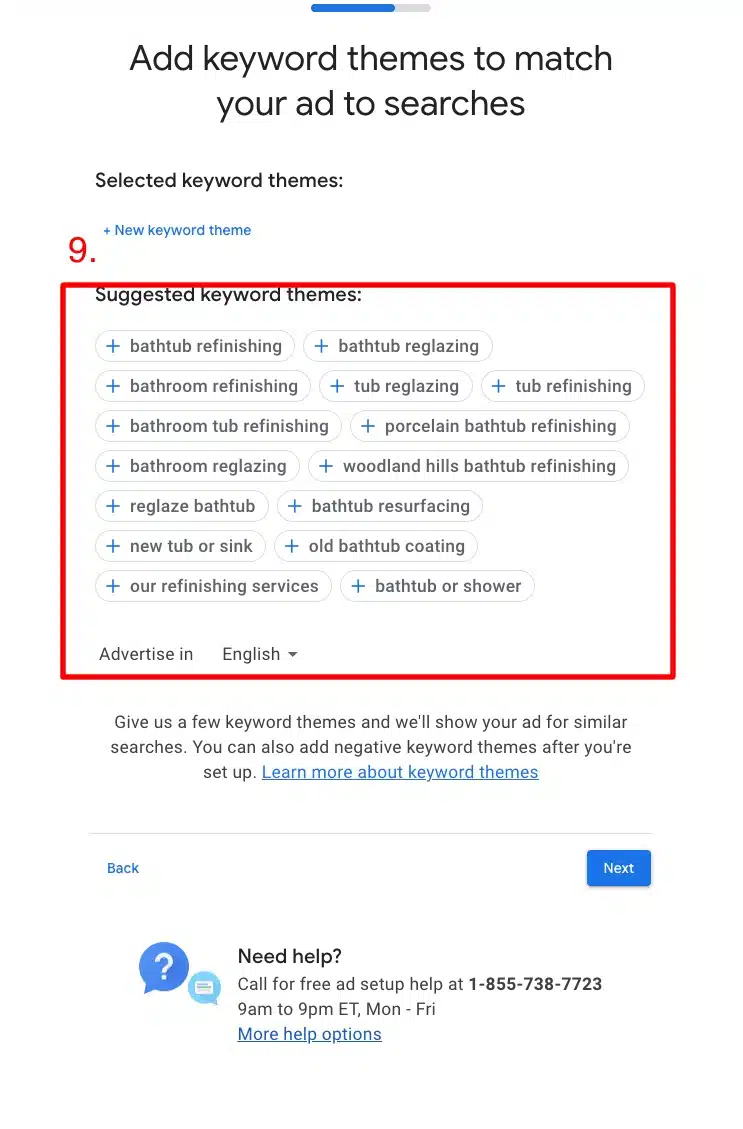
9. The next step is to enter the desired keywords for the ad campaign. The setup wizard will pick keyword phrases and suggestions for you to use. Click on the desired keywords to add them to the suggested keyword themes.
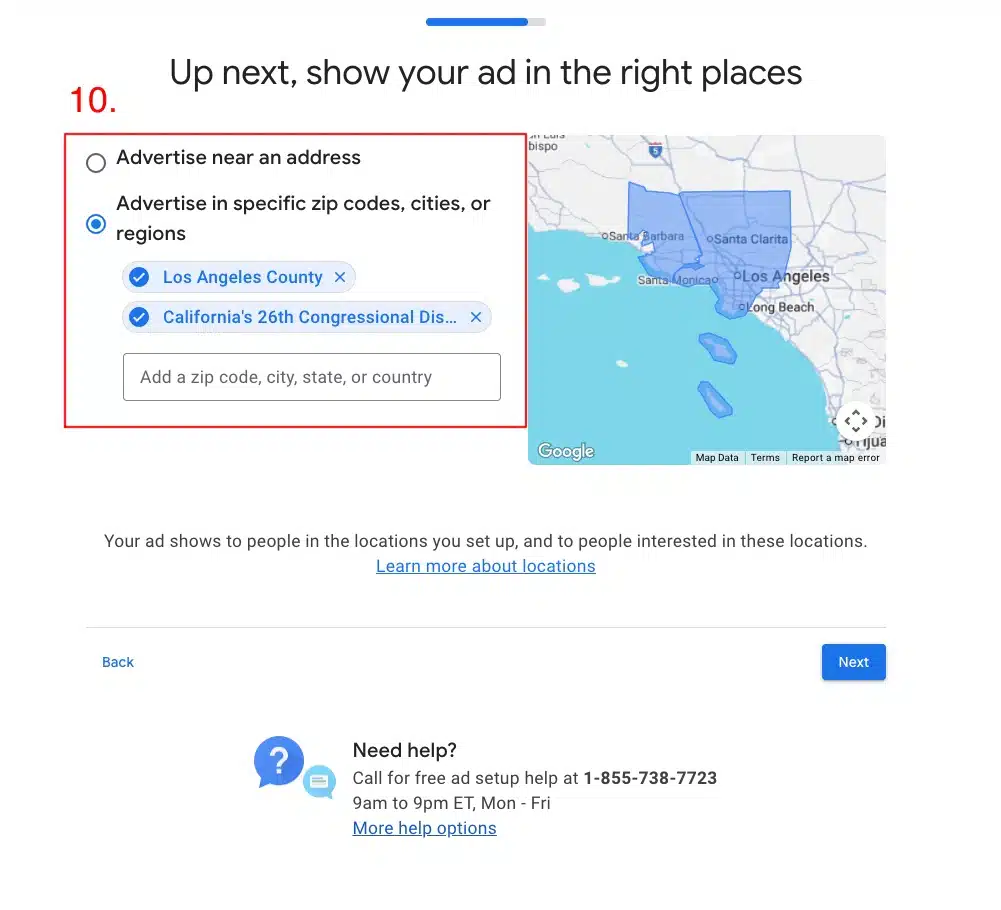
10. When you are ready, choose a location for the Local Ad Campaign. You can click on the “X” to remove the pre-added locations, and enter the desired locations into the text field. If ou want to advertise a specific address click on the top redial button. When you are ready to go to the next step click on next.
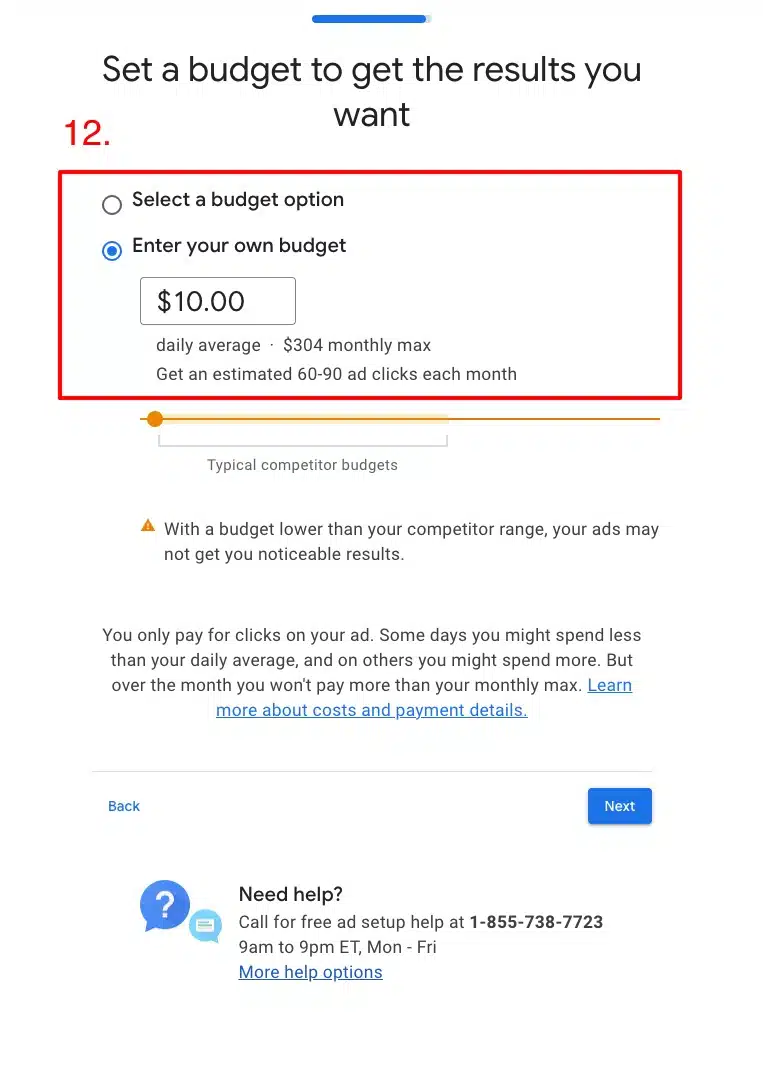
12. On this screen, you will set the ad budget, you can either choose a suggested budget or enter you own budget for the ad campaign.
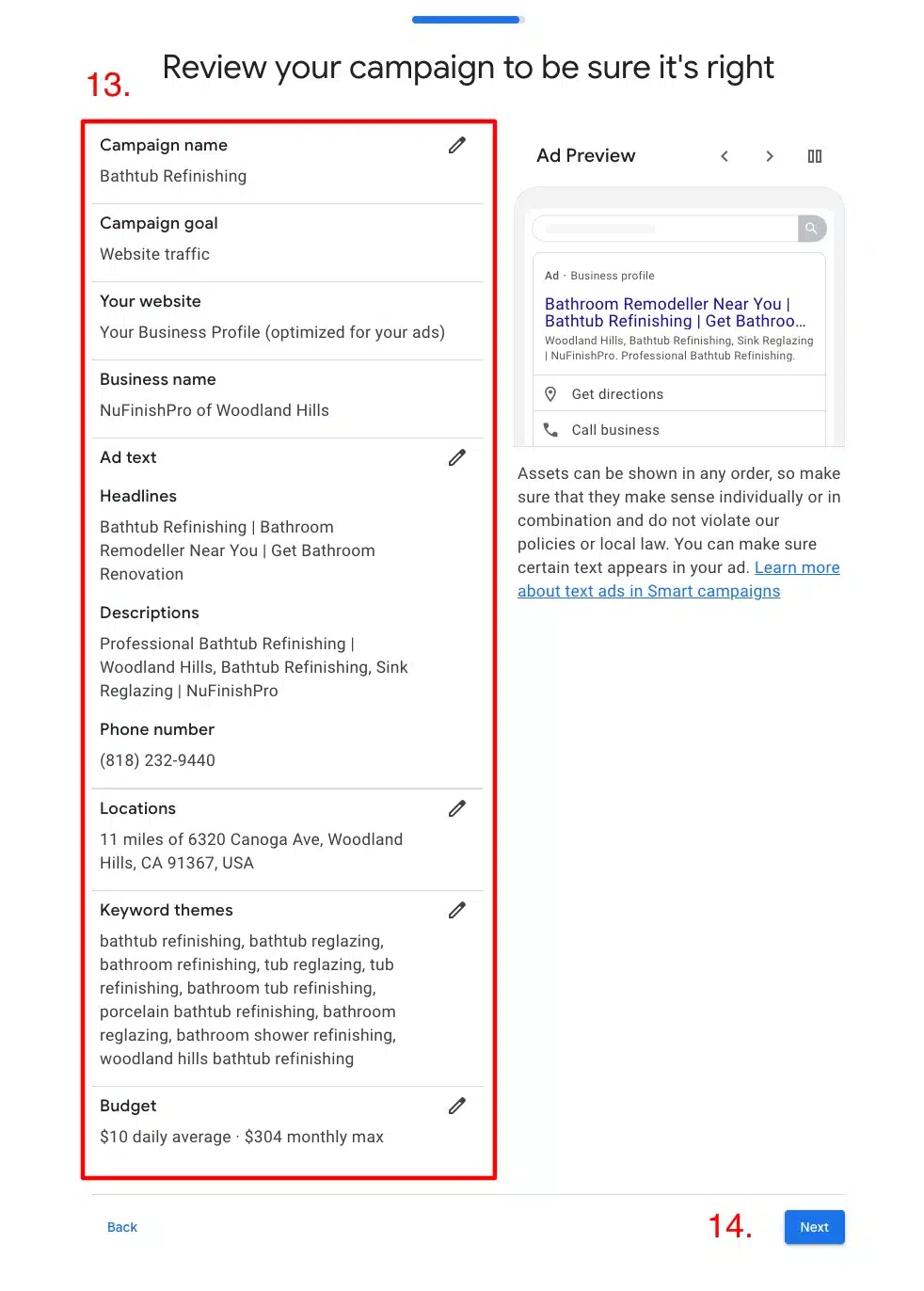
13. Once you have finished setting up the ad campaign, review all of the changes. You are ready to finish the ad setup.
14. Click on “Next” to finish the ad setup. When you are done, the Google Ad Manager will appear. Otherwise you will be asked to enter a payment option.
Useful information links.
Google Business Profile
https://business.google.com/us/business-profile/
How Smart Campaigns Work.
https://support.google.com/google-ads/answer/7652860
About Smart campaigns benefits and features
https://support.google.com/google-ads/answer/7457632