
YouTube Channel Customization
Give your YouTube page a more unique look and feel.
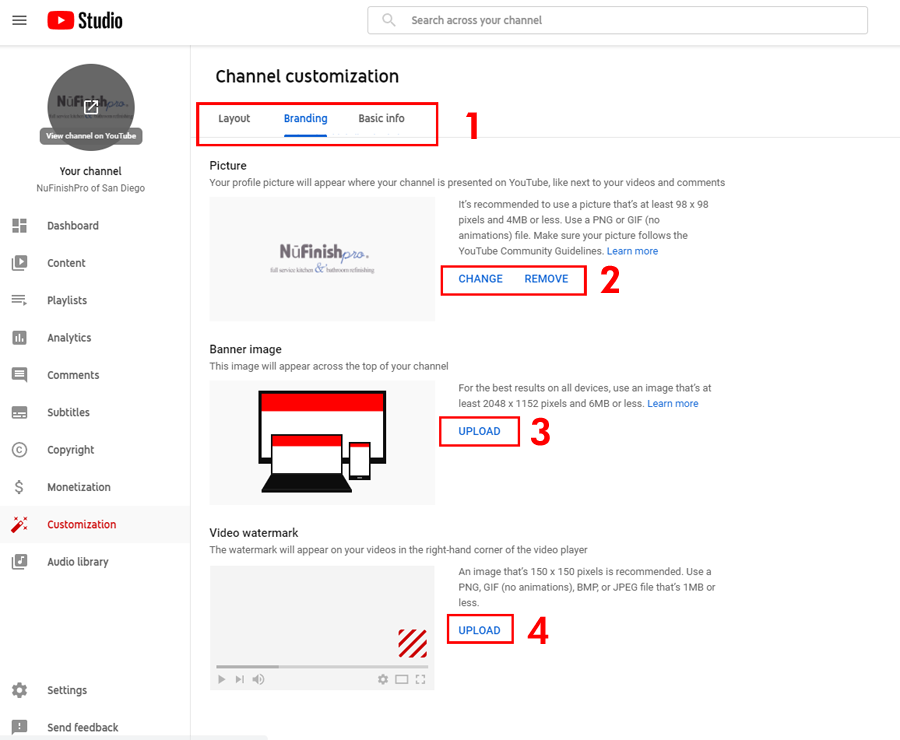
YouTube allows the user to customize the channel by adding things to the video panel. This page in Youtube Studio allows you to change the profile icon at the top right-hand corner of the page. Customize the banner image in the background, and set the watermark in the bottom right-hand corner of each video. Other things like the profile information, access to the YouTube URL, and the Custom URL are in the YouTube profile. Outside website links and your public contact email address are all listed on your profile. Finally, you can change the video spotlight layout. By adding a preview video featured video, and adding video sections to the home page.
Customization Branding
- The Branding tab allows you to change the identity. You can add the profile picture, banner or background image, and watermark.
- To add a picture for the profile icon, click on the change button to replace the existing image, or you can choose to remove it. The image must be 98px x 98px and be either a png or gif file.
- The banner is the large image that you see at the top of the page when you visit the home page. You can add a large image to this part of the home page header setup.
- All YouTube videos can have a Video Watermark. You can use a larger version of your profile icon, or some other image related to your channel. The image must be 150px x 150px and be either a PNG, GIF, BMP, or JPG file.
Manage your branding
https://support.google.com/youtube/answer/2972003?hl=en
Customization Basic Info.
Add or change your contact information, the channel description, add outside links, or email address here.
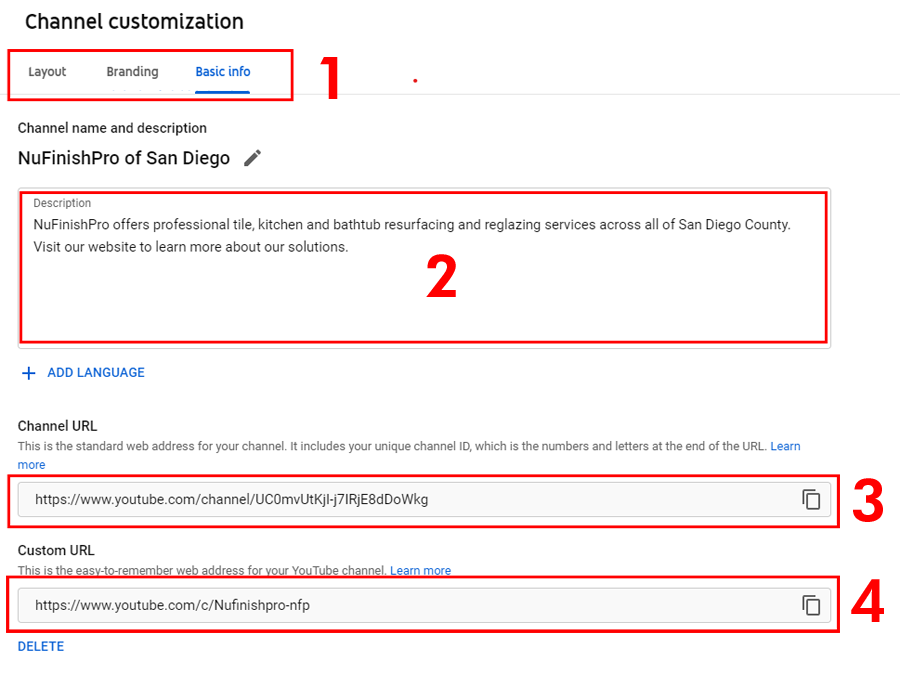
- The “Basic Information” is where you add the description, outside URL link, email address, get the custom URL and channel URL.
- When you set up the YouTube account, the name is set up by default. You can enter a description to tell visitors about what your channel is all about. If you want, you can add different language descriptions to the channel here.
- The URL is the web address for your channel when you have set up the account, you can copy the URL link by clicking on the icon on the right.
- The custom URL is the easy-to-remember version of your URL, if you want, you can click on the icon on the right to copy the link.
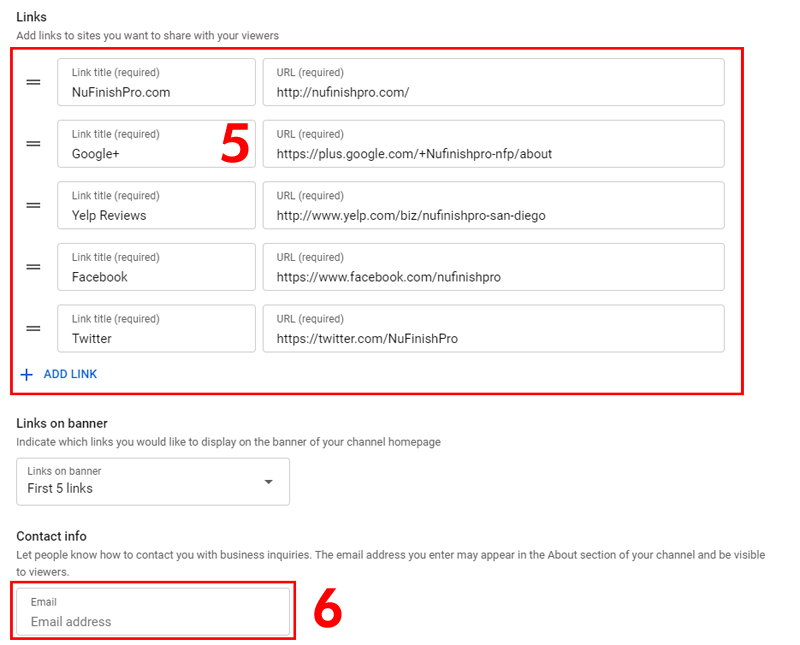
- All outside website domains and links are added here. The link to the channel will appear at the top of the page when all changes are saved.
- When you are ready, you can add a public email address to the text field.
Once the changes are applied, they should be visible right away.
Understand your channel URLs
https://support.google.com/youtube/answer/6180214?hl=en
Customization Layout
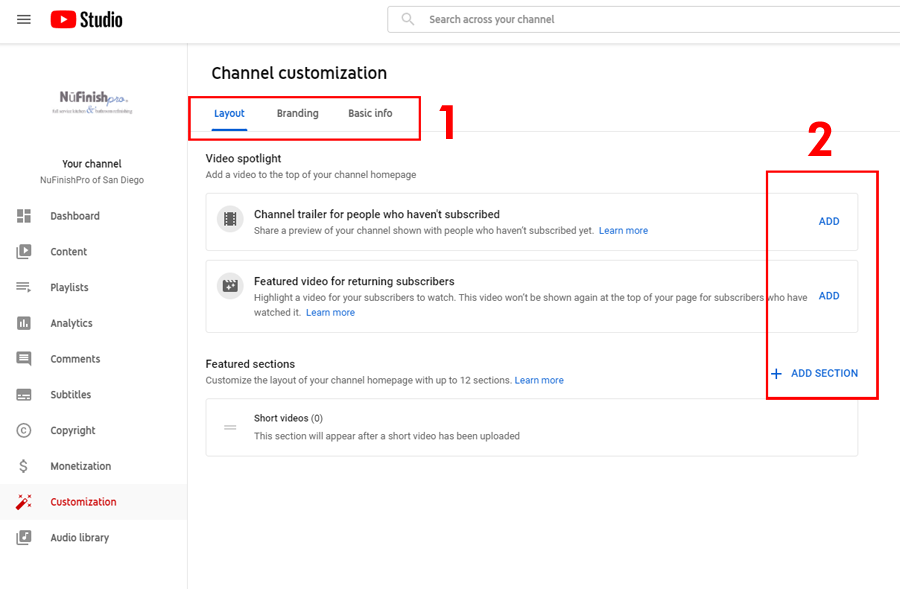
Customize the YouTube channel layout by adding a trailer and video sections, or creating featured videos for your video channel.
- Click on the link to navigate between the Layout, Branding, or Basic Information tabs to customize the layout.
- Click “Add” to add a Channel Trailer, Featured Video, or add custom sections to your channel.
Brand your channel
https://creatoracademy.youtube.com/page/lesson/brand-identity?hl=en#channeltrailer
Customize channel layout
https://support.google.com/youtube/answer/3219384?visit_id=637738475943775548-3620533051&rd=1
Useful Information
Brand your channel
https://creatoracademy.youtube.com/page/lesson/brand-identity?hl=en#channeltrailer
Branding
https://support.google.com/youtube/answer/2972003?hl=en
Featured sections
https://support.google.com/youtube/answer/3219384?visit_id=637710669994356845-3008360932&rd=1