

YouTube Subtitles
Add foreign language transcripts to your video.
YouTube allows the content creator to add subtitles to the video. The transcript can be manually created to translate the spoken words in the content, or they can be close captions. Plus, another option is to auto-generate a translation using YouTube’s algorithm. Which generates the language translation automatically. You can create transcripts manually, then add them to the video. Follow the format that YouTube has created when you manually write a transcript.
Adding subtitles and close captions.
With YouTube Studio, we can add subtitles to the video without going to an outside video editing tool. We can either have someone write the transcript, or using automatically generated subtitles. Closed Captioning is also available to the user, with additional languages available as options. The text in the transcript needs to follow a specific format, with the details listed below. When you create a transcript file for the video, the file will need to be a plain text file saved as a .txt file that is created in a plain text editor or HTML editor using plain text. You can use Note Pad on the PC, or TextEdit on the Mac to save the transcript in the video.
Here are some formatting tips for the transcript that will be uploaded:
- To force the start of a new caption, use a blank line.
- To designate background sounds, use square brackets. For example, [music] or [laughter].
- Add >> to identify speakers or change of speaker.
The text transcript file that will be added to the YouTube will look like the below example.
>> Chris: HI, my name is Chris, and welcome.
>> Roger: Hi, everyone. My name is Rodger.
>> Chris: We are the host of this presentation.
[Music]
>> Roger: Today, we will show you how to replace the brake pads on your car.
Channel Subtitles
- Types of subtitles, drafts, published and view all
- Add a language to the video, a pop-up editor will appear.
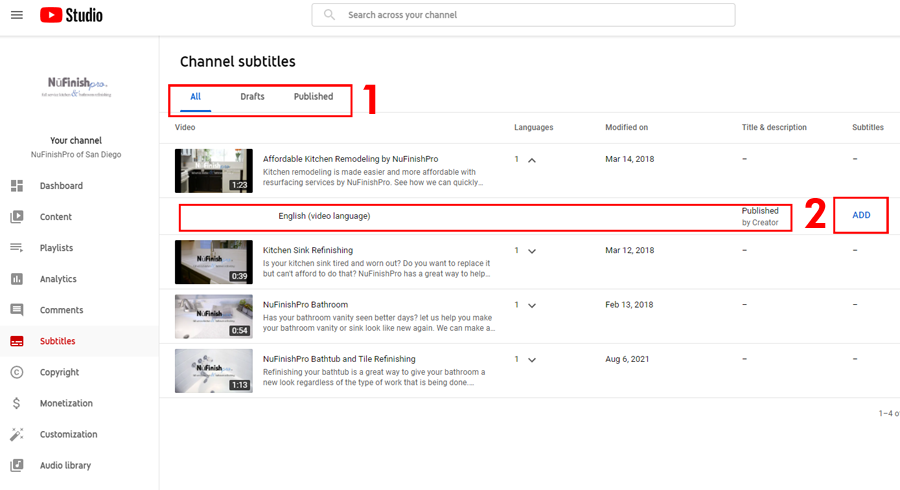
Adding your subtitles
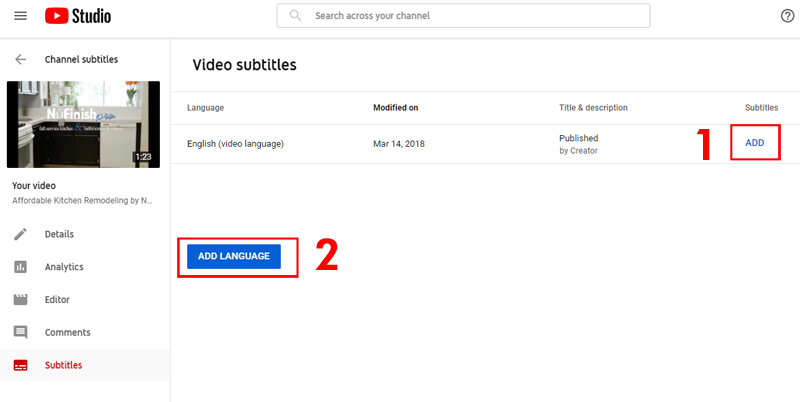
Click on either the “ADD LANGUAGE” button or the “ADD” link to go to the video editor.
- Click on this link to add a language to the video, then a popup editor appears.
- Add a language by clicking on this button as well.
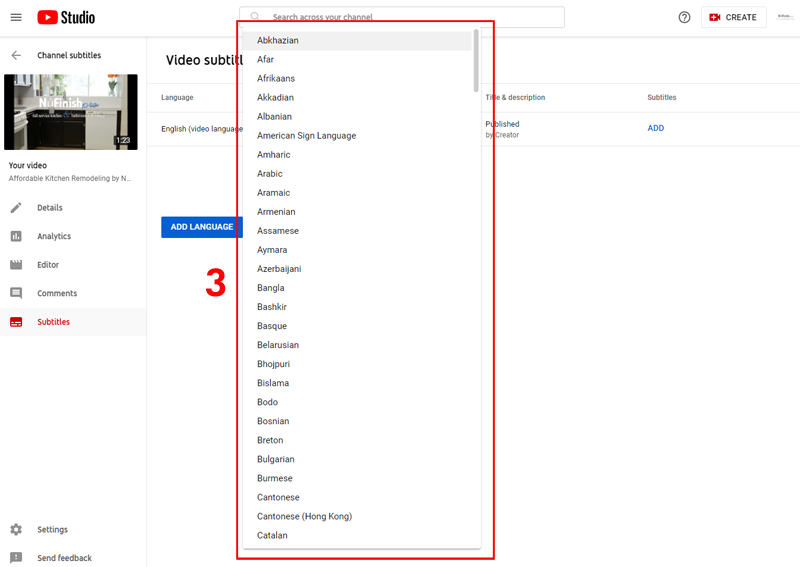
3. When you click on the button a drop-down menu will appear, choose the language that you want to add as the video’s language.
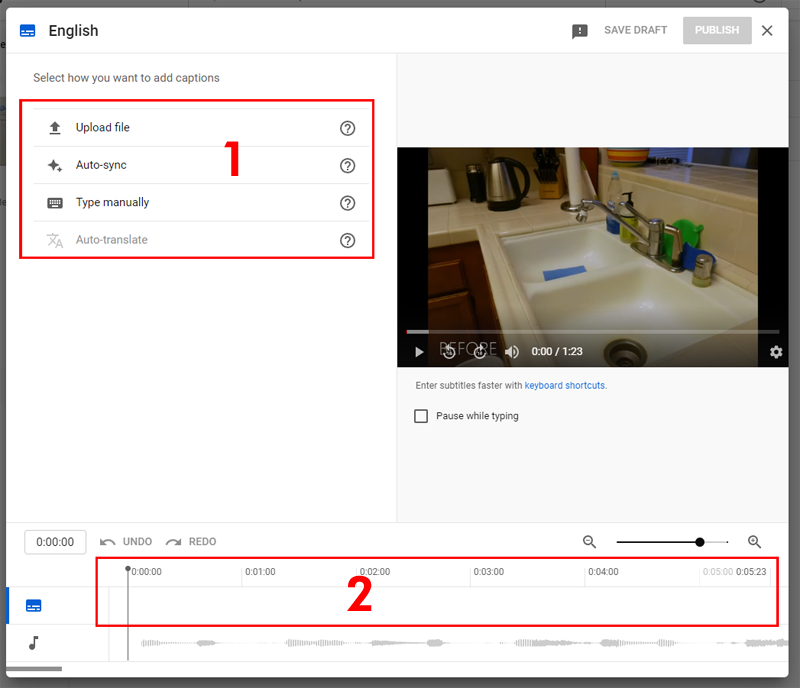
YouTube Studio Popup Video Editor
Once inside the video editor, you will be able to set up the transcript, you have three options to choose from. You can manually add a transcript, auto-sync i.e.e automatically generate text, or type in the text for the transcript. The timeline will show your where the transcript will appear, you can also test play the video with your changes with the media player on the top right-hand corner.
- You can either upload a file with the language translations, auto-sync or type in the videos manually
- Upload: Add the written transcript text file to your video.
- Auto Sync: Add a transcript by typing or pasting in a full transcript of the video. The subtitle timings will be set automatically.
- Type Manually: Create subtitles and closed captions by typing them in as you watch the video.
- Auto-Translate: This option is grayed out until you have added an additional language to your video.
- The transcript and the translations for the video will appear in the timeline.
Useful Information
Upload file
https://support.google.com/youtube/answer/2734698
Add subtitles and captions
https://support.google.com/youtube/answer/2734796?hl=en&ref_topic=7296214
Edit or remove captions
https://support.google.com/youtube/answer/2734705?hl=en&ref_topic=7296214
Translate your own video titles & descriptions
https://support.google.com/youtube/answer/6289575?hl=en&ref_topic=7296214
Tips for creating a transcript file
https://support.google.com/youtube/answer/2734799?hl=en&ref_topic=7296214
Supported subtitle and closed caption files
https://support.google.com/youtube/answer/2734698?hl=en&ref_topic=7296214