

YouTube Studio Audio Library
Adding some sound to your videos
Your YouTube account’s creative studio has an audio library that is available for you to use in your video. This resource can help you with editing and creating the videos in your account.
The sound files are available to you for download or you can add them directly to your video using YouTube’s own video editor. All of the sound files in the library are for you to use in your videos that will be added to YouTube.
You can’t use the files in the YouTube library for general video production.
Using the files in the YouTube Studio account.
You can add audio clips to a video, all of the clips in the YouTube library are covered under the YouTube license. Currently, there are over 1,500 different video clips in the sound library. The clips can be downloaded and used in the content that is going to be uploaded on to YouTube.
This is important since the media in the library is licensed for use under the YouTube terms of service, which allows you to use the library in content that will be uploaded to YouTube.
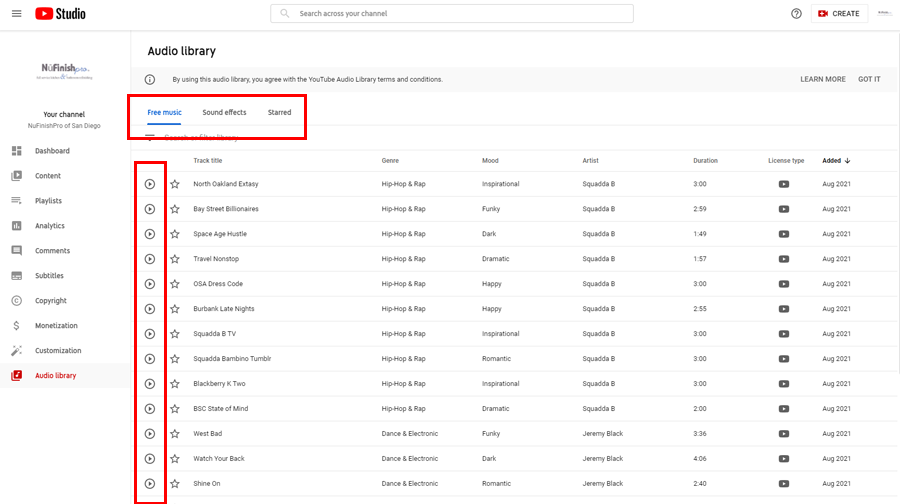
Each sound clip will have a track title, genre, mood, artist, duration, license type, and the date added. You can click on the file’s title to play the audio clip.
Then move the mouse arrow over the title of the clip to make the “Added” date change to “Download” to download the file to your PC. A prompt will appear to allow you to download the MP3 to your computer.
At the bottom right-hand corner are the navigation links, you can change the number of audio files that are shown on each page. There are left and right navigation arrows that allow you to go to the other pages in the audio library.
Adding audio to a video
All of the sound clips in the Audio Library can be added to a YouTube video, you can either download the clips or add them using the YouTube Editor.
To add an audio clip first go to the video you want to edit by clicking on content, then click on the pencil icon to edit the video. Then follow the instructions below.
1. The YouTube Studio editor allows you to add a video to the video that is being edited.
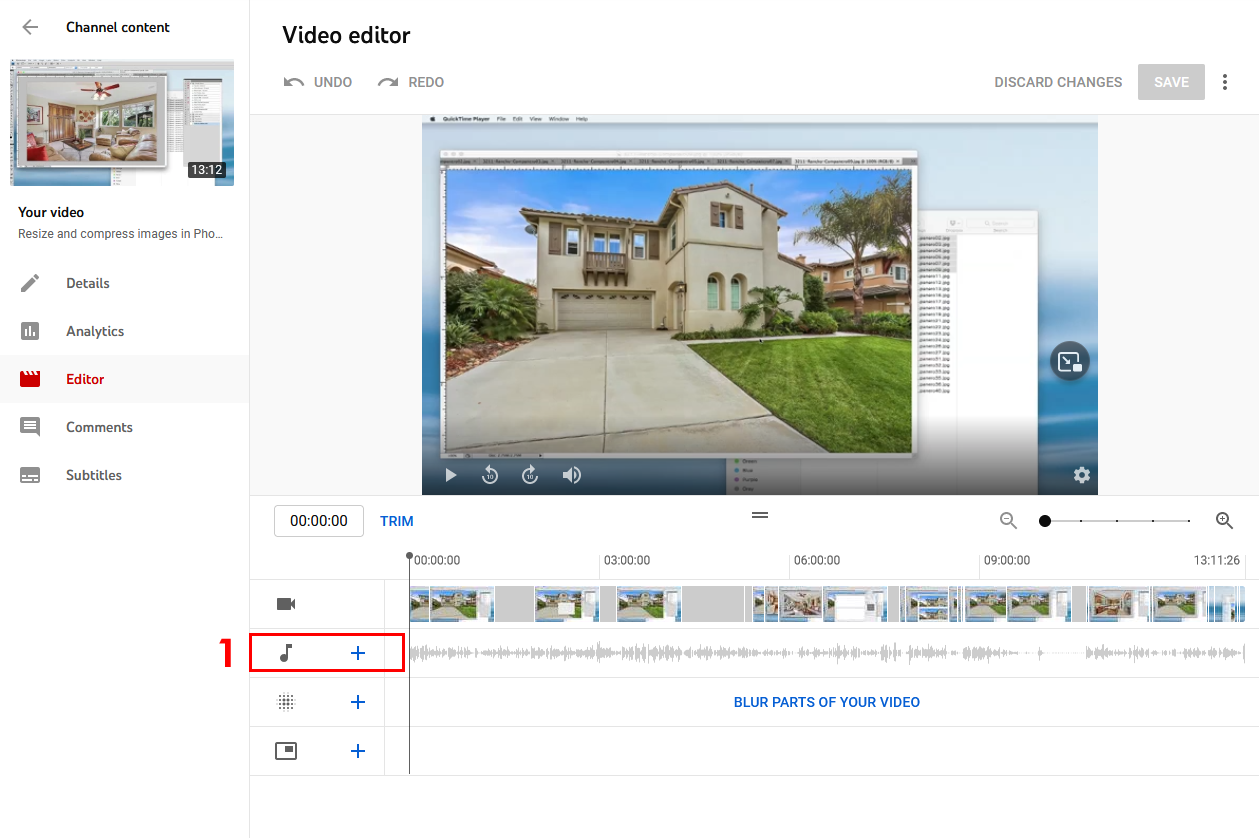
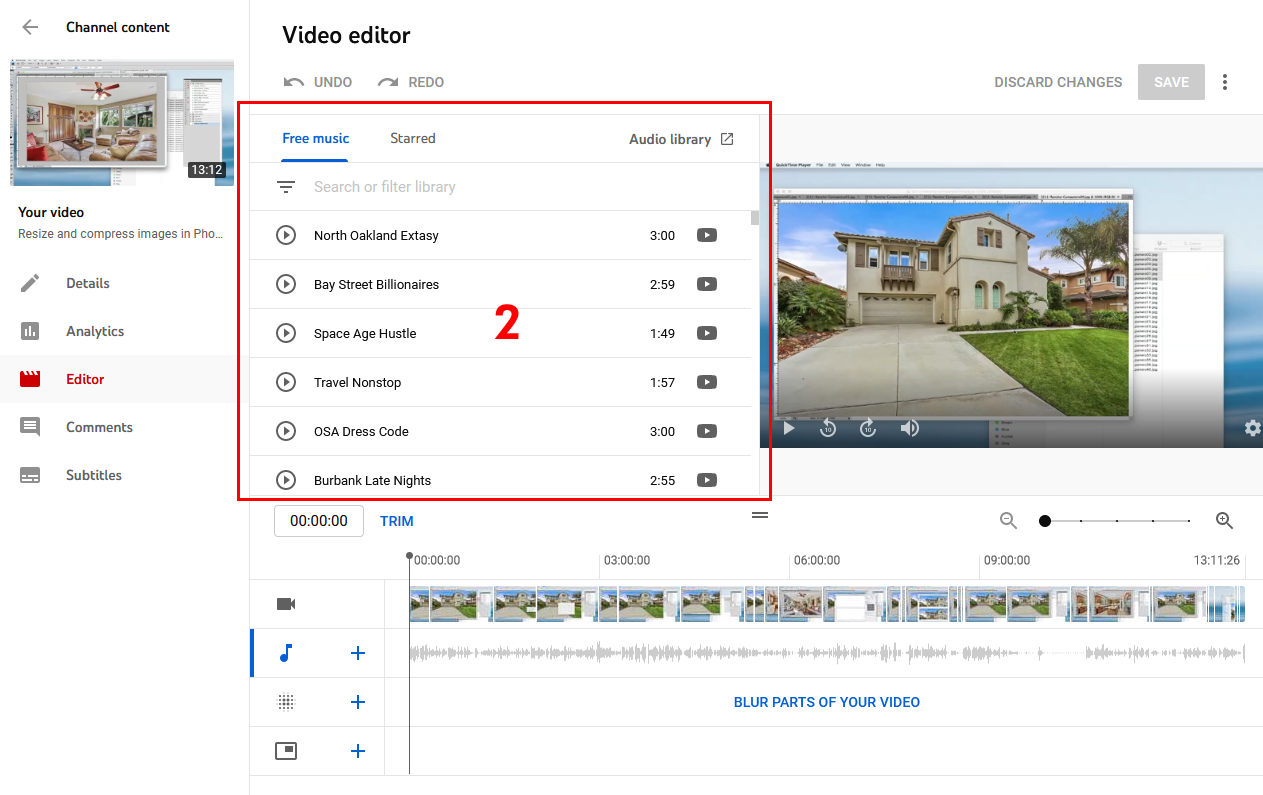
2. To begin, click on the plus symbol next to the music note, an audio library search widget will then appear.
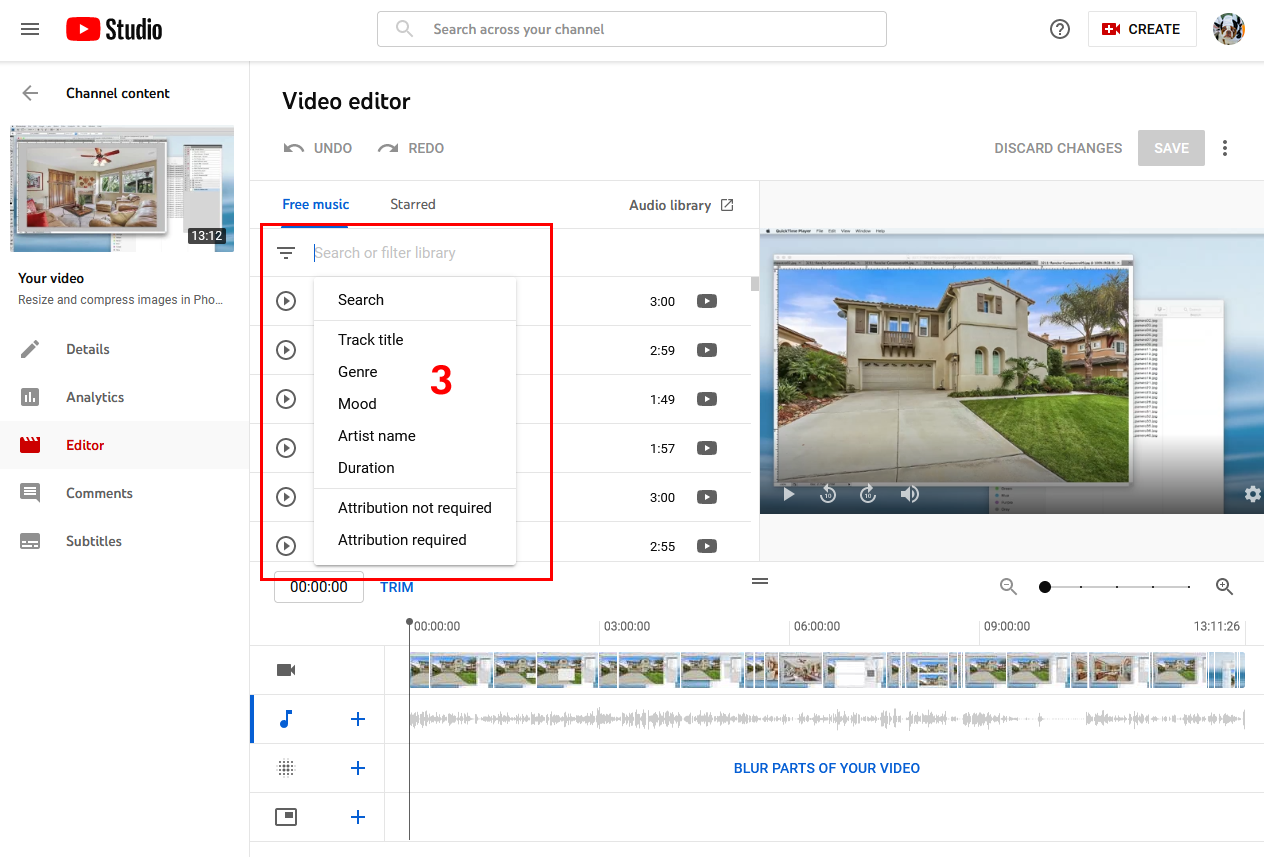
3. When you click on the search bar, a drop-down menu will appear. Choose a type of filter to begin your search, or just type in a name to begin your search. If anything is found, they will be listed in the search window.
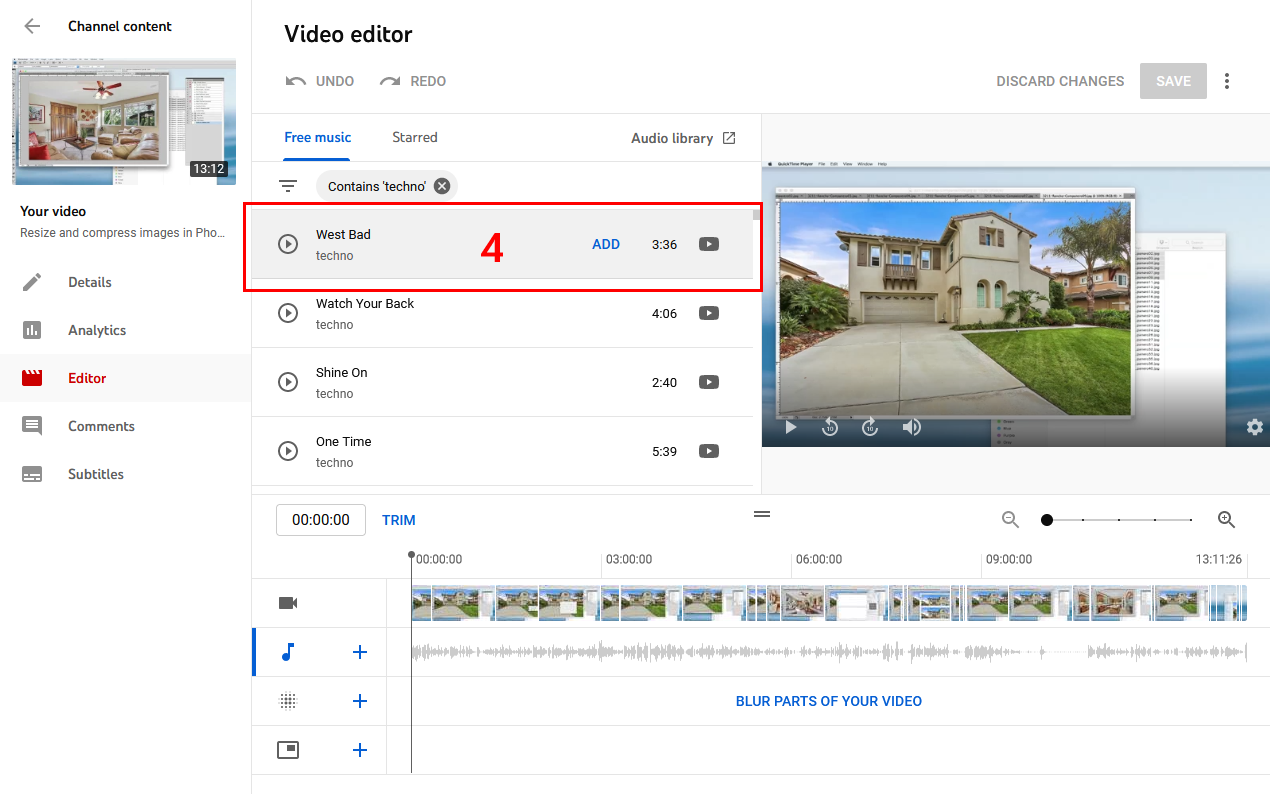
4. Move your mouse arrow over to the audio clip that you want to add to the video. Click on “Add” to the audio-video to add the video.
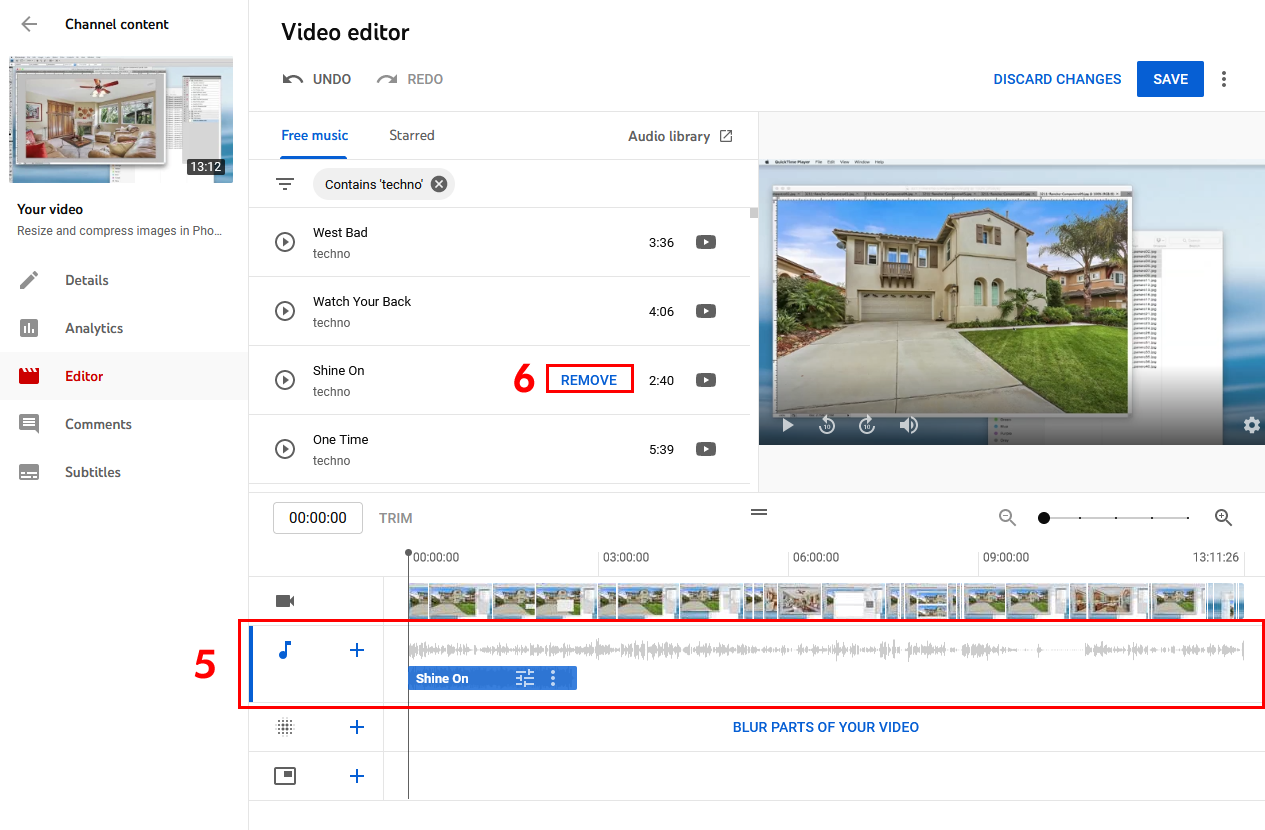
5. After the video is added, it will be shown in the audio timeline. You can move the audio clip left or right in the timeline to place it where you want to. When you are done, click on the Save button to apply any changes.
Add additional clips by moving the mouse arrow over the name of the clip you want to add then click on the ad button. The new clip will appear in the timeline, then move it to the desired position.
6. If you want to remove the clip, click on the word “Remove” in the name of the audio file.
Important!
You can add as many audio clips using the YouTube Editor as you wish to. But the YouTube editor is not a replacement for Adobe Premiere or Apple Final Cut Pro, its functionality is extremely limited.
The audio will be better when you use a professional video editing program. All audio clips in the library can be downloaded for use at a later date.
Useful Information
Improve uploads on mobile with enhancements
https://support.google.com/youtube/answer/1388383
Use music and sound effects from the Audio Library
https://support.google.com/youtube/answer/3376882?hl=en