

Content Tab
Create a local deal for your business.
Are you looking to offer a deal to your customers? Then this is where you setup a local deal for your customers.
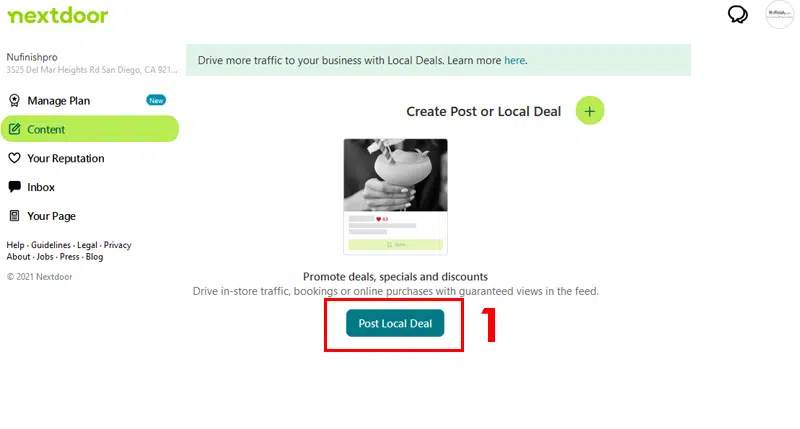
Create a local deal
All local deals and offers you make to the neighbors in a zip code are show here in this page. Promotions, deals, specials and discounts are created and shown here on this page. When you are ready to create a promotion or deal, click on the “Post Local Deal” button to begin. You can create a Discount, buy one get one free promotion, a percent off, or a custom deal for your customers.

Choose a deal
Begin by choosing one from one of the four choices to begin setting up a promotion. There are four choices to choose from Percent off, Fixed discount, Buy one, get one free, and Custom deal. Then, click on the deal to you want to setup by clicking on the icon to begin.
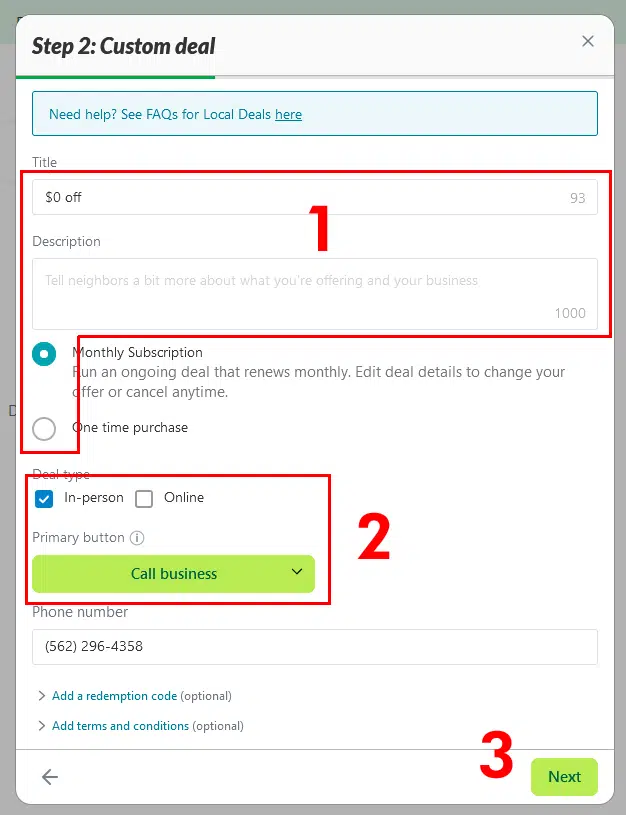
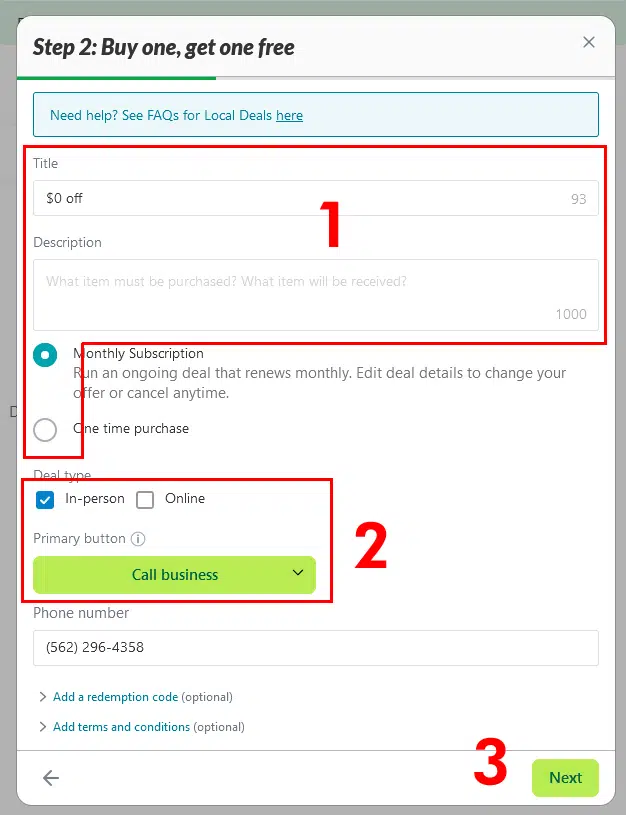
Setup a custom deal or a buy one get one free deal.
When you are ready to offer a deal or custom deal, you can offer a custom deal, simply enter the title of your promotion, provide a description of your promotion, and choose if you want to either allow a onetime purchase or does the customer need a monthly subscription to use the discount. A monthly deal can be used once each month, but the customer has to subscribe to your business profile to be eligible. The business owner can change the deal any time.
- The second step is to decide if the deal can be used online, in person.
- If you choose to make this an in person deal, choose a contact type. Call, message, email or get directions to the business. If you choose to allow the customer to redeem online, a show now message appear.
- The next step will be to provide a method of contacting the business, enter a phone number, email address, or URL/link in the text field that will allow the user to get the information that they need to get a hold of you. If you want, you can add terms and conditions, and a redemption code.
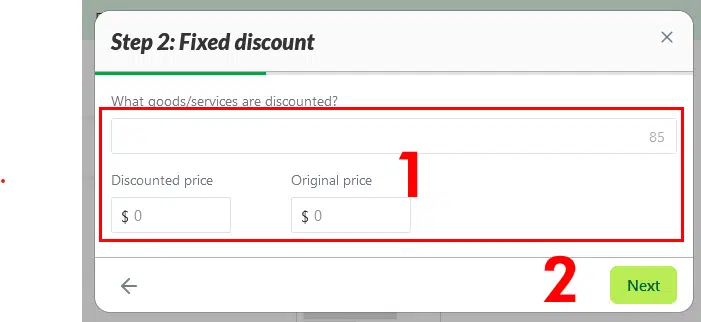
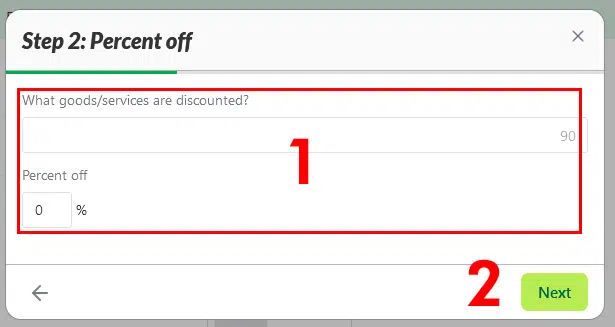
Create a fixed discount or percent off
If you want, a discount or percent off can be given, you will have to provide a title of the discount and the actual percent or amount that will be take off the purchase. Once you are done, click on next to go to the actual setup screen finish the rest of the deal setup.
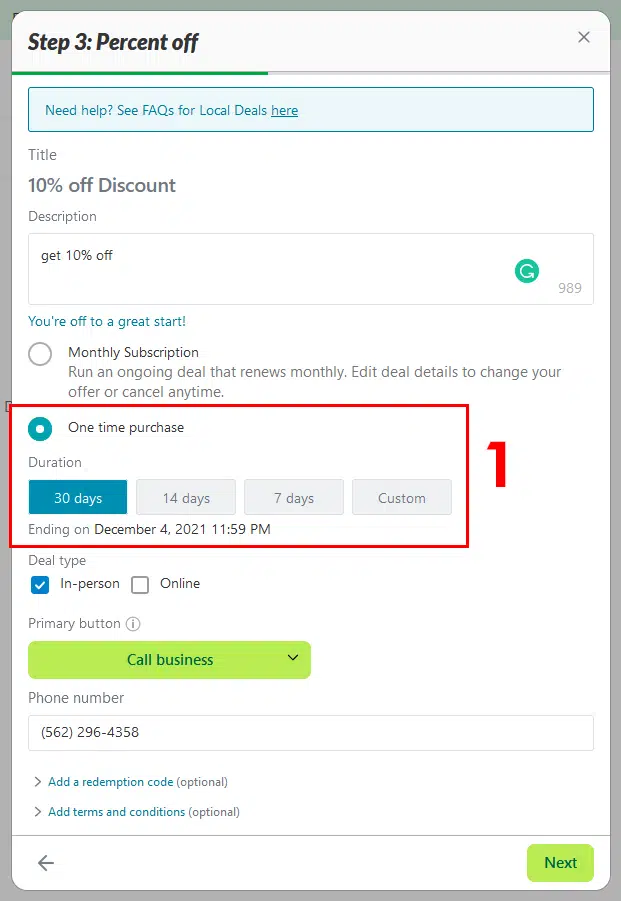
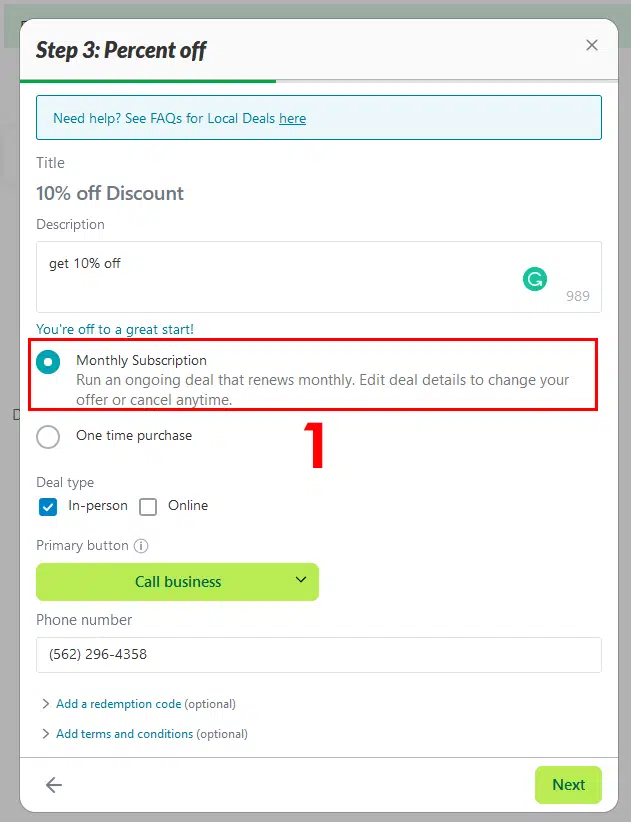
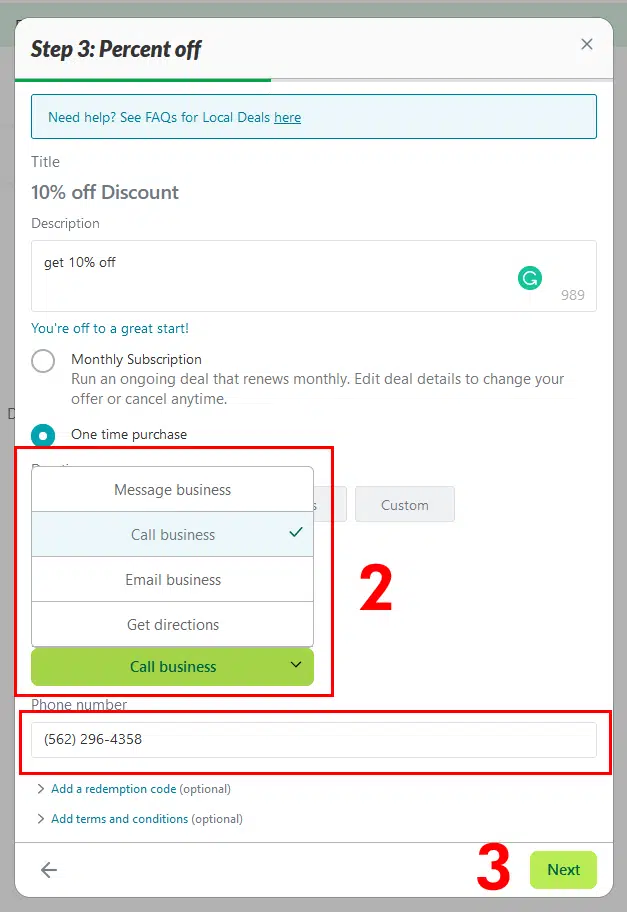
This screen is similar to the setup screen for a custom deal and Buy one get one Free, this screen serves as a second setup screen.
-
- On the next screen, enter a description of the discount and how the customer will redeem the deal, the can call the business, send a message, get directions to your business, or enter a coupon code when they shop online.
- The second step will be to choose how many times the customer can redeem the discount. They can either redeem with a subscription. Use it once per month, or they can use it as a one time purchase.
- When you setup a percent off discount as a one time purchase, a time duration is required, there are four options for you to choose from.
- If you choose to have the customer contact you or come to the business, you will need to provide a email address, phone number, or if they are going to shop online they will need a URL to redeem the coupon code. Other options include providing a redemption code, and terms and conditions.
Free, this screen serves as a second setup screen.
After the deals have been setup, you will be able to manage them in the Content page.
Useful Links
Local Deals Guide
https://business.nextdoor.com/local/resources/your-local-deals-strategy-when-to-run-another-local-deal
Local Deals FAQ
https://help.nextdoor.com/s/article/About-creating-Offers-official