

iPhone and iPad Setup Instructions
Setting up a GoDaddy email account on an iPhone is very straightforward.
Important: Conversion information
GoDaddy is in the process of converting our Workspace Email accounts to Microsoft 365 email accounts. The data migration to Microsoft 365 will be finished sometime in Mid-November. From that point onward, we will need to change the setup of all email accounts using Microsoft 365 Email.
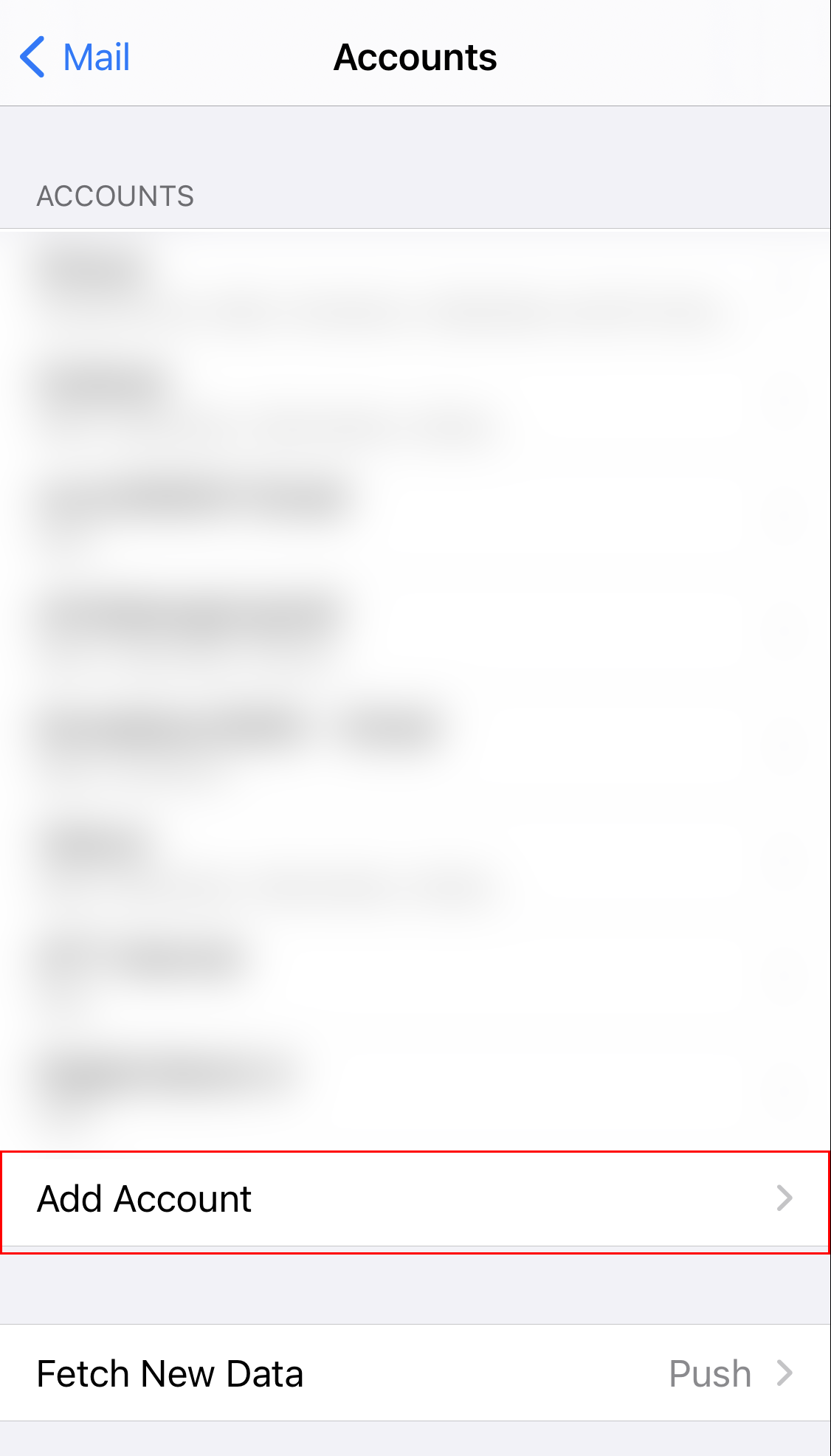
1. In Settings, click on the “Mail” icon, then click on the “Accounts” name to go to the list of accounts. At the bottom of the list is “Add Account”, click on this to go to the next step.
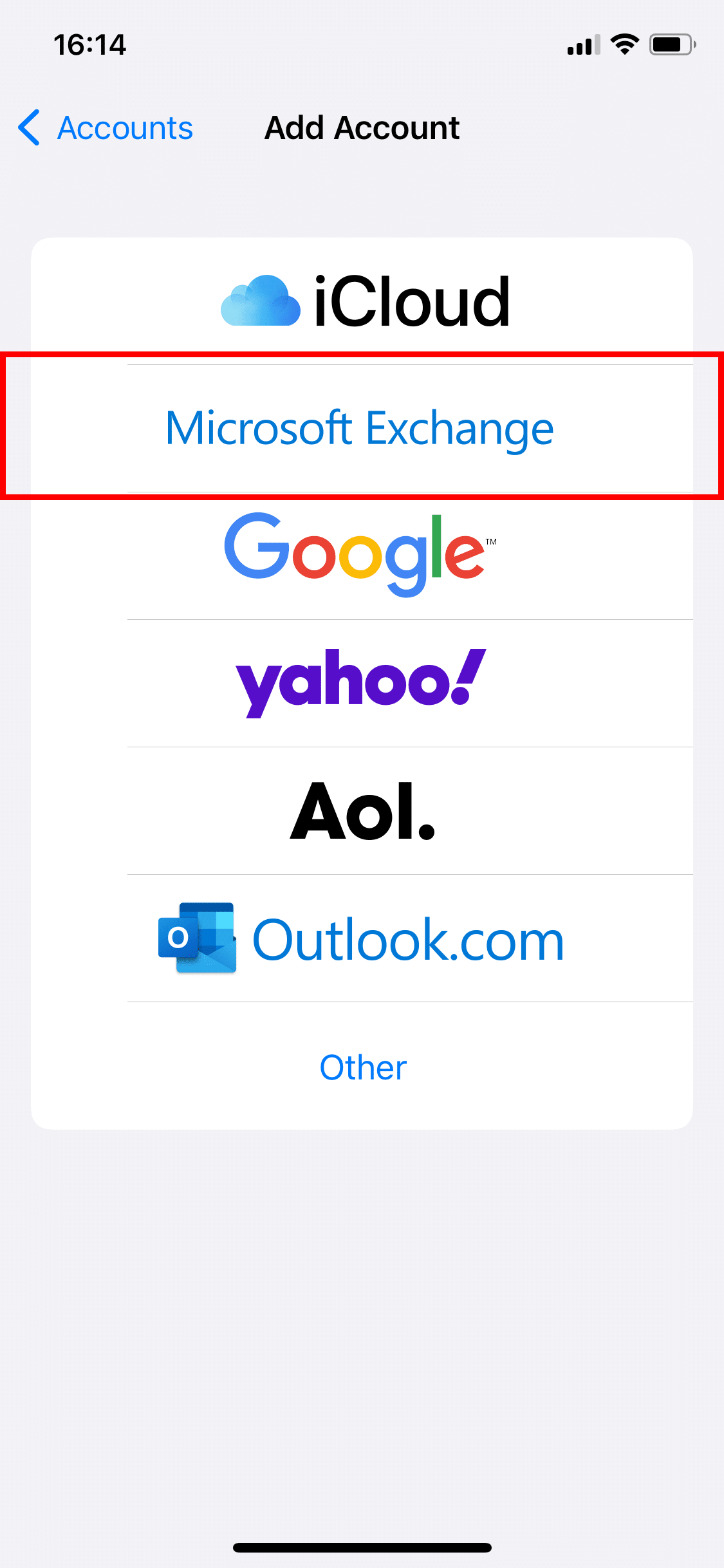
2. Click on “Microsoft Exchange” to add the email account to your iPhone.
3. On the first setup screen, enter the email address, and the name of the email account.
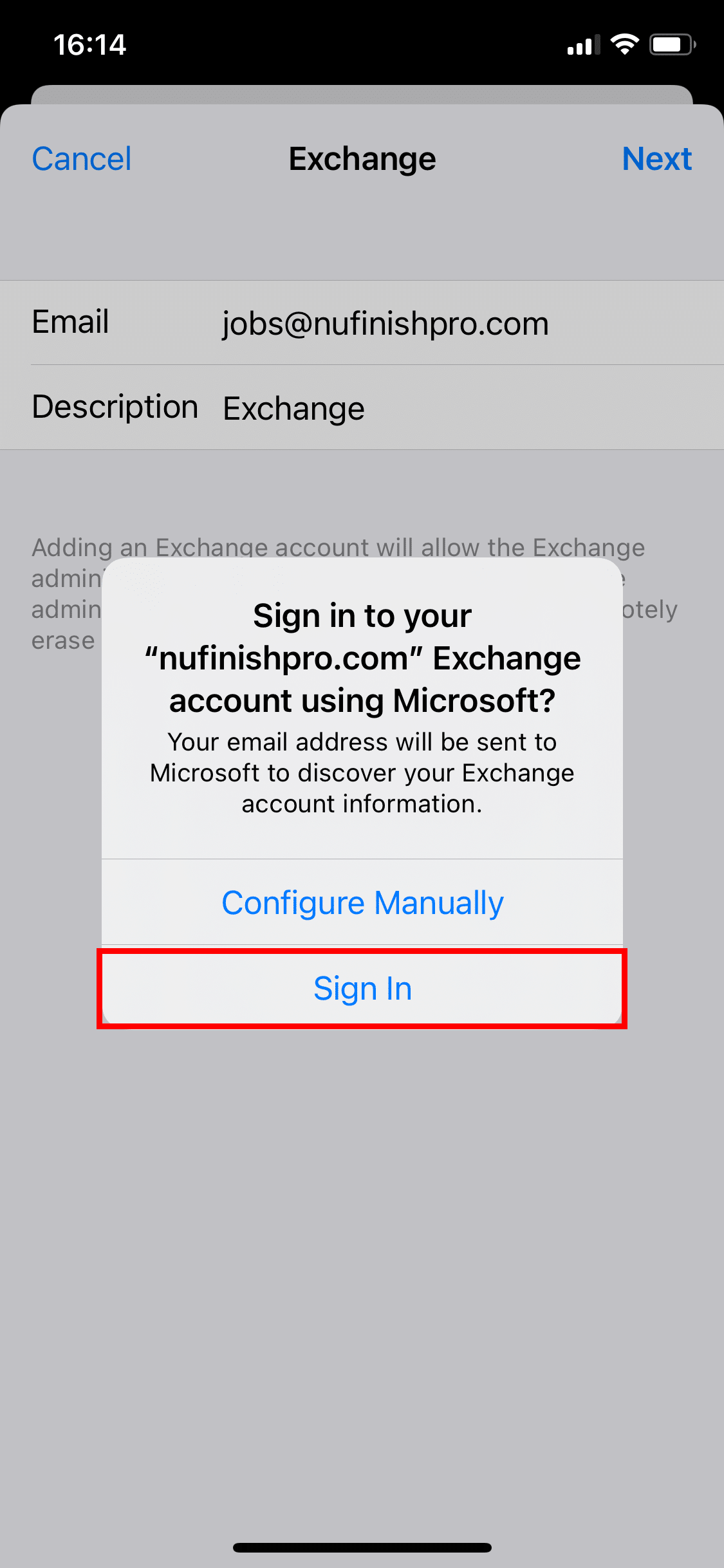
4. When the popup window appears, click on “Sign In” to go to the next step.
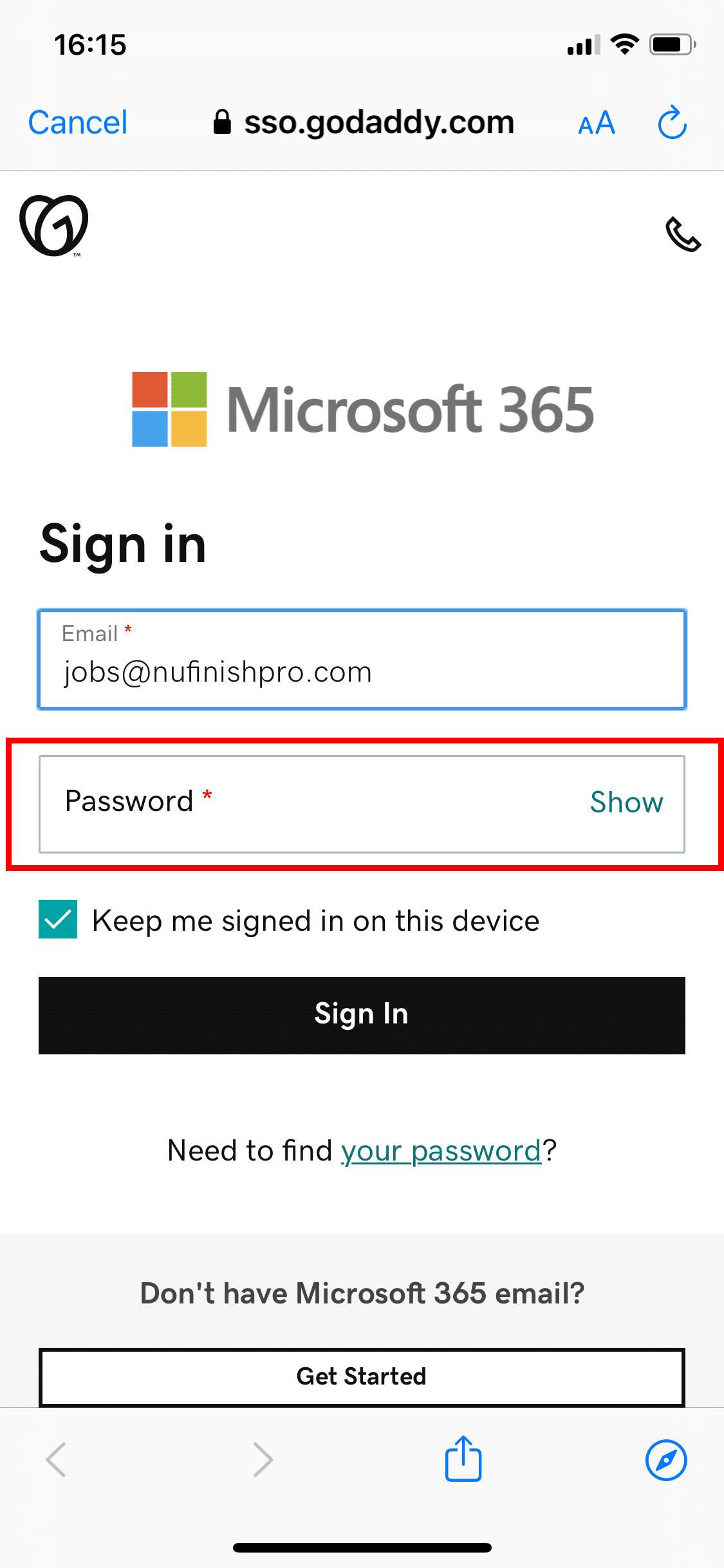
5. In this screen, the email address should appear in the text field. Go to the password text field and enter your password. When you are done click on “Sign In”.
6. A Permissions screen will appear, agree to the terms and click on Accept to go to the options screen.
7. When you are done, click on “Save”. The email account will now appear in the accounts list and in your email application.
Trouble Shooting Help
Trouble shooting help for Microsoft 365 email on the iPhone.