

YouTube Video Lists
Sorting and organizing your videos
A playlist is a vital part of organizing videos on YouTube, whether you are a viewer or a creator. This is how you group related videos together for visitors to view. You can add multiple playlists to a channel, and reorganize them as you need to.
Create a new list of videos
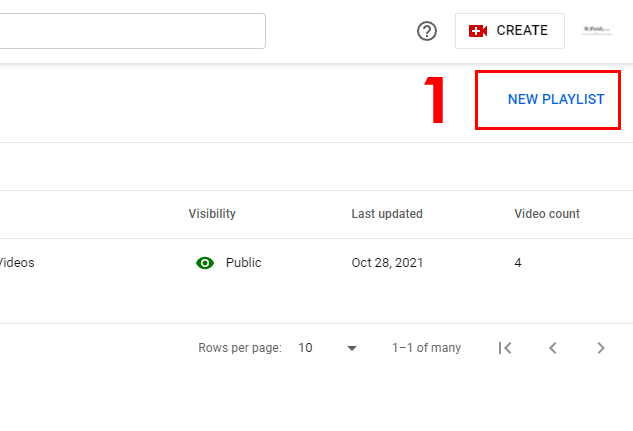
To begin, click on the link on the left sidebar in the Studio. You can also create one in the main YouTube Channel dashboard as well. There is a blue “New Playlist” link that will trigger a popup window.
- Click on the link to begin creating a new video list.
Setup the Playlist
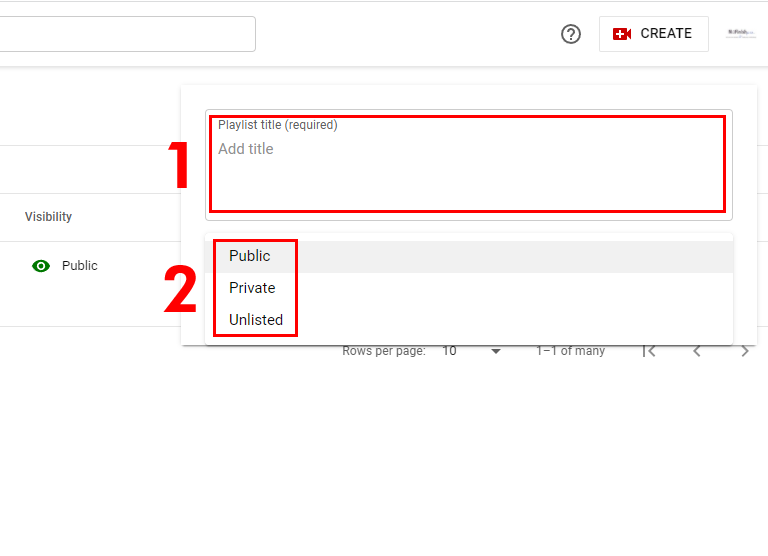
Once the drop-down window appears, you will need to provide a name and choose a status.
- Enter the name, this is required and can be changed later.
- A status can be chosen, Public is the default setting, if you want, you can make a channel private or unlisted. You can always change the status later.
New Playlist
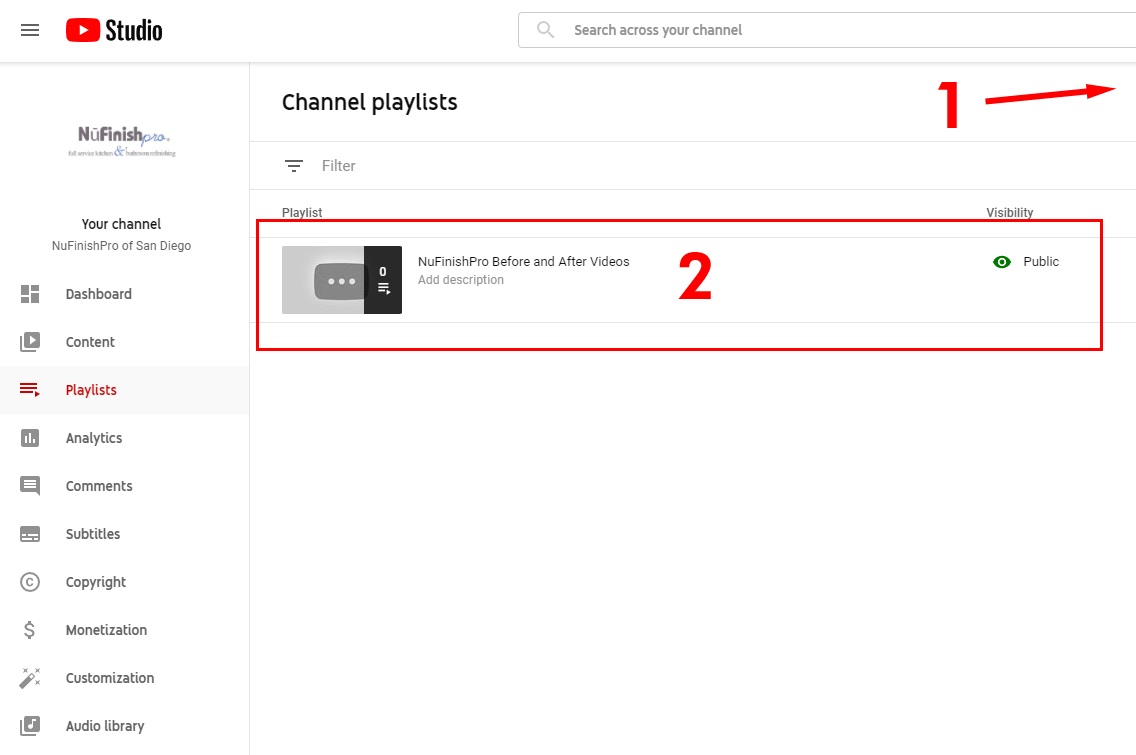
When you are finished, the blank list will appear on your channel’s page.
- If you want to create more lists, go back to “New Playlists” to create more.
- Your blank playlist will appear. When you are ready to add videos to it, move the mouse arrow over the playlist to begin.
Make changes to the list you created
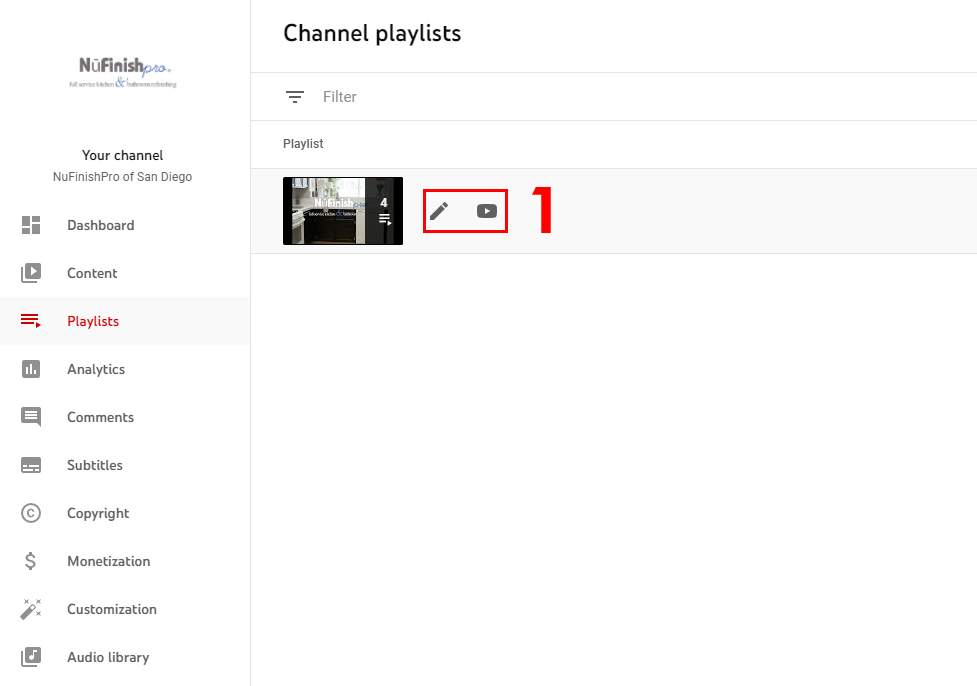
When you move the mouse arrow over the title, two icons will appear. The pencil icon will allow you to create a list, and the YouTube icon will take you to the Playlist’s page on the Main Channel.
Playlist settings
After clicking on the pencil icon, you will be taken to the new item that was created. You can rearrange the lists, change the name and status. All of this is on the left-hand side of the page below the thumbnail, a description also be can be added as well.
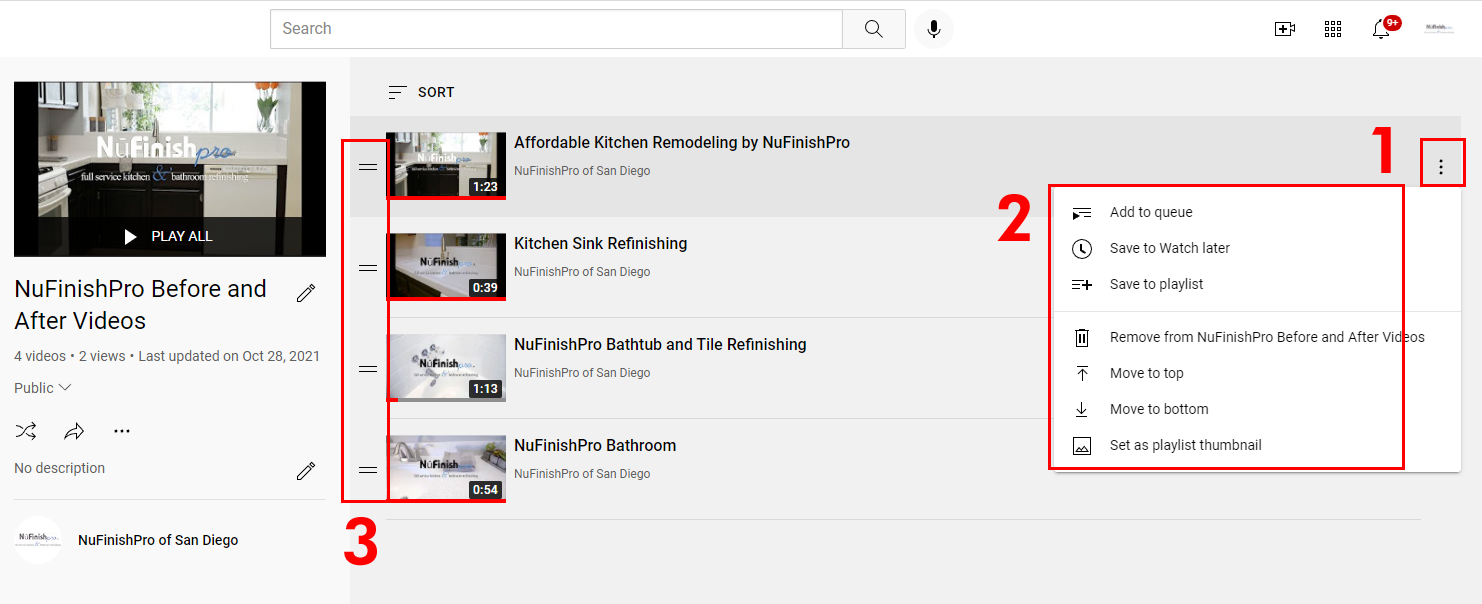
- Next to each thumbnail on the far right-hand side of the image is an icon with three dots, click on this icon to view a drop-down menu.
- You can add a new video by clicking “Add to Queque”, save later, save to playlist, remove a video from the list, move it up and down, or set the frame as the thumbnail.
- Next to each video is an icon with two horizontal lines, this allows you to move the video up and down. Move the mouse arrow to the icon, then click on the icon to move the video. When you are done, the change will automatically be saved.
Important notes
Once you are done changing the playlist’s setup, you can leave the page, the actual settings are in the normal YouTube channel. You are no longer in YouTube Studio, to go back, go to the profile icon at the top right-hand corner to open the profile menu and click on “YouTube” studio.
Useful Information
https://support.google.com/youtube/answer/57792?hl=en&co=GENIE.Platform%3DAndroid
https://support.google.com/youtube/answer/6083634?hl=en&ref_topic=9257511
https://support.google.com/youtube/answer/3127309?hl=en&ref_topic=9257511