

Microsoft Advertising Ad Manager
Manage and updated ads for Microsoft.
Changes to your ad, monitoring ads and change any ad setting is all done inside the ad manager.
The Ad Campaign Manager
Your ad campaigns are managed, ad groups, landing page URLs, target locations, ad schedule, and all data collected is stored in the ad campaign manager.
To view tha specific ad campaign, click on the name of the campaign as highlighted in red.

Ad Groups
All ads that have a common category are in an ad group. Campaigns have multiple ad groups to help organize the ads.

Some Helpful Links
Ads and Extensions
All ads and ad extensions are group together in Ads and Extensions, there are multiple types of ads that a ad campaign can run, and different types of extensions.
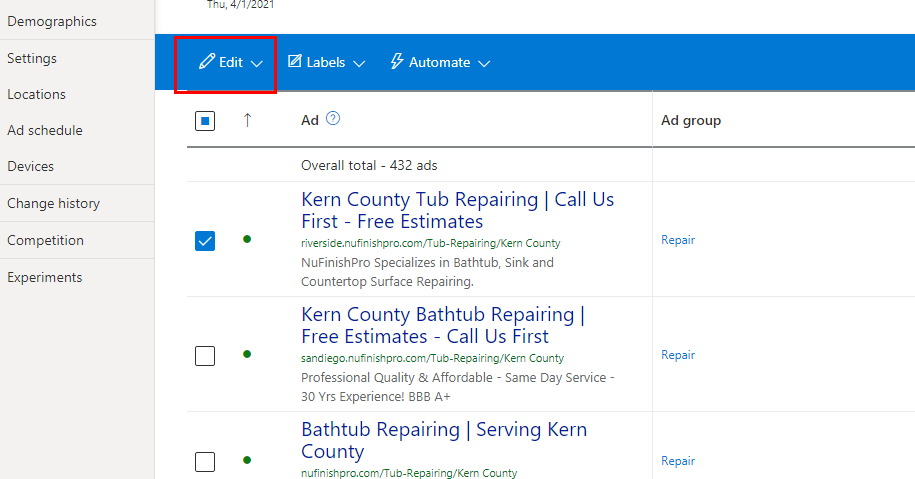
The Edit Menu
To edit an Ad, click on the check box, then go to the “Edit” menu, then select what you want to do. You can either edit, pause . If you wan tot make changes to the ad, you can either change the ad or the URL options. Have a problem with an ad? Well, blocked or suspended ad requests are created by clicking on the “Request Exception” link.

Some Helpful Links
Make changes to multiple ads.
To make any changes to one or more ads is to use find and replace. Click on the ad you want to change by clicking on the check box next to the ad and choose “Change Ad” from the edit menu. First, you will need to choose the type of ad that you want to create. This is a dropdown menu that is next to “Make changes to”, you will have to choose the part of the ad you want. To change the title or final destination URL, then choose the desired part of the online ad.
Changing Text
Use the find text field to search for the text you want to change. The text must be exact as possible or the search function will not find the desired item to be changed. “Replace With” is the text field that you will add to the content that you are going to replace the old text with.
Click on Save to apply the changes to the ads.
Change a single ad
If you want to change a specific ad move the mouse arrow over the desired ad, a pencil icon will then appear. After that, click on the pencil icon to go to the ad editor to change a specific ad in the ad campaign. Scroll to the bottom and click on “Save” to save the changes.
Keywords
Your assigned keywords in an ad campaign are changed in the keywords page. Plus, you can monitor keyword performace in this location.

Some Helpful Links
Landing Pages
The desitination assigned to each ad is located on in Landing Pages. No changes to the Final Destination URL here. Go back to “Ad and Extensions” to change the URL in the ad.

Some Helpful Links
Locations
The locations used in the ad campaign are listed here. To add a location you will need to click on the blue button. Go to settings on the left sidebar to remove a location, and then go to Campaign locations to make any changes.
Service Area
The service area should be a maximum of 30 to 35 miles radius from the city center. A smaller city will have a smaller service radius since there are fewer people to serve. The added location’s maximum drive time can’t be more than 2 hours or 120 miles to and from the office.

Some Helpful Links
Ad Schedule

All ads are run on a schedule, the schedule is controlled by the settings in Ad Schedule.
Change History

The ad campaign manager will log all changes that are made by each user. To undo the changes to the campaign, go into the history and remove the changes to an ad campaign.