

Bing Ads Campaign Settings
Each ad campaign has a separate menu for settings
Things like the ad schedule, locations, ad group name. Add or exclude websites, and IP addresses are located here.
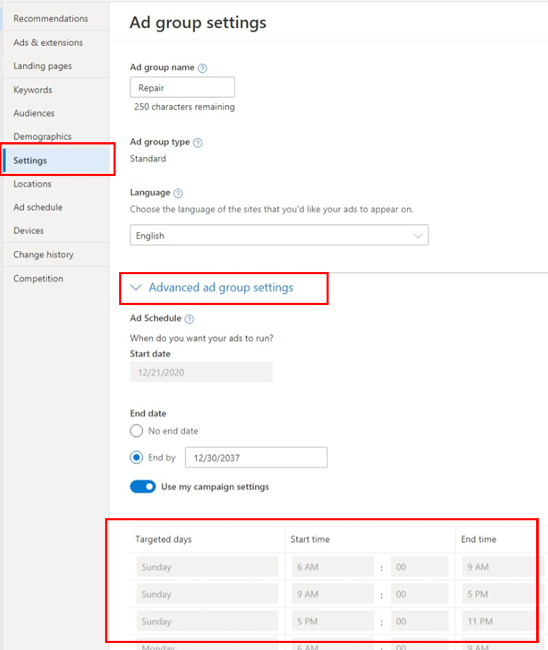
When you first come to the ad campaign settings menu. You will see the ad campaign name, type, language, and ad schedule. The ad budgets will appear here when the ad campaign is active. You can change any of these settings if needed. The schedule settings in this menu mirror the ad schedule in a different part of the campaign dashboard.
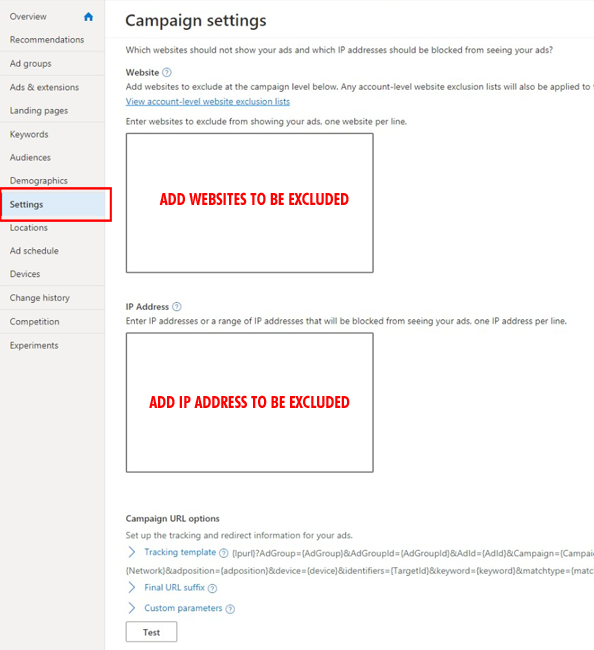
The ad campaign settings allow you to add a tracking template link. Any final URL suffixes, and exclude websites and IP Addresses. All of these things affect where the ads will show up. So if you want to block a specific website from showing the ads, you will apply the website domain and IP Address here.
Location Targets
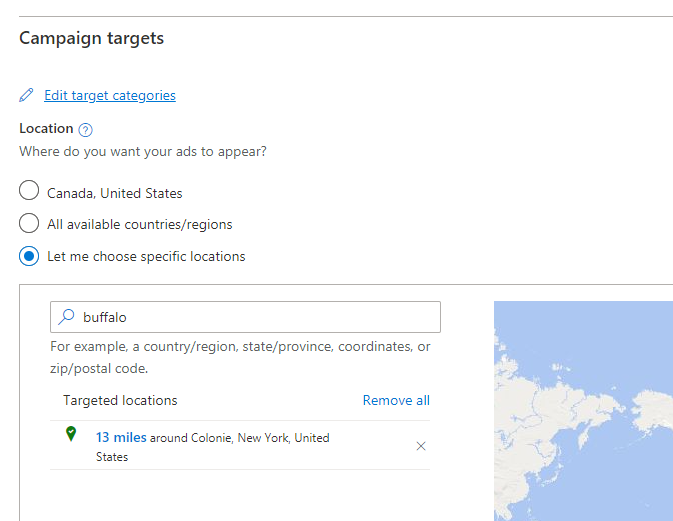
All ad campaign location targets are added in this part of the settings menu. You will enter the name of the geographic location where the ads will run
Once you enter for example “Buffalo” you will get the related locations in a dropdown menu. The ad campaign manager will have two places where you can view the targeted locations. When you add a location. You will always be taken here to enter the location targets for each ad campaign.
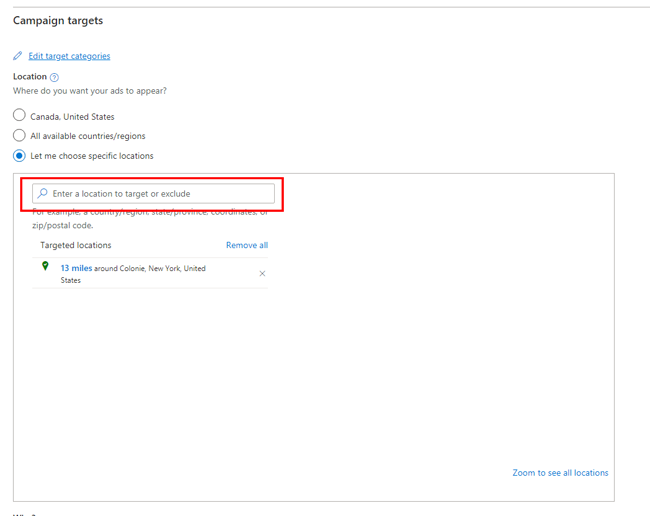
To either target or exclude a specific location, you will need to click on either target or excluxe. You can enter a specific radius from a specific location that you are targetting your ads.
Service Area
The service area should be a maximum of 30 to 35 miles radius from the city center. A smaller city will have a smaller service radius since there are fewer people to serve. The added location’s maximum drive time can’t be more than 2 hours or 120 miles to and from the office.