Business Profile
The different parts of a Nextdoor business profile
The profile page is where a visitor will read the information that you provide. Your story, business hours, contact information, photos, and recommendations are all viewed here. They will be able to email or call you using the publicly listed information that you provide.
Overview
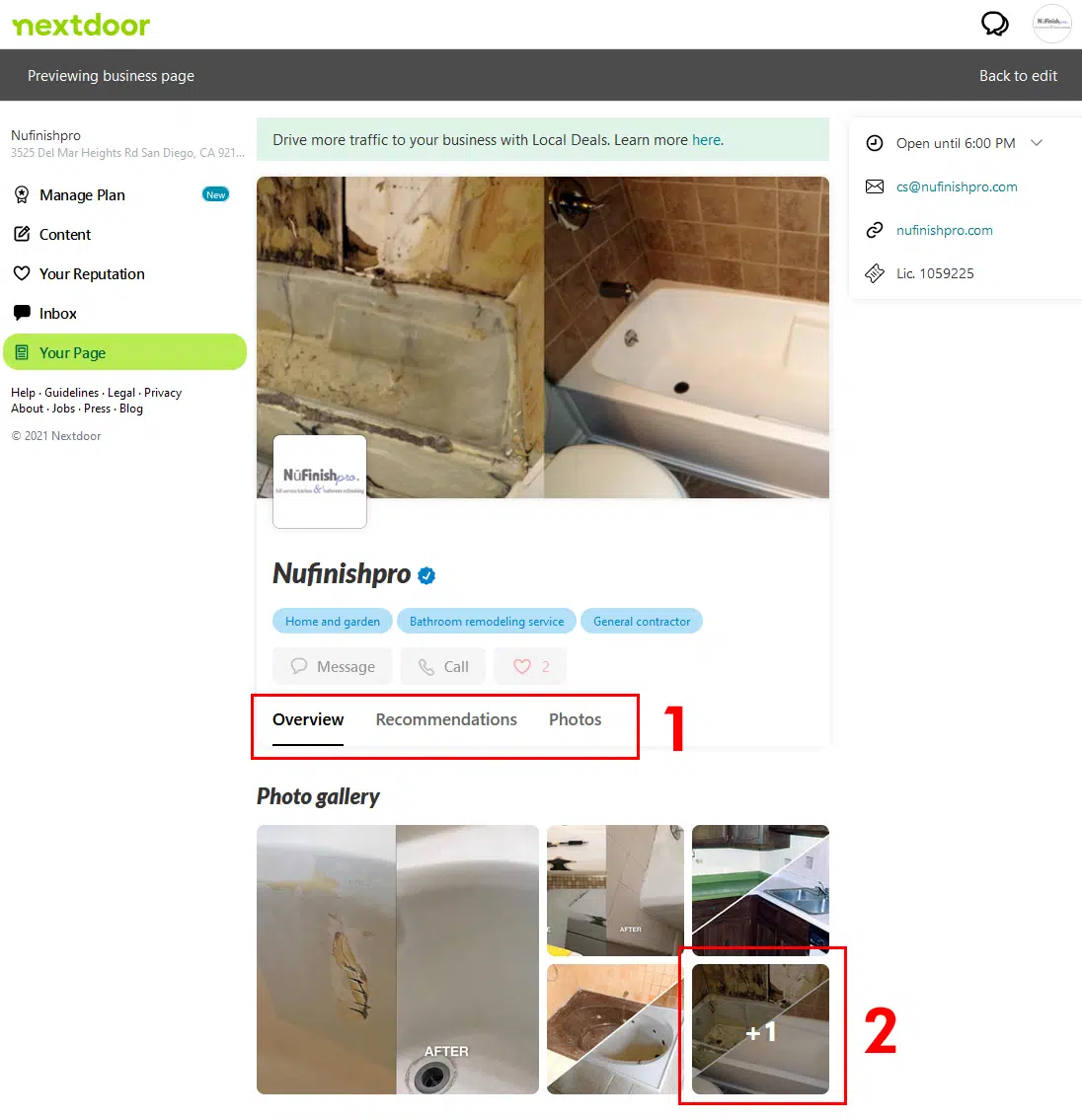
At the top of the profile page is your logo and cover photo. In the right side bar is the business hours, email address, phone number and the license number. Your profile business name, the categories are farther down the page. There are icons for sending messages, call, and a like button for the profile.
- You will navigate the different parts of the profile by using three tabs, “Overview”, “Recommendations”, and “photos”. The overview will provide the customer with some basic information about the business, the second tab will allow the customer to post comments and add a like to the profile. The third tab will allow the viewer to see more photos that the business has posted.
- Farther down the page is a Widget for photos. Certain photos will appear on the overview page. If you want to see more photos click on the +1 Icon. When you click on the image, a larger version will appear in a popup window.
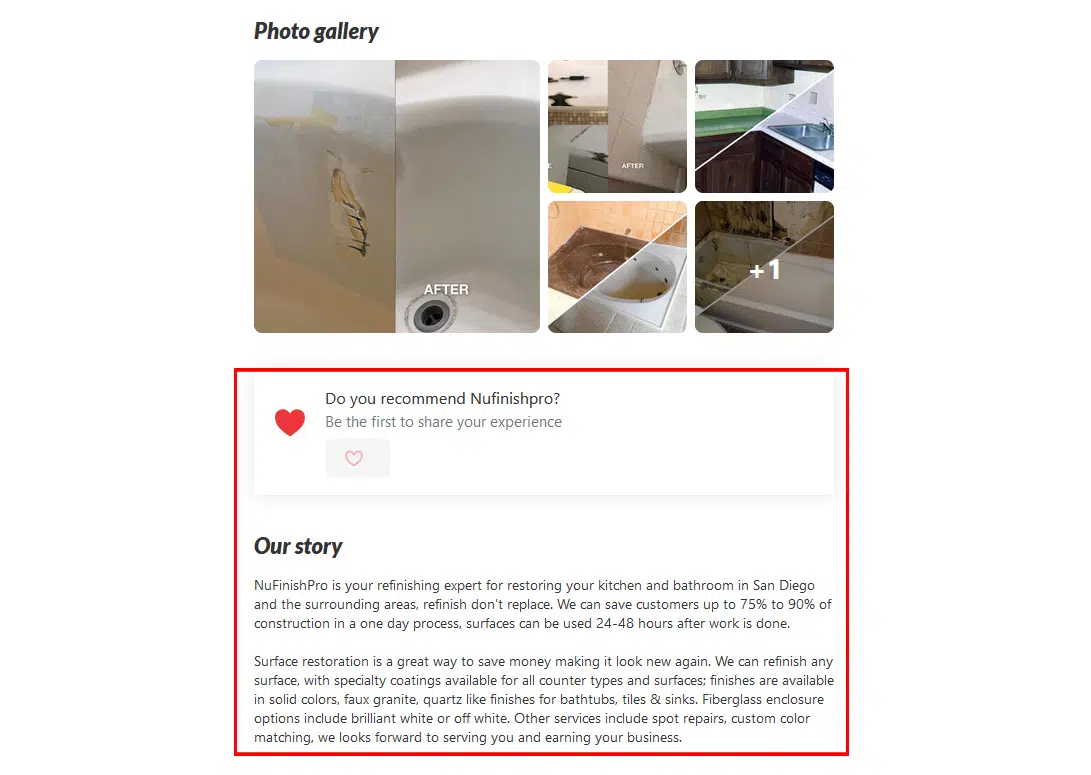
Farther down the page are the recommendation widgets, and the business description.
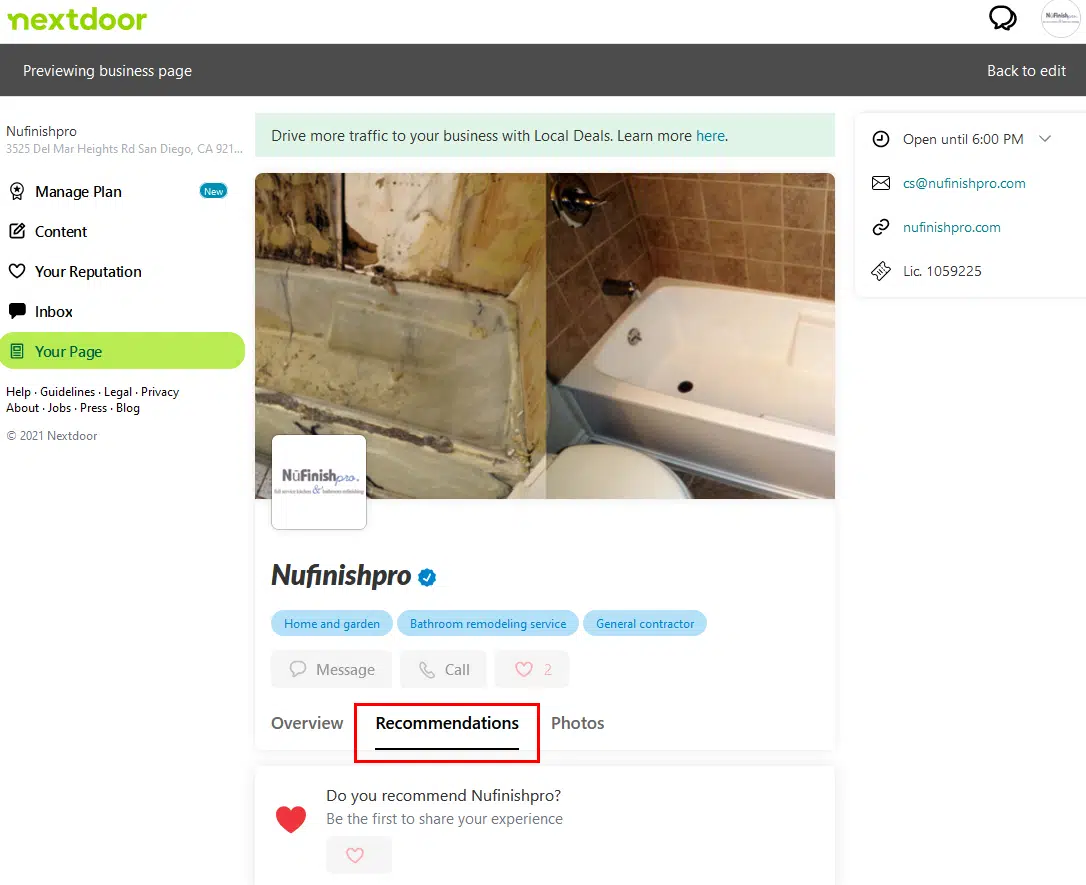
Recommendations
The recommendation tab will show a list of everyone who has made a recommendation and posted a comment on the page. All comments from other neighbors will be shown on the tab.
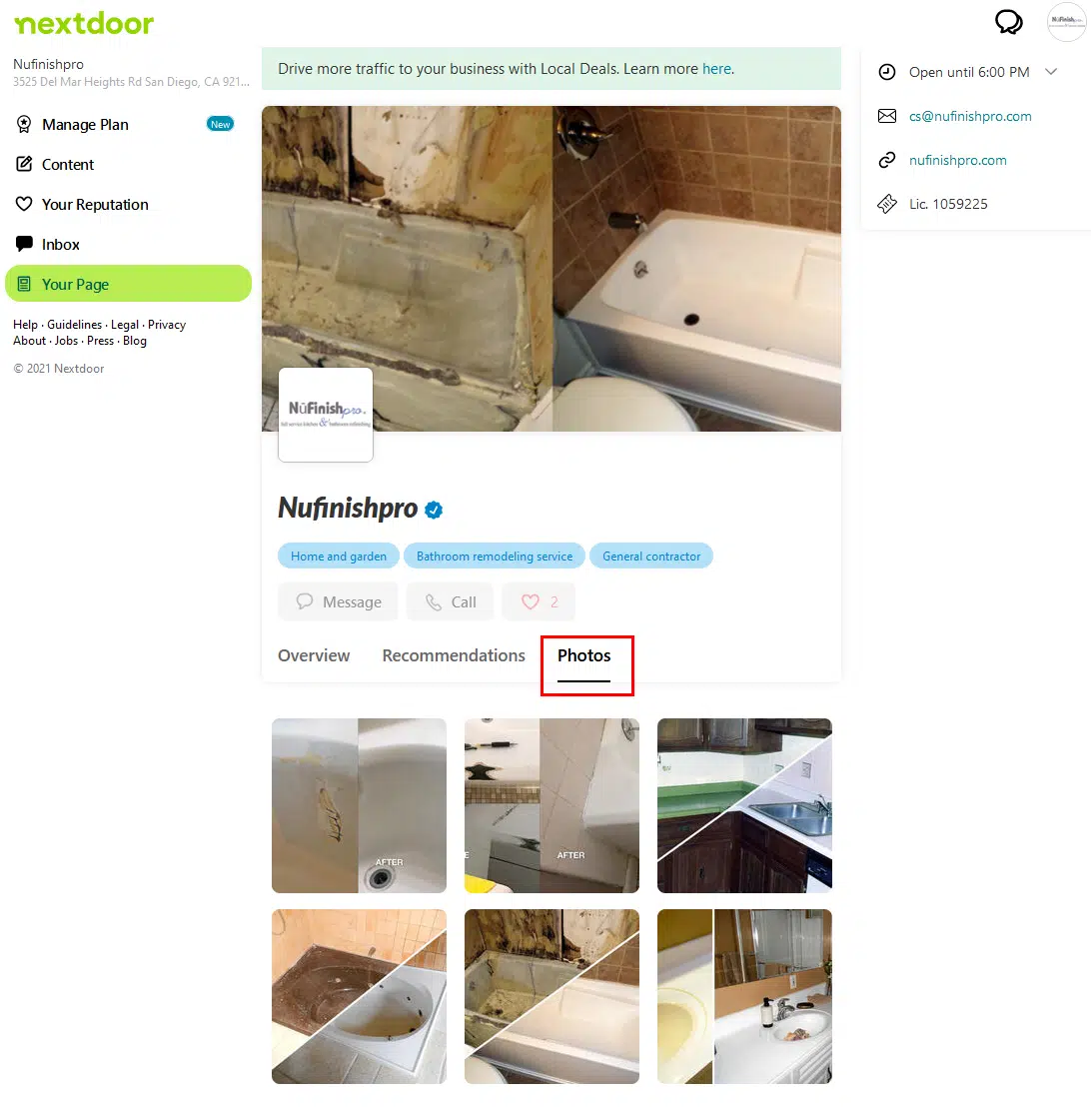
Photos
All of the photos will be visible on this tab. A photo Grid will show all of the photos you have added to the profile. All photos that are added need to be square in shape. If you want to add additional photos, you will need to go into “Your Plan” and add the photos there.