
YouTube Studio Dashboard
This is the first place that you will be taken to when you arrive at the YouTube Studio.
An introduction to YouTube Studio
When you are ready to record, edit and create videos, use YouTube Studio. Add videos into YouTube or record a stream using YouTube. This part of the site has tools that allow you to change the look and feel of your YouTube Channel. Add additional audio to your video, subtitles, language options, edit the content or your video. When your video gets enough views, you will be able to run ads on YouTube in the videos, and collect some of the revenue from these videos.
Copyright and other tools
Do you have a legal issue with some one else’s video? Use YouTube Studio when there are copyright and legal disputes with your videos. File and track a copyright claim against another video’s owner using YouTube Studio. Are you curious about how your videos are doing? YouTube studio has Analytic tools to help monitor your video’s perfornace. When you get any comments on the video, they can be monitored using YouTube Studio. Other tools like video playlist can be created here in YouTube Studio.
Parts of the dashboard
If there are any issues with the YouTube website, other news and stories from YouTube will be posted on the dashboard. The dashboard has three parts, the top bar, left sidebar, and the main dashboard.
- The top bar is the same as the other pages on YouTube. There are links that will take you to the other channels and videos on YouTube. The search bar, account settings, and other links on YouTube Dashboard.
- The left sidebar allows the user to use various tools in YouTube Creative Studio.
- The main dashboard has various widgets to upload a video, channel analytics, recent subscribers, and news from YouTube.
Your Creative Studio
First, most of the tools that you use in YouTube Studio are located mainly on the top right-hand corner where the upload and streaming links are. Second All of your creative tools will be located on the left hand side of the screen. Finally, the main dashboard will have information widgets.
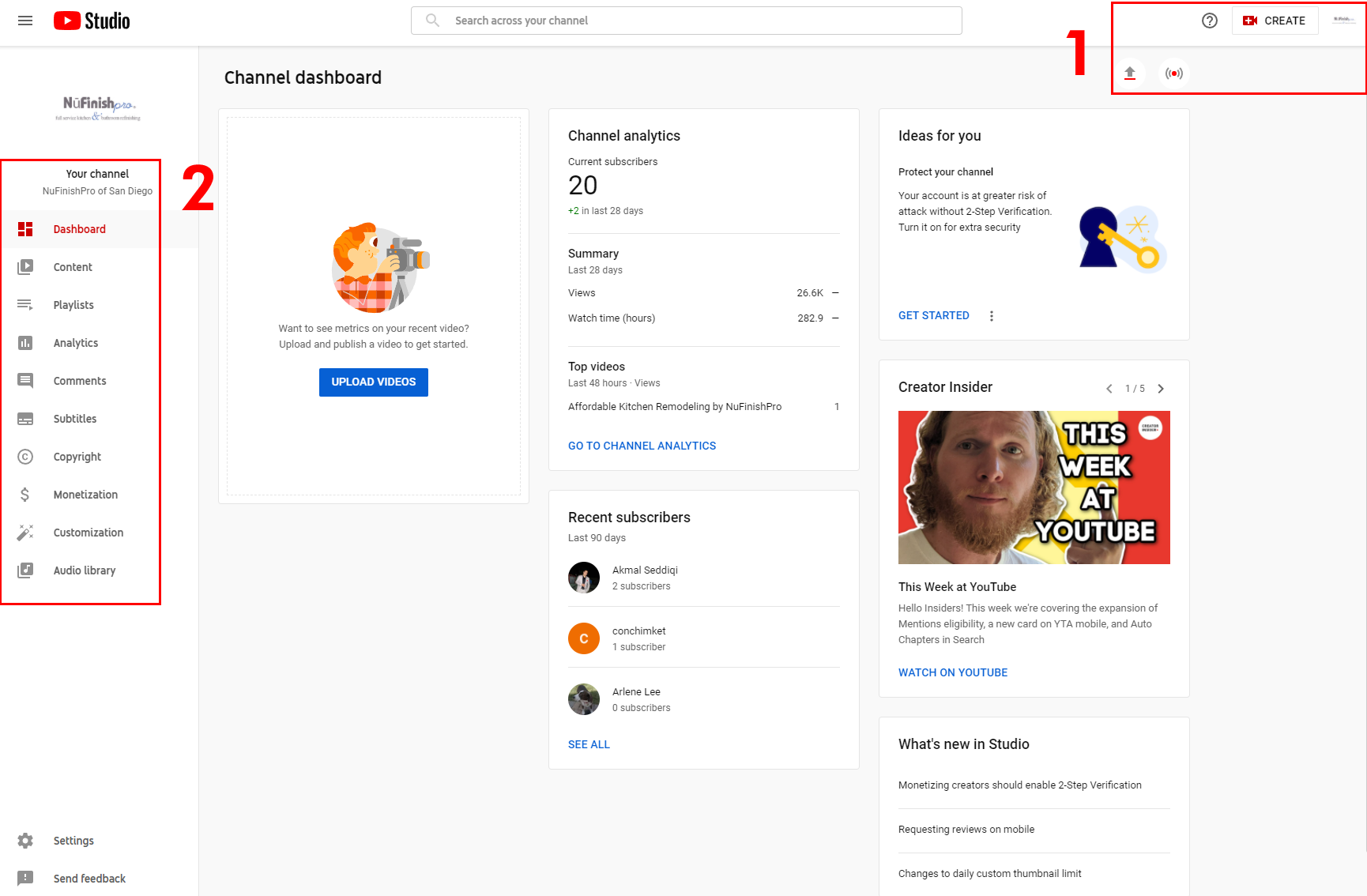
- The top right-hand corner has links that allow you to either create a video or live stream. Both the create button, and the two icons below do the same thing. The Create icon triggers a drop-down menu to show you the same two links below the help icon.
- The left sidebar has links that allow you to create a playlist, content, add subtitles, copyrights, monetize videos, and browse the audio library. All of the creative tools for your videos, comments, and customizing options are located in this area.
To upload a video, either click on the up arrow icon, or the “Create” Button, a drop down menu will appear.

After the drop-down menu appears, you have two choices, upload a video or go live.

Uploading Your Videos
Upload video content to the YouTube Channel. First, edit the video with either an outside video editing program or use YouTube’s provided video editor. When the video is created with an outside tool, the video’s audio and video will need to have the proper encoding and editing for the best results. Finally, upload it to YouTube so that everyone can see the video.
3. When you click on Upload videos, a dialog box will appear. To add a video you will need to click on the blue button or click and drag the video to the dialog box. After that, the video will appear on the content page once the upload is done. Remember, your video has to comply with certain video standards set by Google. Remeber, Google can choose to remove the video for any reason.
Click on the links below for more information.
Upload video
https://support.google.com/youtube/answer/57407?hl=en&co=GENIE.Platform%3DDesktop
Record and upload a video
https://support.google.com/youtube/answer/57409?hl=en&ref_topic=9257439


Streaming
A video stream is an event that is either broadcasted live or has been recorded. A recorded video can be shown on YouTube at a later date. You will need the proper video equipment like a webcam or other video camera, the required software, or website streaming tools that will allow YouTube to record and save the video you want to stream. The recorded video stream will be available as a video on YouTube.
4. Your other option is to create a video by capturing a live stream. You will need to have a web cam and setup streaming software of some sort so that YouTube can record the stream. Please see the links below for more information.
Verification
Before you can do anything like a stream or make any major changes to videos. Google requires that you verify the account with a phone number. Simply click on the verify link, follow the instructions to send by text or email a code to verify the account. Once you are done, more features in the account will be unlocked.
Useful Links
Use YouTube Studio
https://support.google.com/youtube/answer/7548152?hl=en
Use the Channel dashboard
https://support.google.com/youtube/answer/2673341?hl=en&ref_topic=9257787
Creator Updates
https://support.google.com/youtube/answer/9072033?hl=en&ref_topic=9257787
Streaming Tips
https://support.google.com/youtube/answer/2853856?hl=en
Start Streaming
https://support.google.com/youtube/answer/2474026?hl=en&co=GENIE.Platform%3DAndroid
Upload video
https://support.google.com/youtube/answer/57407?hl=en&co=GENIE.Platform%3DDesktop
Record and upload a video
https://support.google.com/youtube/answer/57409?hl=en&ref_topic=9257439