
YouTube Dashboard
YouTube main channel dashboard for your account.
After you log in to your YouTube Channel, the main dashboard will appear. This page will have the links to all of your channel options, and the videos that are available for you to watch. At the top of the page is the search bar, a number of category links, and on the top right-hand corner are 4 icons, Create, YouTube Apps, Notifications, and your profile icon. All 4 of these icons will allow you to either create content, access your tools, or view any notifications that you will be receiving.
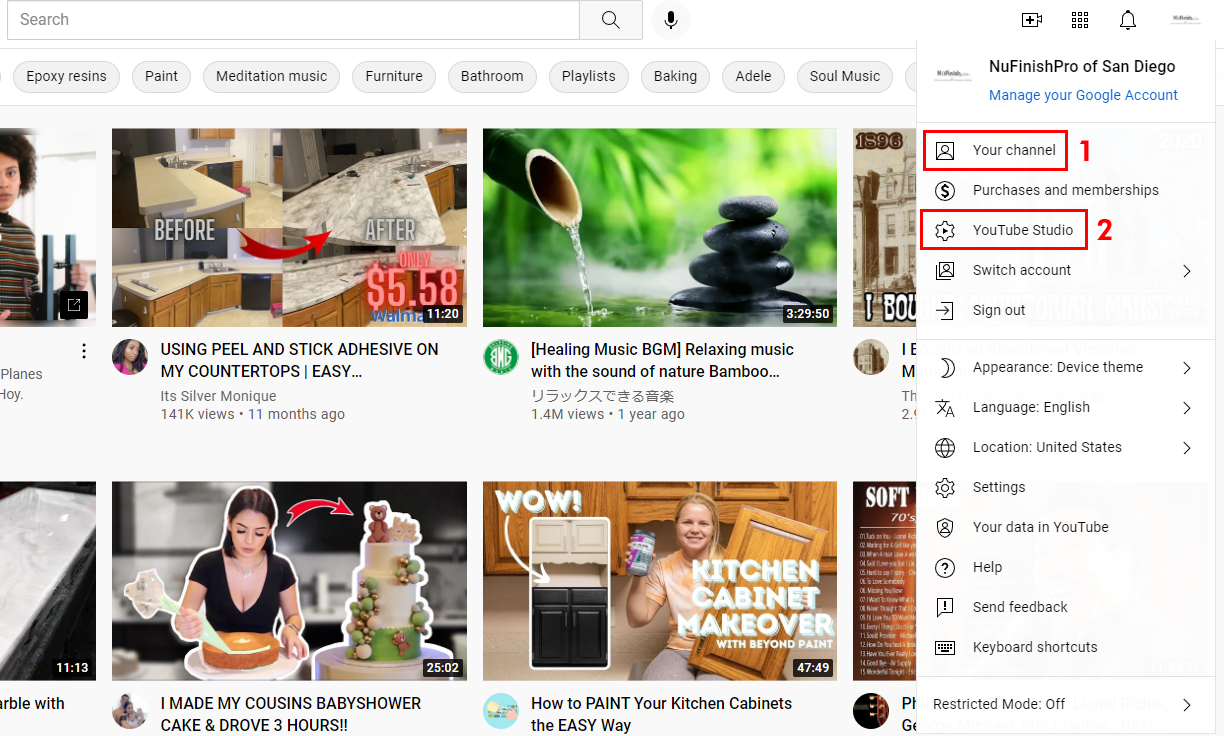
The most important icon of the four on the top right corner of the page is the last of the for icons, your profile icon. This is your channel menu, allowing you to access your channel, control the settings, languages, accounts, and other options that you need to make any changes to your channel.
For our purposes, you will be accessing two specific items in this menu to create any content.
-
- Your Channel: this will take you to the actual dashboard for your channel, all YouTube visitors will see this page when they click on your channel icon.
- YouTube Studio: this link will take you to the editing tools that allow you to set up the YouTube video. Upload content that will be part of your video, or make minor changes to an existing video. If you want to add subtitles or close captioning, add them here.
YouTube video page
A YouTube video has it’s own page, share besides watching, liking, saving a video to a playlist and commenting on a video. The channel owner will also be able to see the video analytic, and edit the video in the YouTube Studio.
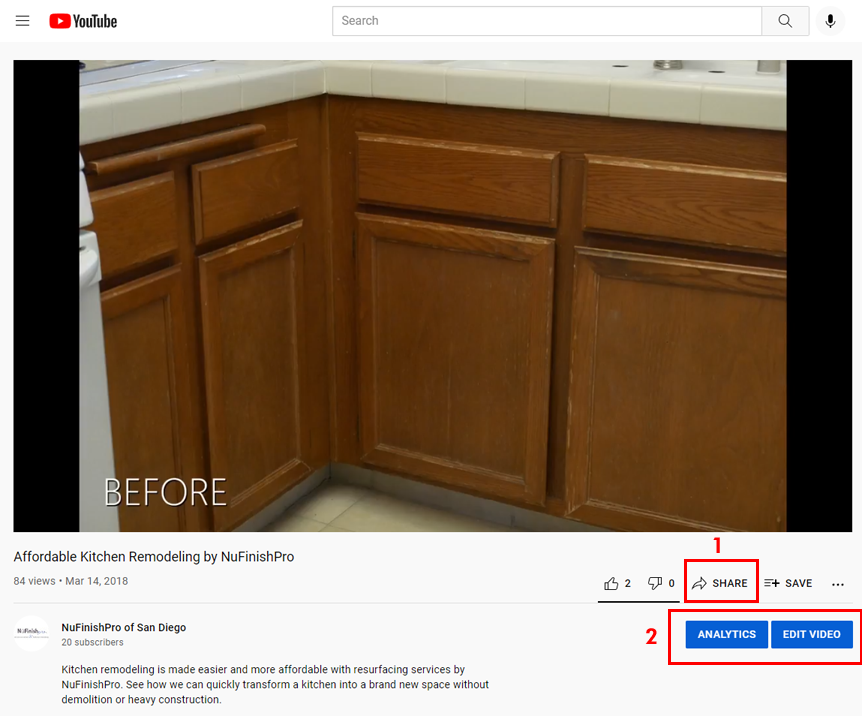
Share a video with someone else by clicking on the share link to trigger a popup window that allows you to email, embed, or send a video to a social media platform. Your first option will be to just copy the link to past the URL in a different browser window.
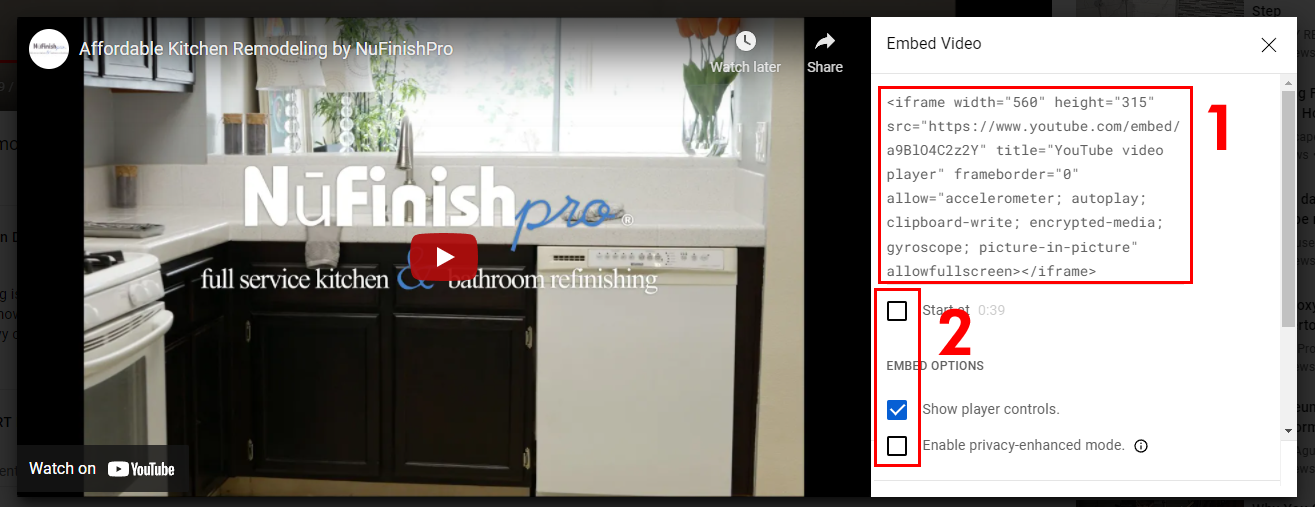
To embed the video click on the embed button, this will open a new window that displays an embed code.
-
-
-
- You can change the video start time in the embed link, embed options. Hide or show the player controls or enable privacy mode. As you change the options, the embed code will change as well.
- When you are ready to use the code. Click inside the embed code video to select the entire batch of code to add it to a web page, HTML file, or another text page.
-
-
YouTube Channel Home Page
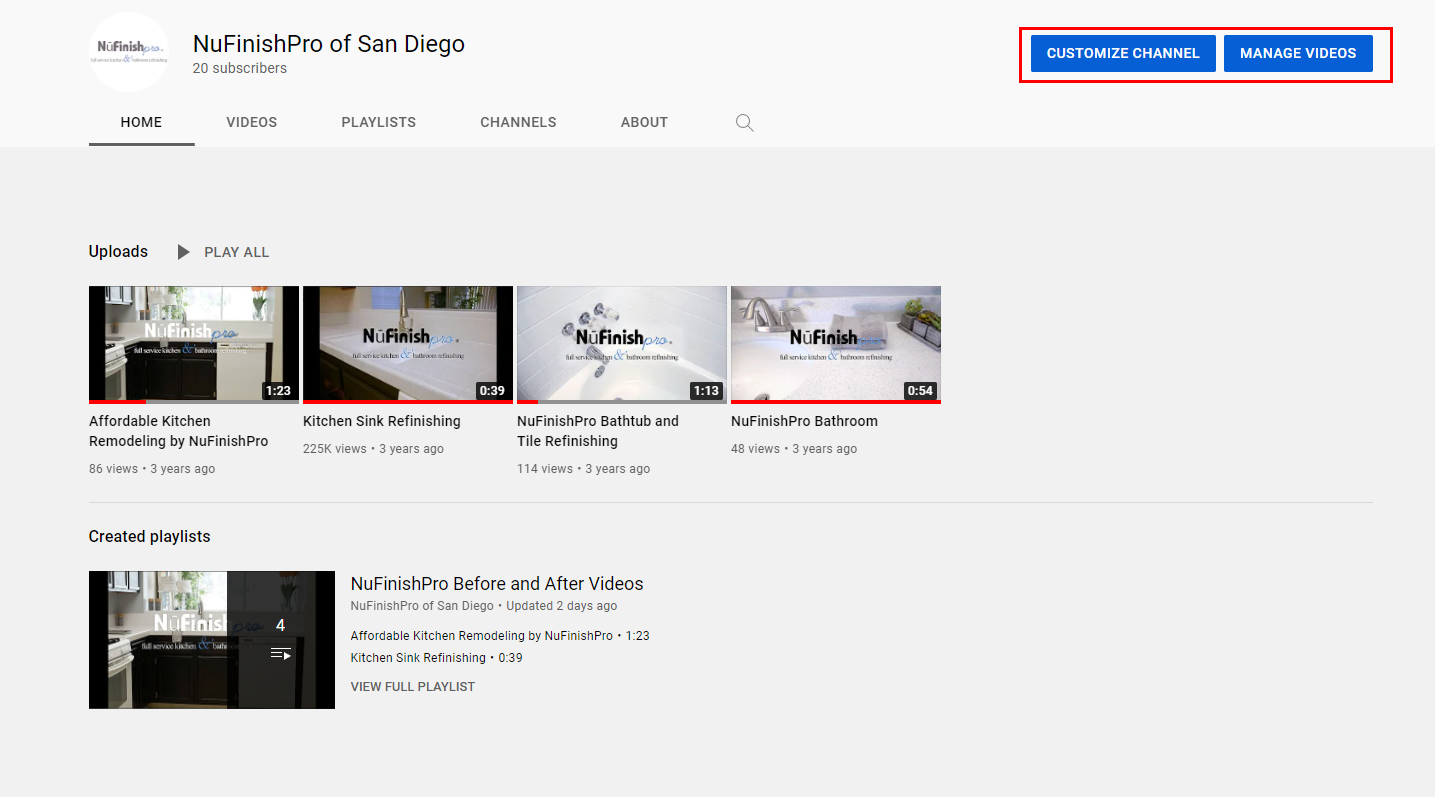
The video channel’s home page will have two buttons that are only visible to the channel owner, “Customize Channel” and “Manage Videos”. You can do all of the things that every other user can do, watch videos, create playlists and other things. Plus, customize the channel, to change the background, color, layout, brand and other basic channel information.
Channel Customization
Brand your channel
https://creatoracademy.youtube.com/page/lesson/brand-identity?hl=en#channeltrailer
Branding
https://support.google.com/youtube/answer/2972003?hl=en
Featured sections
https://support.google.com/youtube/answer/3219384?visit_id=637710669994356845-3008360932&rd=1
Manage Videos
To edit a existing video or add a new video to YouTube, click on the Manage Videos button. This will take you to the YouTube Studio, you will arrive at the “Content” page. Click on any of the other buttons on the left side bar to go to the different parts of YouTube Studio.
Useful links
Understand your channel URLs
https://support.google.com/youtube/answer/6180214?hl=en
https://support.google.com/youtube/topic/9257408
Sign up and manage your account
https://support.google.com/youtube/topic/9267757
Custom URL overview
https://support.google.com/youtube/answer/2657968?hl=en
Get Started Live Streaming
YouTube allows you to live stream as well, you can do a live stream on YouTube.