Setup A Single Profile
How to set up a profile on Google Business Profiles
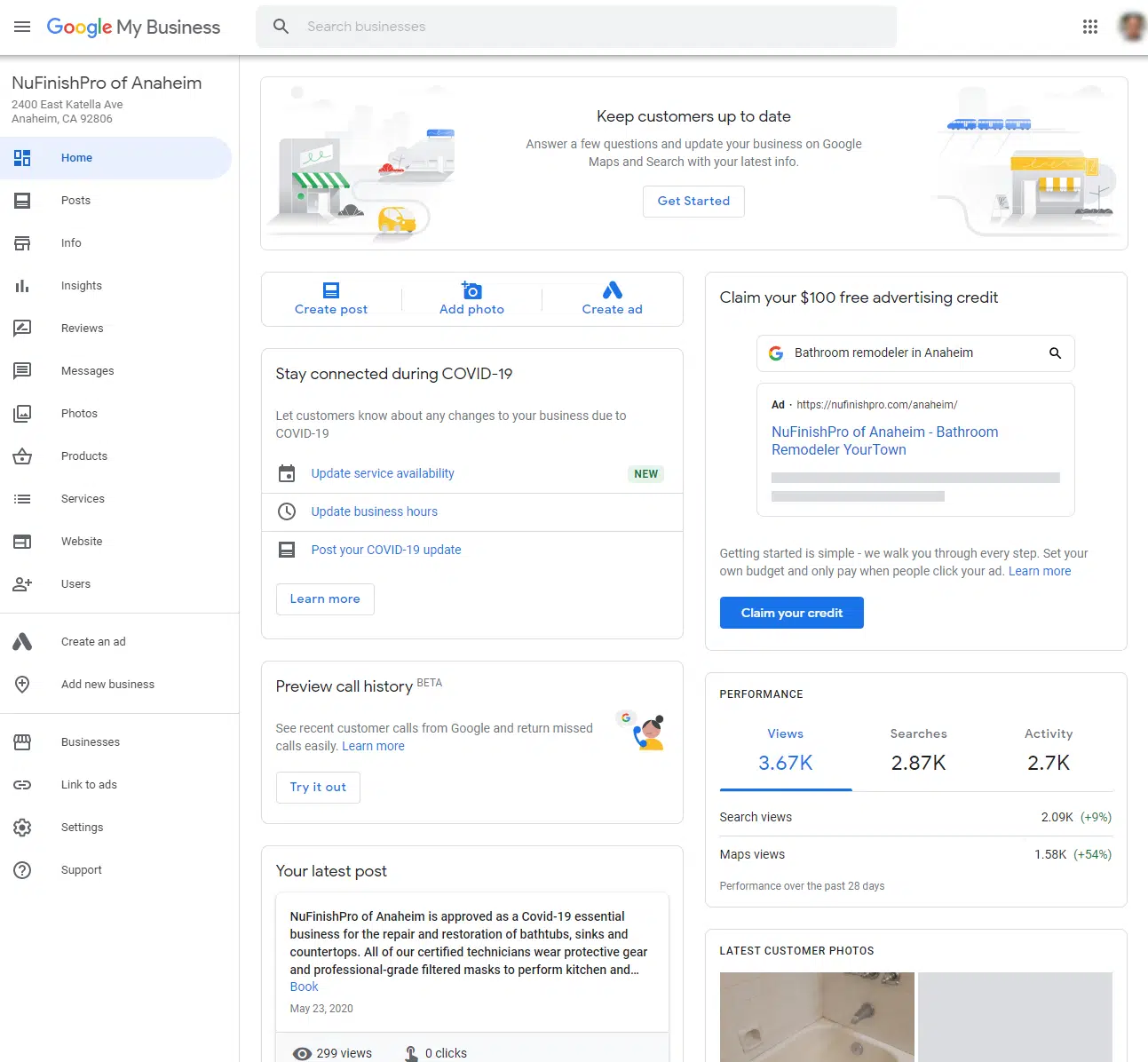
To display your business information on Google searches and other services, you will need to add your business info to Google Business Profiles by setting up a profile. Do you want to add a business to your list of locations in Google Business Profiles? It’s easy, follow the below steps to create a profile in Google Business Profiles. A Google Business Profiles profile is important, the profile shows up on Google searches and allows your business to be visible on Google Maps.
Some Helpful Links
https://support.google.com/business/answer/3038063
https://support.google.com/business#topic=4596754
https://support.google.com/business/answer/3038177
Getting Started
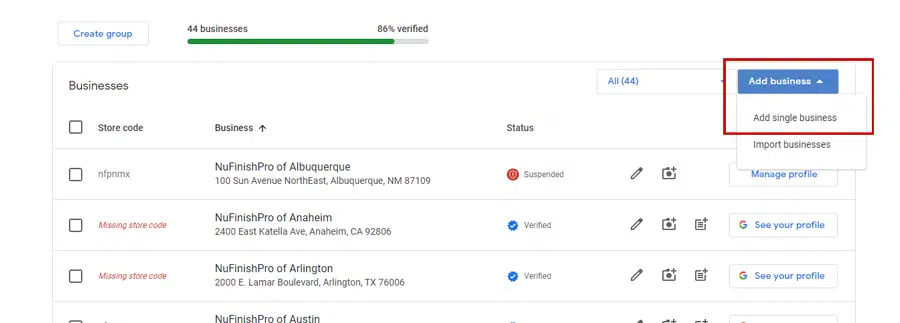
1. Click on “Add business”, a drop down menu will appear, to begin click on “Add single business” to go to the setup wizard.
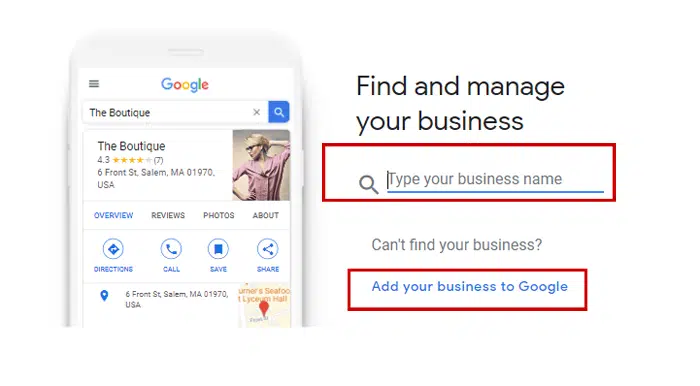
Search for existing location
2. First you will come to a window that will ask you to search for an existing busines. If you don’t have a exisiting business, just click on Add your business to Google.
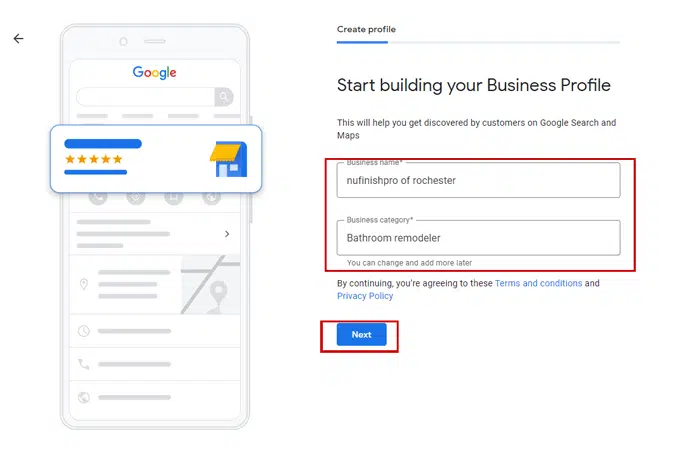
Add your business name
3. To begin creating your profile you will need to add the business name, this needs to be the actual name of the business. Then you have to pick a category, more categories can add later on, Google will make suggestions for you to add to your profile. But for now, pick one category to begin.
Can customers visit your business?
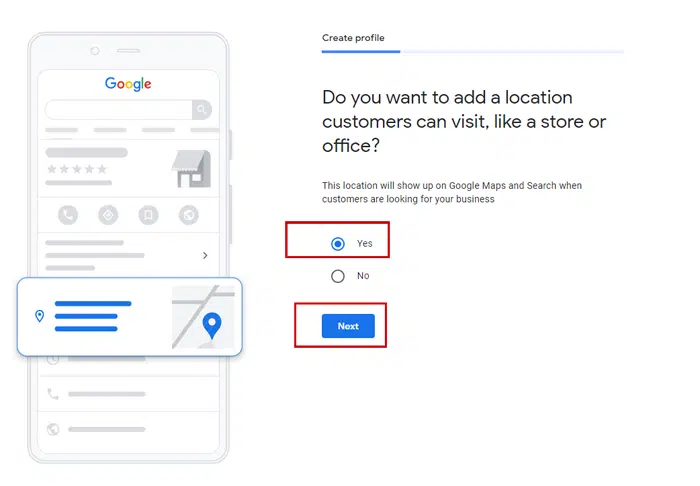
4. If you have a actual business location, store or office that accepts vistors, you will need to add it to by clicking Yes, if you choose no, you will be a service area business. In some cases, you will need to enter a address to show up on the map. Please remember that you have to follow Google’s content guidelines.
Add a business location
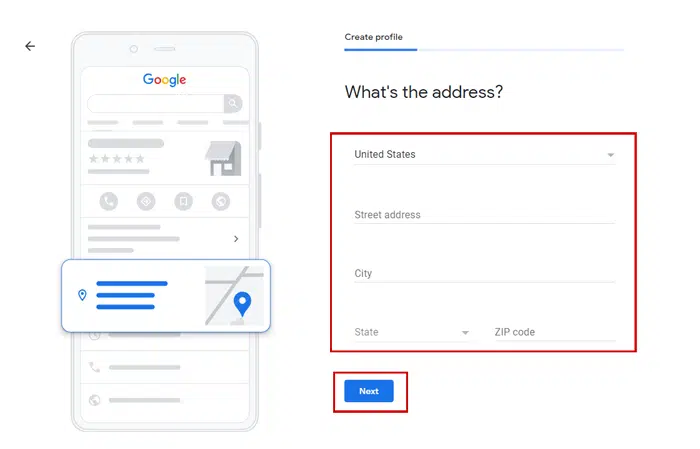
5. Enter the address of the business’ location here, then click next when you are done.
Add service area
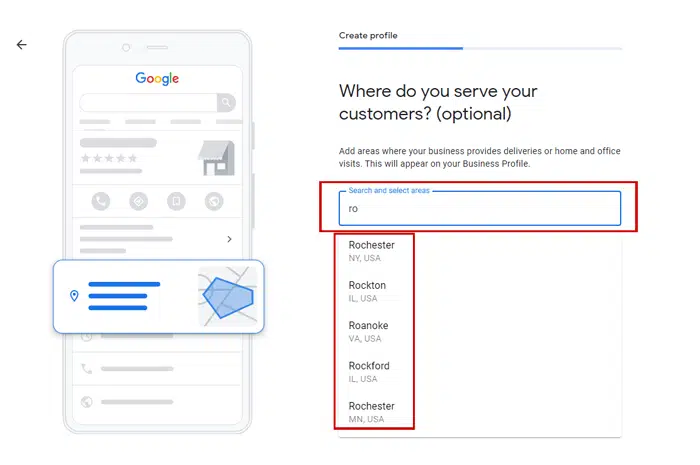
6. This part of the setup is optional, but if you have a service area, you will need to add the locations for your service area. Please remember that you have to add a list of locations that will form a ring of locations that represent the geographic area that you service.
You will need to add a maximum of 20 locations that form the boundary of the service area, these locations can be a maximum of 2 hours or 100 to 120 miles away from the office location when driving to and from the office location.
A location should be in a service area that is no more than 30 to 35 miles from the city center. The locations will then be listed below the text field that you have to type the location name.
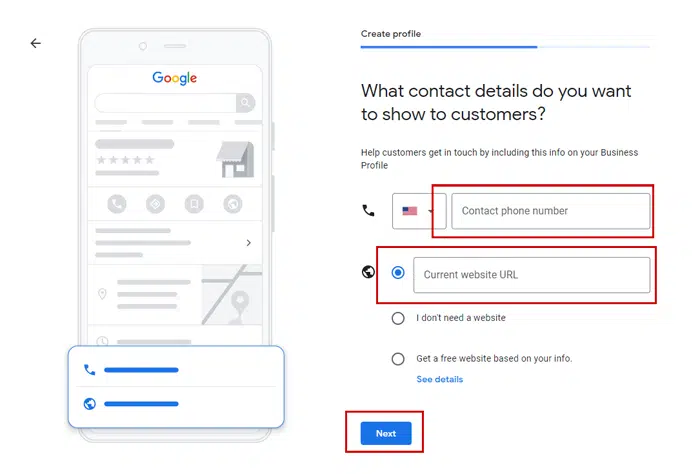
7. The business’ contact information has be entered here, you will need to provide a phone number, and a website URL, or just choose “you don’t need a website” if you dont want to enter a URL.
Re-enter your address
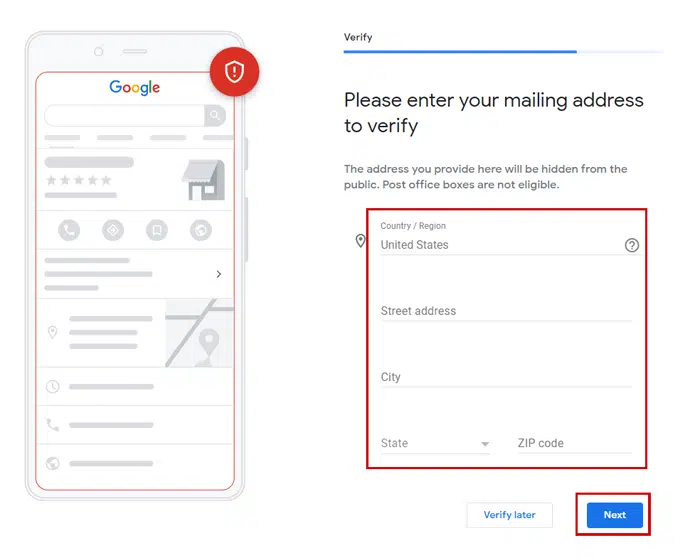
8. You will need to re-enter your mailing address, Google will send you a post card in the mail with a pin code that you will have to enter into the profile page to confirm that the location is real. Your profile will not be active until the pin code is entered, and your location is verified.
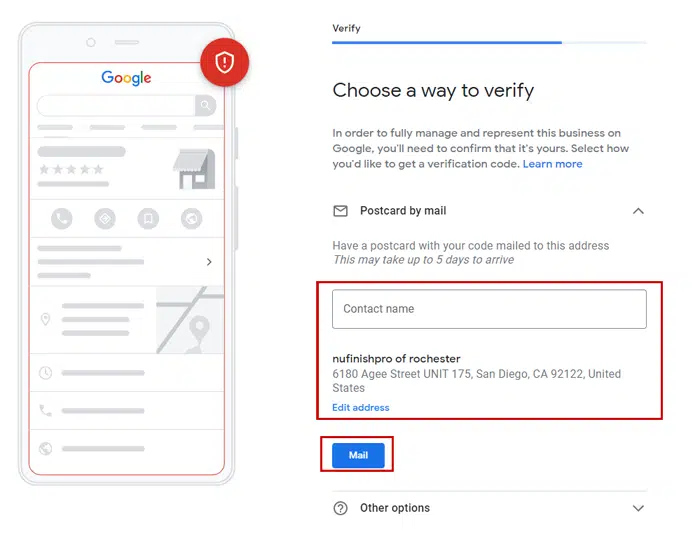
Confirm the mailing address
9. If someone specifcally has to receive the post card. Enter their name and confirm the mailing address.
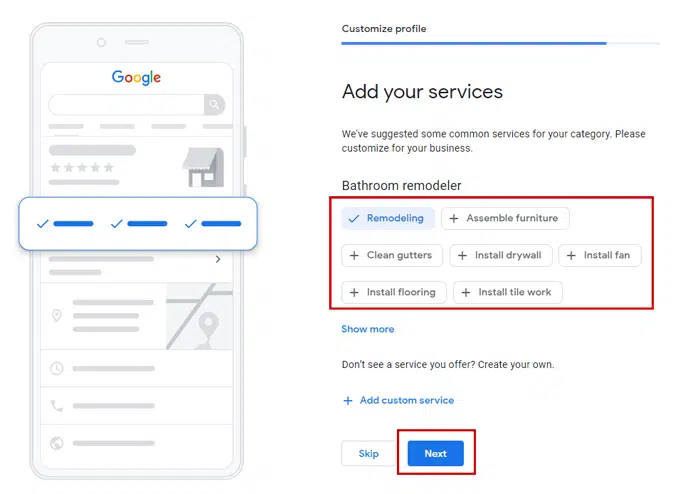
Add business services
10. Google will make suggestions on what services that you are offering, you can choose one, and add addtional services later when your profile has been setup.
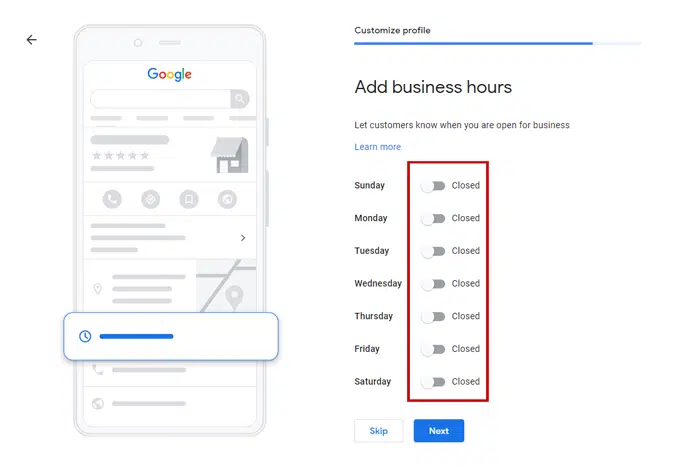
Provide your business hours
11. Does your business have business hours? Enter them here, click on the slider button, to activate the day, and enter the opening and closing hours.
Do you allow questions?
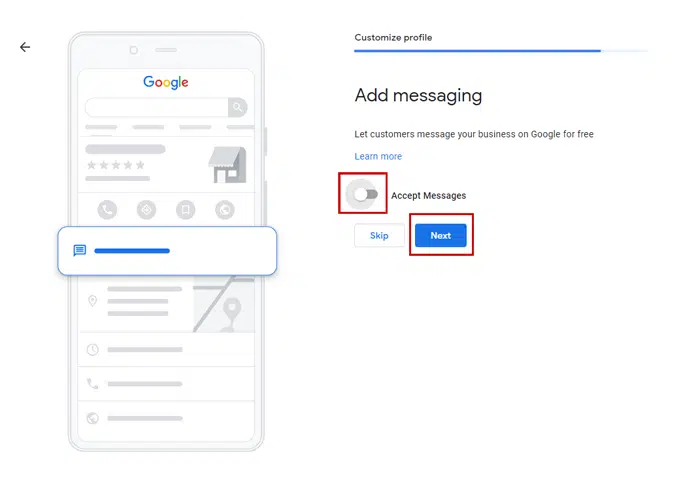
12. If you turn this item on, the visitor will be able to send the business location a message.
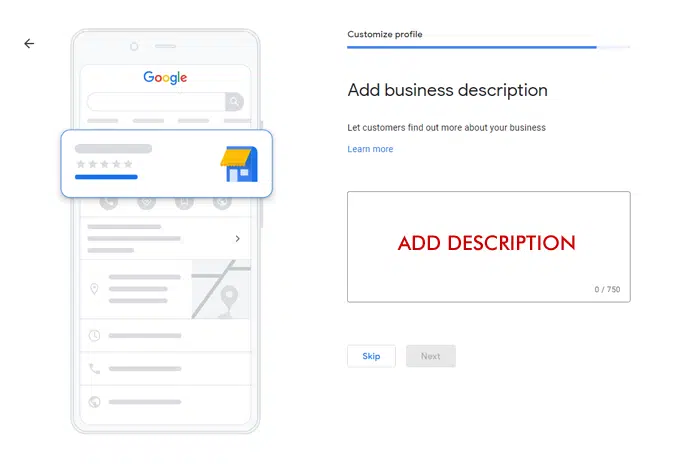
Explain what you do
13. You will need to explain what your business does, so enter a business description that is no more than 750 characters.
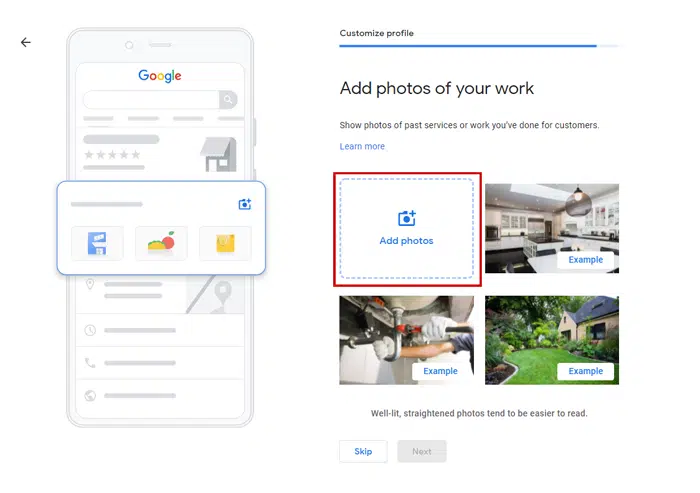
Provide photos and videos
14. Your business photos, logo and videos are all uploaded here, you will need to assign the logo, interior image, exterior image and other locations.
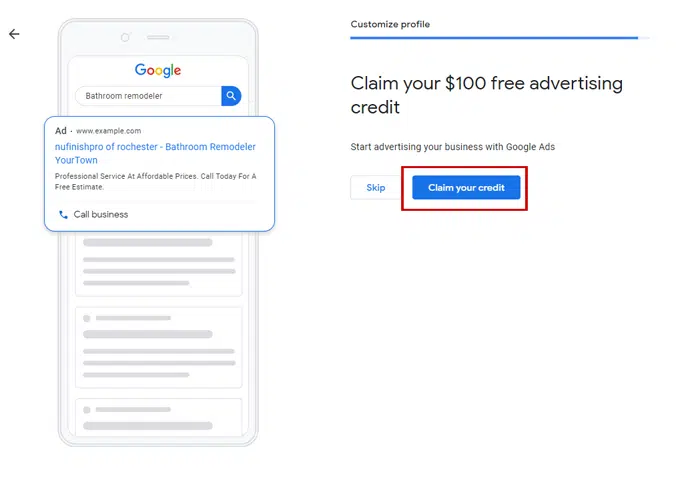
Claim your ad credit
15. If you want, you can claime a $100 Google Ads credit.
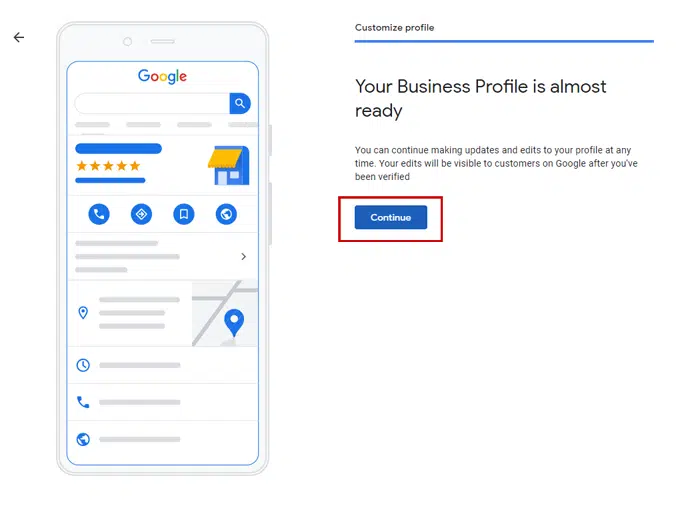
16. Just click continue to advance to the next step.
Check your business profile
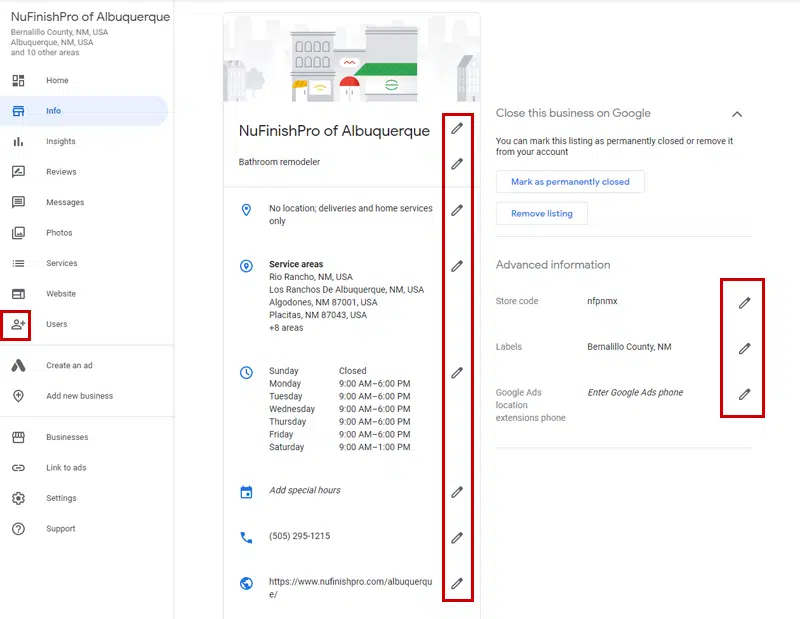
17. Once your business profile is done, it will look like this, you will see all of the information presents on the page, you can click on the other parts of the profile to view more specific information.
18. Another important thing you need to do is to add additional users. You will need to add the Gmail or Google Account of the additional user. Click on “User” to go to the next step.
Add additional users
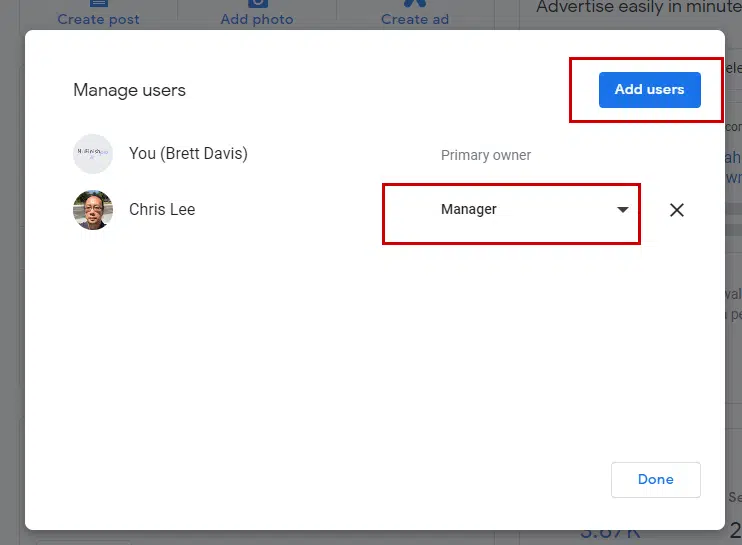
19. Click on the “Add user” button to add the person’s email address and assign them a role, they can be a owner, manager, or editor. The new user needs to accept the invitation before they can become active.
You’re finished now
20. Your Google Business Profiles Profile will become active once you’ve finish setting up your profile.