
Nextdoor: Owner profile settings.

Your Profile Settings
Updated the profile settings and owner contact information.
Nextdoor has two different types of profile information, public and private. The Profile settings are where your private phone number, email address, login information, business category, type of notification, and Privacy settings are located. Secondly, the profile settings are where you change the account password. Finally, when you set up a business profile.
There are two different types of contact information, public and private information. In the settings menu, we are dealing with the information that is private. Also, verify your account with your phone number and email address. Nextdoor will use this information to contact you directly, you can’t advertise and will have to submit some business credentials if you don’t have a phone number and email in this part of the profile.
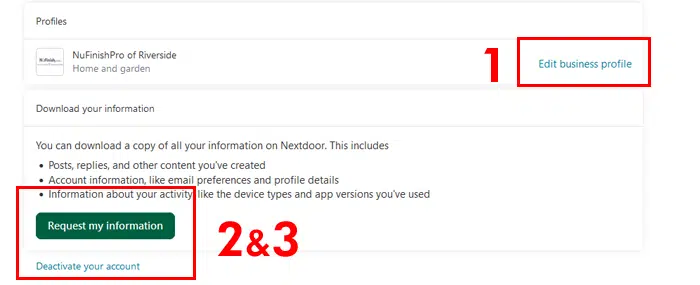
If you want, you can also submit a request for your profile’s information, to do this just click on the “Request my information” button to begin the process.
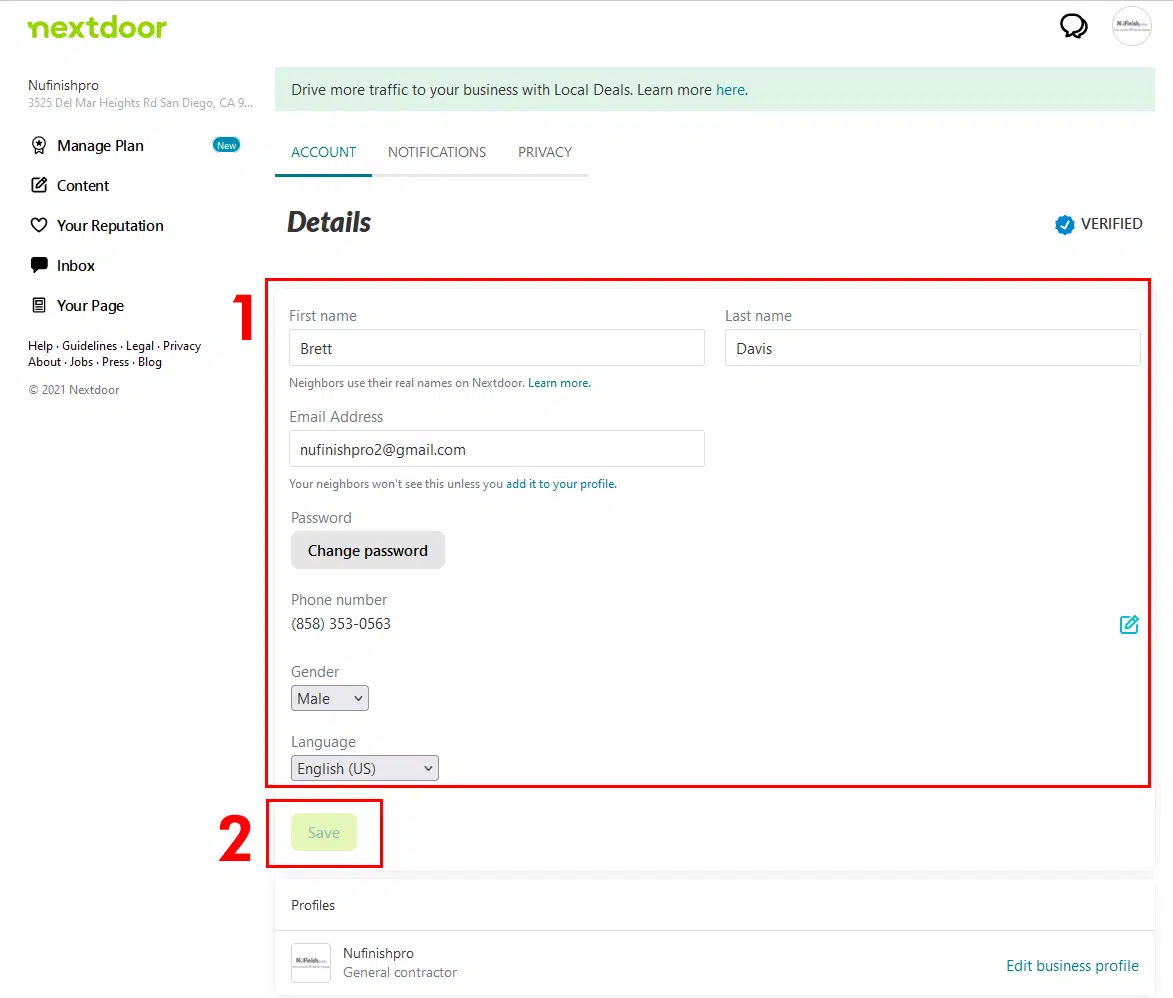
Account Settings
If you want to add an additional business location, you can do it in the drop-down menu’s settings. If you need to verify the account, this is the place where you will verify the business’ contact information. This is important since you will not be allowed to sponsor zip codes or give local deals before you can verify your business.
- The account tab has the owner’s business details, you can change the name, email address, password, phone number, gender, and language.
- Finally, click on “Save” to apply the changes.
Notifications
- Farther down the page there are two settings, one allows you to edit the profile. The “Edit business profile” link will send you the business profile dashboard to edit the profile information.
- Over time, your profile will collect a lot of information. You can submit a request to get the information that has been stored in your account. Then, click on the “Download” to get your information.
- If you want, deactivate your account on Next Door by clicking on the slider further down the page.
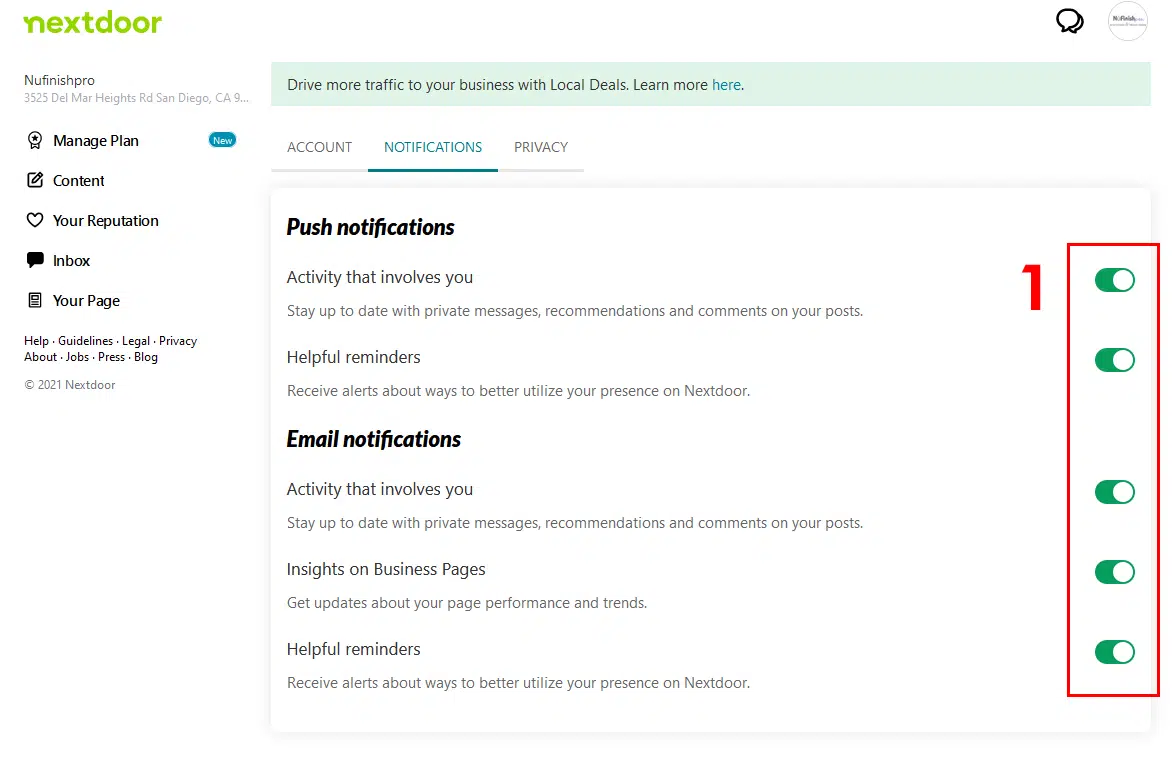
The second tab contains all notification settings, you can turn them on and off as you wish. Plus, both push notifications and email notifications settings are stored here. Finally, all you have to do is click on the slider next to each option to turn off each notification.
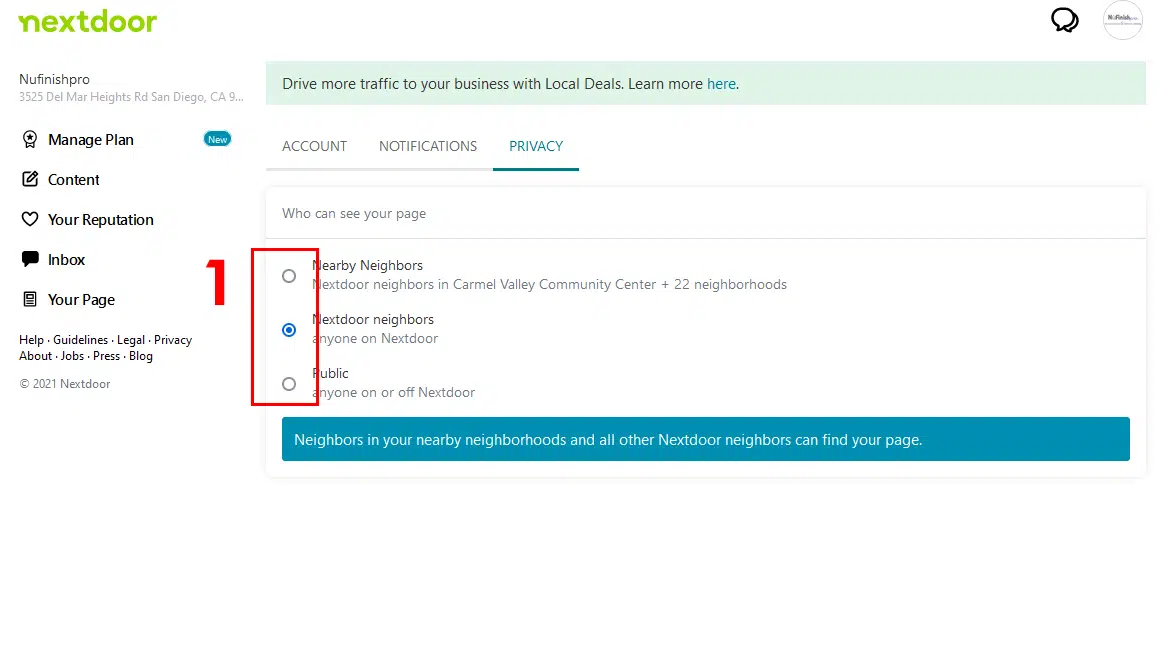
Privacy
This tab controls who is able to see your profile, you can only allow people in a certain neighborhood, all of Nextdoor or everyone to see the profile.
Useful Links
Manage Business Settings
https://help.nextdoor.com/s/article/How-to-Manage-your-settings?language=en_US
Using real names
https://help.nextdoor.com/s/article/About-using-real-names?language=en_US